🏆Leaderboard
See how your order volume ranks against other Shippified workspaces this week, this month and all time, how levels work, and how to join or leave the rankings.
- Written for
- Anyone curious how they rank, or wondering who can see their numbers
- Applies to
- All plans
- Deprecated
- + Deprecated
The Leaderboard ranks Shippified workspaces by how many orders they've had: over the last week, the last month, or all time. It also shows your own level, a tier name such as Rookie or Operator that grows with your lifetime order count. Only workspaces that choose to share their stats are listed. Your own row is always visible to you, so you can see where you'd land without anyone else seeing you.
Before you start
You need to be signed in. The leaderboard isn't visible to people without a Shippified account.
To be listed where other people can see you, turn on Include my checkouts in public stats in Settings → Profile. It's off by default. See Join or leave the leaderboard.
Open the leaderboard
- Open Leaderboard
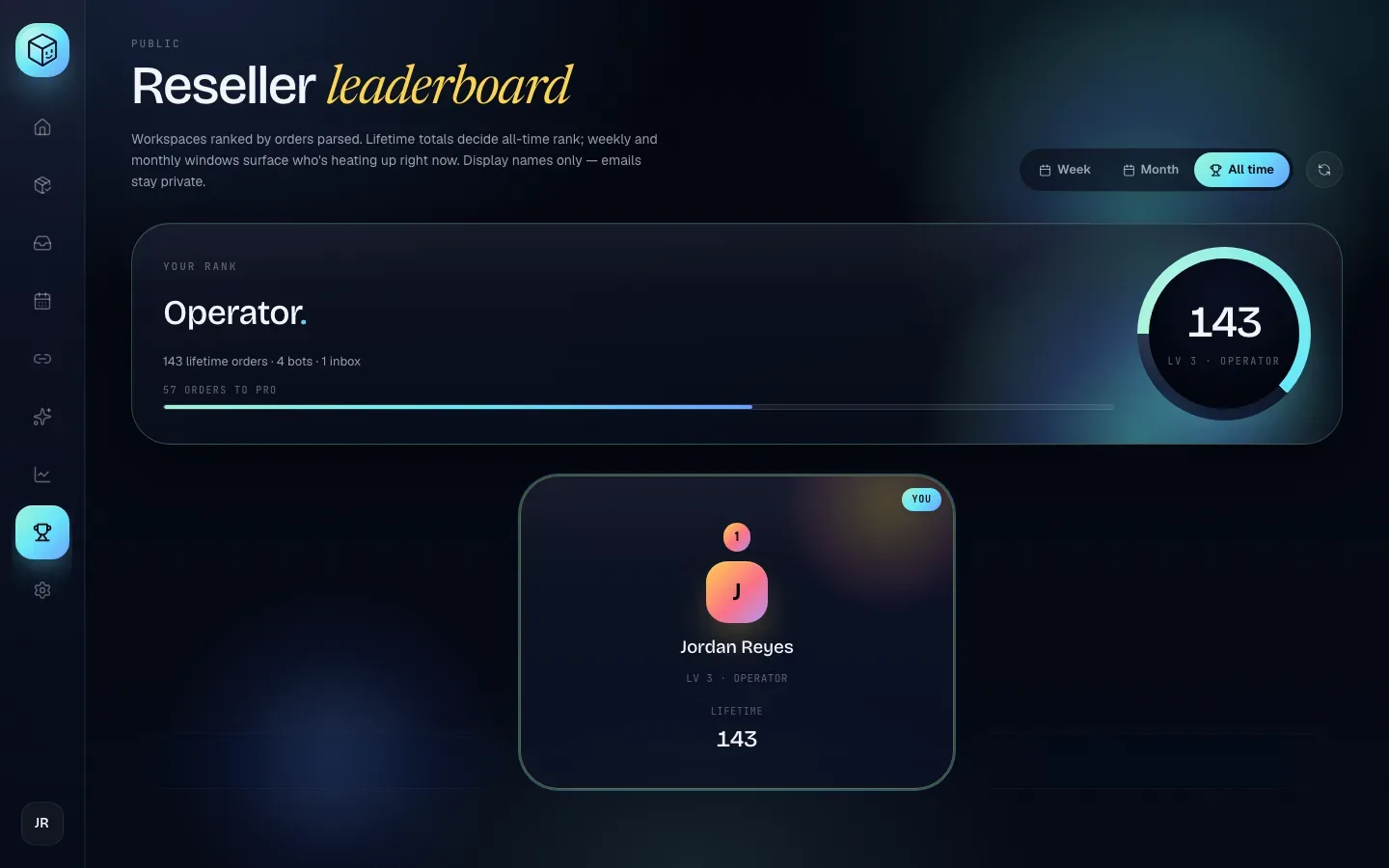
In the sidebar, click Leaderboard (the trophy icon). It opens on All time.
- Pick a timeframe
At the top right, click Week, Month or All time. The rankings reload for that timeframe. Each has its own address (
/leaderboard/week,/leaderboard/monthand/leaderboard/all), so you can bookmark one.
The rankings are worked out when you open the page or switch timeframe. To see the very latest, click the round-arrow Refresh button next to the timeframes.
Timeframes and how rank is worked out
Every workspace's orders are counted, and workspaces are sorted from most to fewest:
Timeframe | Ranked by | If two workspaces tie |
|---|---|---|
Week | Orders received in the last 7 days, counting back from now | The one with more lifetime orders goes first |
Month | Orders received in the last 30 days, counting back from now | The one with more lifetime orders goes first |
All time | Lifetime orders | They're listed one after the other, each with its own rank number |
Week and Month are rolling windows, not calendar weeks or months. On the rows they're labelled This week and This month.
What counts as an order:
Every order in the workspace, whatever its status. Canceled orders and orders that need review count too.
Each order once. Quantity doesn't matter: an order of 3 units counts as 1.
By the date it was received. That's the date shown as Received in the order drawer, or the Order date you entered for a manual order.
Deleted orders don't count. If you delete orders or merge duplicates, your count goes down.
The rank chip on your public profile, such as #3 of 40, uses the All time ranking.
Reading the page
Your rank
The Your rank card at the top is about you, and only you see it.
Part | What it shows |
|---|---|
Heading | Your tier name, such as Operator. Before your first order, it says Parse your first order. |
Summary line | Your lifetime orders, number of bots and number of inboxes, for example |
Progress bar | How far you are through your current tier, with the orders still needed, for example 57 orders to Pro. At the top tier it says Legend tier · cap reached. |
Ring on the right | Your lifetime order count with your level, such as Lv 3 · Operator, and a ring showing tier progress. Before your first order it shows no level yet. |
If you haven't finished setting up, the card also lists the steps still to do:
Create your first bot webhook
Connect an email source
Parse a real order
Click Resume guided setup → to go back to the setup wizard. Each step disappears from the list once it's done. See Quickstart.
The podium and Rank 4+
Under your card, the top three workspaces for the chosen timeframe stand on a podium, with first place in the middle. Everyone from fourth place down is listed under Rank 4+.
Each entry shows:
Part | What it shows |
|---|---|
Rank number | Position in this timeframe |
Initial and name | The workspace name. If a workspace has none, its username is shown instead. |
Level | For example Lv 3 · Operator, based on lifetime orders |
Count | For All time: Lifetime orders. For Week or Month: the orders in that window, with Lifetime next to it. |
You tag | Marks your own entry |
Click an entry to open that workspace's public profile. Entries whose owner has turned Public profile off can't be clicked. (Whether a workspace is listed at all depends on its public stats, not on Public profile.) See Sharing and public profiles.
Levels
Your level depends only on your lifetime order count. Settings, bots and inboxes don't change it.
Level | Tier | Lifetime orders |
|---|---|---|
0 | Awaiting first order | 0 |
1 | Bootstrapped | 1–9 |
2 | Rookie | 10–49 |
3 | Operator | 50–199 |
4 | Pro | 200–499 |
5 | Veteran | 500–1,499 |
6 | Legend | 1,500 or more |
The progress bar measures how far you are between your tier's threshold and the next one. For example, with 143 orders you're an Operator (50+), 93 of the 150 orders toward Pro (200), so the bar is 62% full and shows 57 orders to Pro.
Because levels come from lifetime orders, a level can go down if you delete orders.
A level reveals roughly how many orders you've had. That's why your level is only shown to other people when your public stats are on.
Who appears on the leaderboard
Workspace | Seen by others? | Seen by its owner? |
|---|---|---|
Public stats on | Yes | Yes |
Public stats off | No | Yes, their own row only, marked You |
When your public stats are off, the leaderboard you see is the public one plus you, ranked as if you were in it. Nobody else sees your row, and other people's rank numbers don't count you.
Workspaces with public stats on are listed even with 0 orders.
Join or leave the leaderboard
- Open Settings → Profile
In the sidebar, click Settings. The Profile tab opens.
- Switch public stats on or off
In the Workspace section, click Include my checkouts in public stats. The change saves and takes effect immediately.
- Check the result
Open Leaderboard again. Your row is always there for you. Other people see it only while the switch is on.
Turning public stats on also shows your counts, level and retailer mix on your public profile, and includes your checkouts in Shippified's community features in its Discord. Read Public stats beyond your profile before switching it on.
Privacy
What other people can see about you on the leaderboard, when your public stats are on:
Your workspace name (or your username, if you haven't set a workspace name).
Your level and tier.
Your order counts: lifetime, and for the last week or month.
A link to your profile, if Public profile is on.
What the leaderboard never shows: your email address, item names, stores, prices, spend, sale prices, profit, order numbers or tracking numbers.
Your workspace name is what people see. If it's your real name and you'd rather it weren't, change it under Workspace name in Settings → Profile before turning public stats on. It can be anything up to 48 characters.
Troubleshooting
I'm on the leaderboard, but my friend says they can't see me
You see your own row even with public stats off. Turn on Include my checkouts in public stats in Settings → Profile so others can see you.
My weekly count went down without me deleting anything
Week and Month are rolling: they count the last 7 or 30 days from right now. Orders older than that drop out as time passes.
My count is lower than the number of checkouts I've had
Only orders in Shippified count. Checkouts that never reached Shippified, or that were merged into another order because they had the same order number, aren't counted separately. Check Analytics to see where your orders come from.
The page says "No rankings yet"
That message appears when the rankings couldn't be loaded. Click Refresh or reload the page, and check that you're still signed in.
I can't click a workspace on the leaderboard
Its owner has turned Public profile off, so there's no public page to open.