🔗Sharing and public profiles
Create share cards of your stats and checkouts, set up your public profile at /u/your-username, and control exactly what other people can see.
- Written for
- Anyone who wants to show their results, or wants to know what's public
- Applies to
- All plans
- Deprecated
- + Deprecated
Shippified gives you two ways to show your results to other people. A share card is a snapshot of your spending and checkouts for a timeframe you choose, with its own link and image, ready to post in Discord or on X. Your public profile is a live page at shippified.net/u/<your-username> that shows your workspace name and, if you opt in, your order counts and level. This page covers both, plus the settings that control them and a full list of what is and isn't ever made public.
Nothing about your workspace is public until you create a share card or someone opens your profile address. Even then, order numbers, tracking numbers, addresses, customer names, sale prices and your email are never shown. See What is and isn't public.
Share cards
A share card is calculated once, at the moment you create it, and never changes afterwards. New orders, edits and deleted orders don't affect it. To show newer numbers, create a new card.
Create a share card
- Open the share dialog
Use either of these:
On Home, click Share in the header.
Click your initials at the bottom of the sidebar and choose Create share.
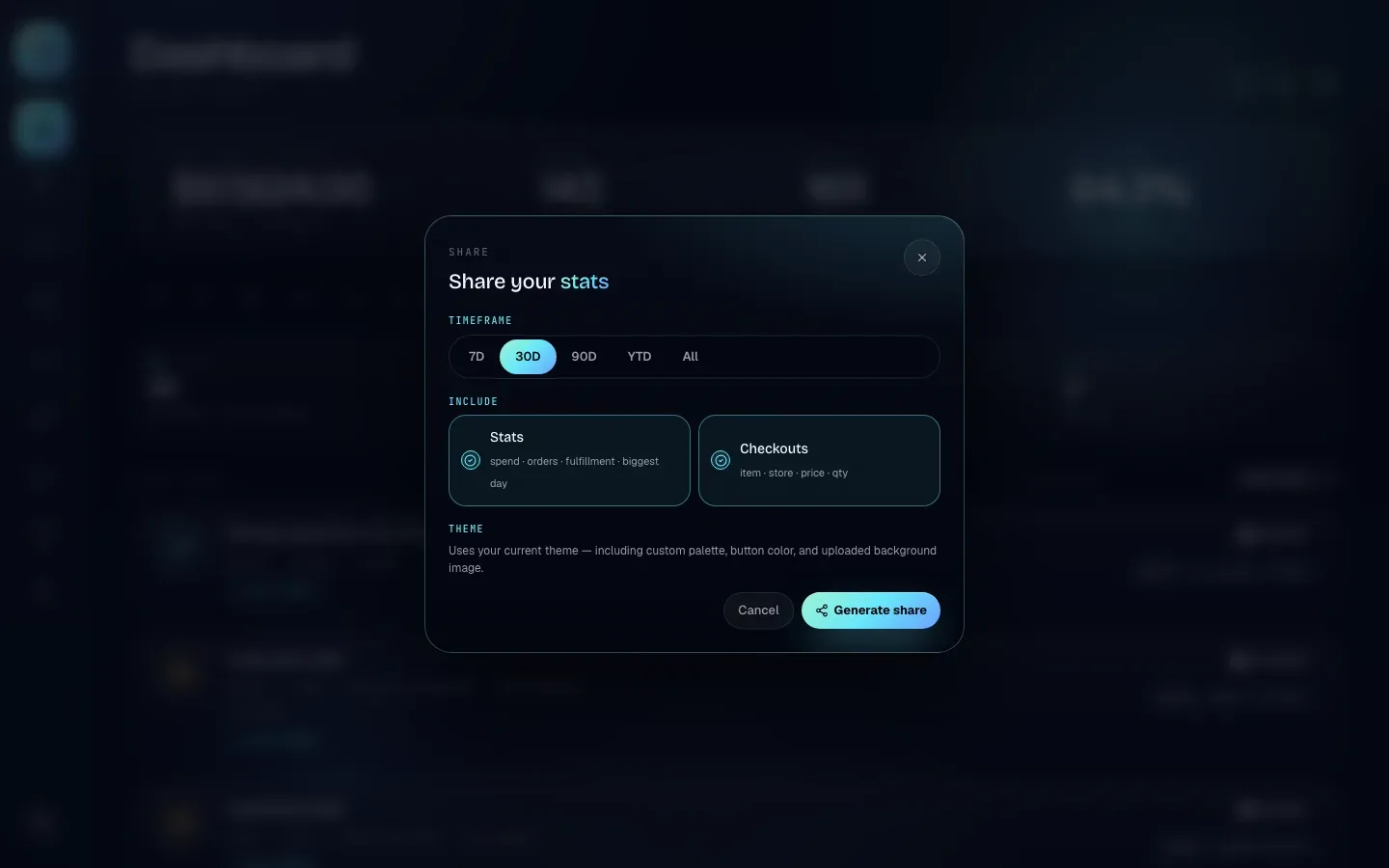
The Share your stats dialog opens.
- Pick a timeframe
Under Timeframe, click one of the options. The default is 30D.
7D — Received in the last 7 days (counting back from now)
30D — Received in the last 30 days
90D — Received in the last 90 days
YTD — Received since January 1 of this year (UTC)
All — Every order you have
- Choose what to include
Under Include, both options start switched on. Click one to switch it off. You need at least one; with both off, Generate share is greyed out.
Stats (spend · orders · fulfillment · biggest day): four headline numbers.
Checkouts (item · store · price · qty): a list of the items you bought.
- Check the theme
The Theme section explains that the card uses your theme. The card takes the colours of whichever theme is active in this browser when you click Generate share. With a preset such as Mint Console or Sunset, the card uses that preset's colours and has no background image. With Custom, it uses your Primary, Accent and Deep colours, your button colour, and your Background image if you uploaded one. To change it, pick a theme in Settings → Profile → Appearance first. See Settings.
- Generate it
Click Generate share. The button shows Generating… for a moment, then the dialog shows a preview of the card image and its link. If the card can't be created, the dialog shows the error instead.
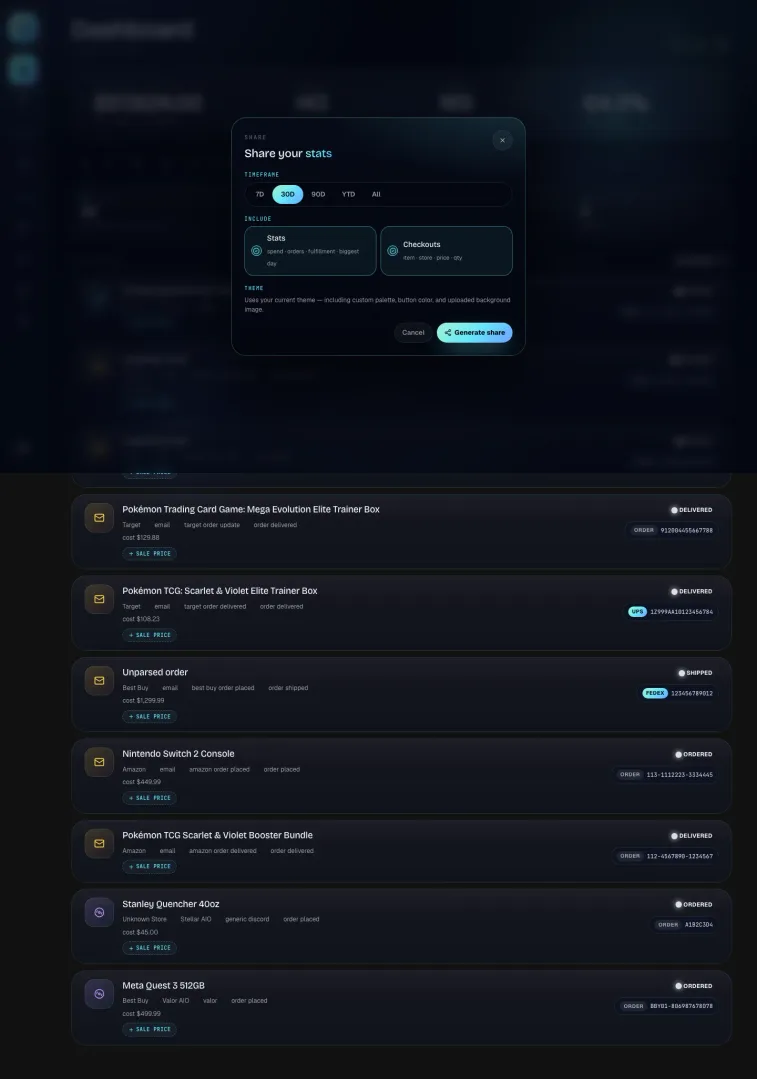
Once the card is ready, the dialog has four buttons:
Button | What it does |
|---|---|
Copy link | Copies the card's page address. The button shows Copied for a moment. |
Open | Opens the card's page in a new tab |
PNG | Downloads the card as an image named |
Make another | Goes back to the options so you can create a different card. The one you just made stays live. |
Close the dialog with the × in its corner, by clicking outside it, or with Cancel before generating.
What a share card shows
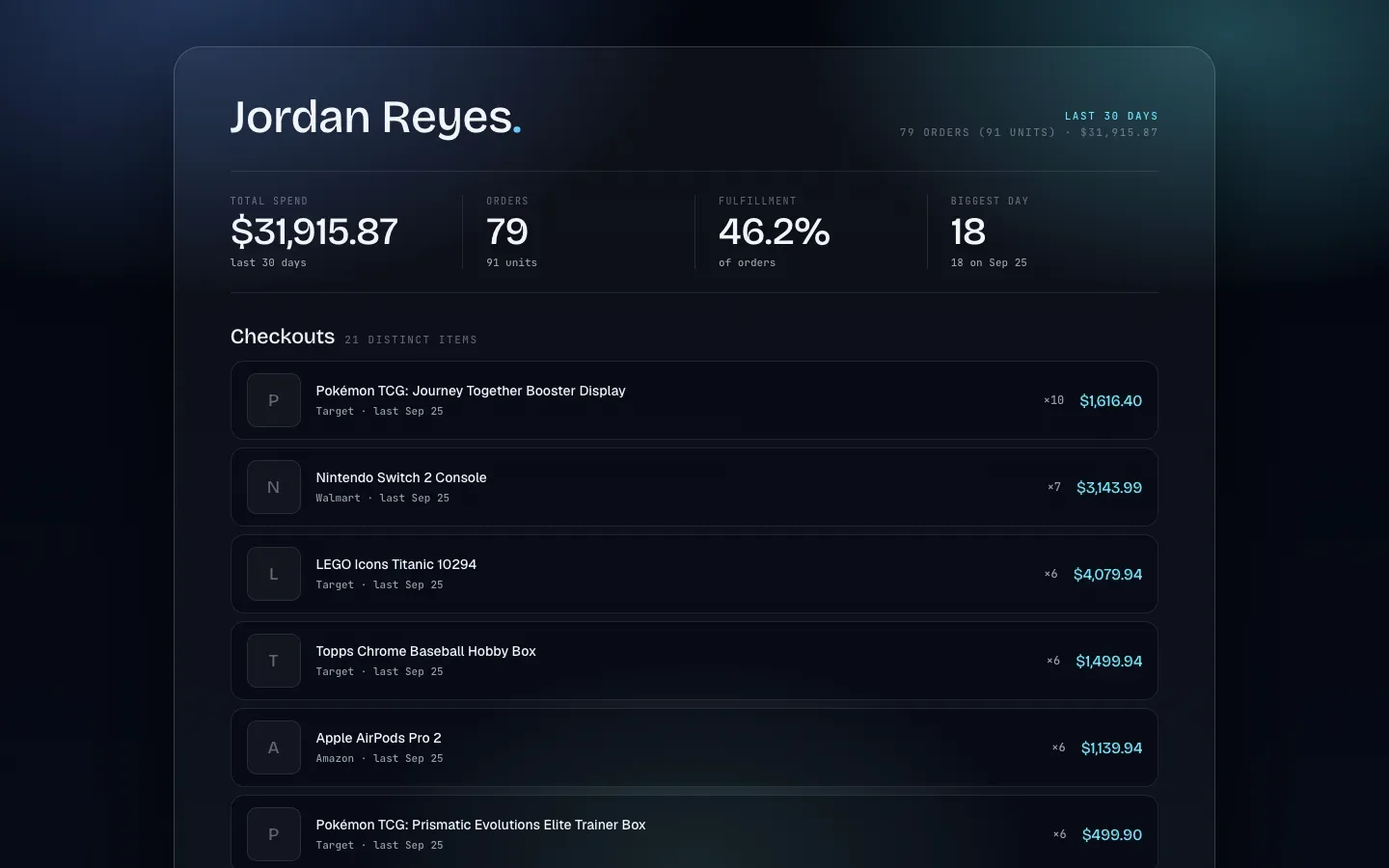
Always shown, whatever you include:
Your workspace name, as it was when you created the card.
The timeframe, such as Last 30 days, Last 90 days, Year to date or All time.
A summary line with the order count and units (when different), for example
79 orders (91 units). With Stats on, it also shows your total spend:79 orders (91 units) · $31,915.87.
Spend is part of Stats. With Stats switched off, your spend doesn't appear anywhere on the card: not on its page, its PNG image or the link preview.
With Stats:
Stat | What it shows |
|---|---|
Total spend | What you paid for the orders in the timeframe. For each order: its cost, or, if it has none, the item price or order total from the message. Sale prices are never used. |
Orders | Number of orders. Underneath: the number of units if that's different, otherwise how many were delivered. |
Fulfillment | Delivered orders as a percentage of orders, to one decimal place. Canceled orders are left out because they'll never be delivered. |
Biggest day | The most orders received on a single day (UTC), and the date, for example |
With Checkouts:
Orders for the same item name are combined into one row, even across stores. The store shown is the one from the most recent order.
×Nis the number of orders for that item, not units.The price is the total you paid across those orders, using the same rule as Total spend. It shows
—when none of those orders has a price.The date shows when you last bought it, for example
last Sep 25.Rows are sorted by number of orders, then by total spent. The heading counts them, for example 21 distinct items.
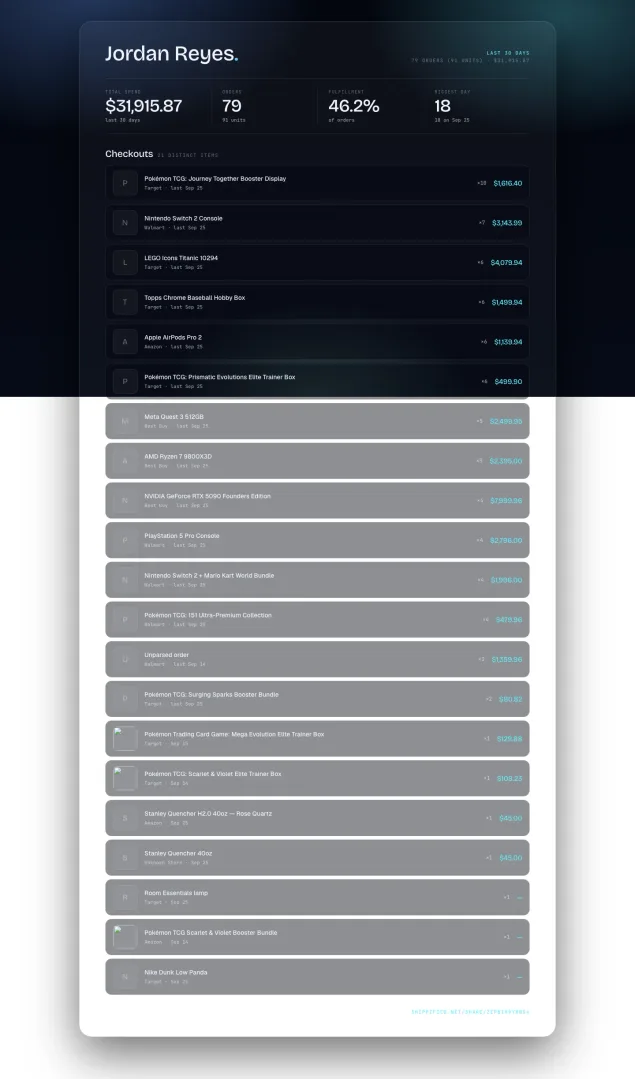
The card's page lists up to 24 items and then says how many more there are, such as
+ 3 more items. The PNG image fits up to 20.A product picture appears when the order has one; otherwise the item's first letter.
Share cards never include sale prices, profit, order numbers or tracking numbers, so posting one doesn't reveal your margins.
Where a share card lives
Each card gets a random, hard-to-guess code, and two public addresses:
Page:
https://shippified.net/share/<code>. Anyone with the link can open it without signing in. When you paste it into Discord, X or another app that shows link previews, the preview uses the card image and a title such as "Jordan Reyes's last 30 days on Shippified".Image:
https://shippified.net/share/<code>/image.png, the same card as a PNG, 1200 pixels wide.
Cards aren't listed anywhere public. People can only find one if you give them the link.
Manage and delete share cards
Every card you create is listed in Settings → Profile → My shares, newest first. Each row shows:
A thumbnail of the card (click it to open the page).
The timeframe, such as Last 30 days.
The order count, total spend and what it includes, for example
79 orders · $31915.87 · stats + checkouts. This list is only visible to you; the spend shows here even for cards made without Stats.When you created it.
The buttons on the right are Copy link, Open, and Revoke share (the red trash icon).
- Open My shares
In the sidebar, click Settings, stay on the Profile tab, and scroll to My shares.
- Revoke the card
Click the trash icon on the card's row. It's removed straight away, with no confirmation step.
After you revoke a card, its page shows "This share doesn't exist or has been revoked." and its image address returns "Not found".
Revoking is permanent: you can't bring a card back, only create a new one with a new link. It also can't pull back copies that already exist, such as a PNG someone downloaded or a preview Discord has already saved. Browsers and link previews may keep showing a cached copy for a while.
Deleting an order doesn't change share cards you already made; they keep their snapshot. Deleting your account deletes all your share cards.
Your public profile
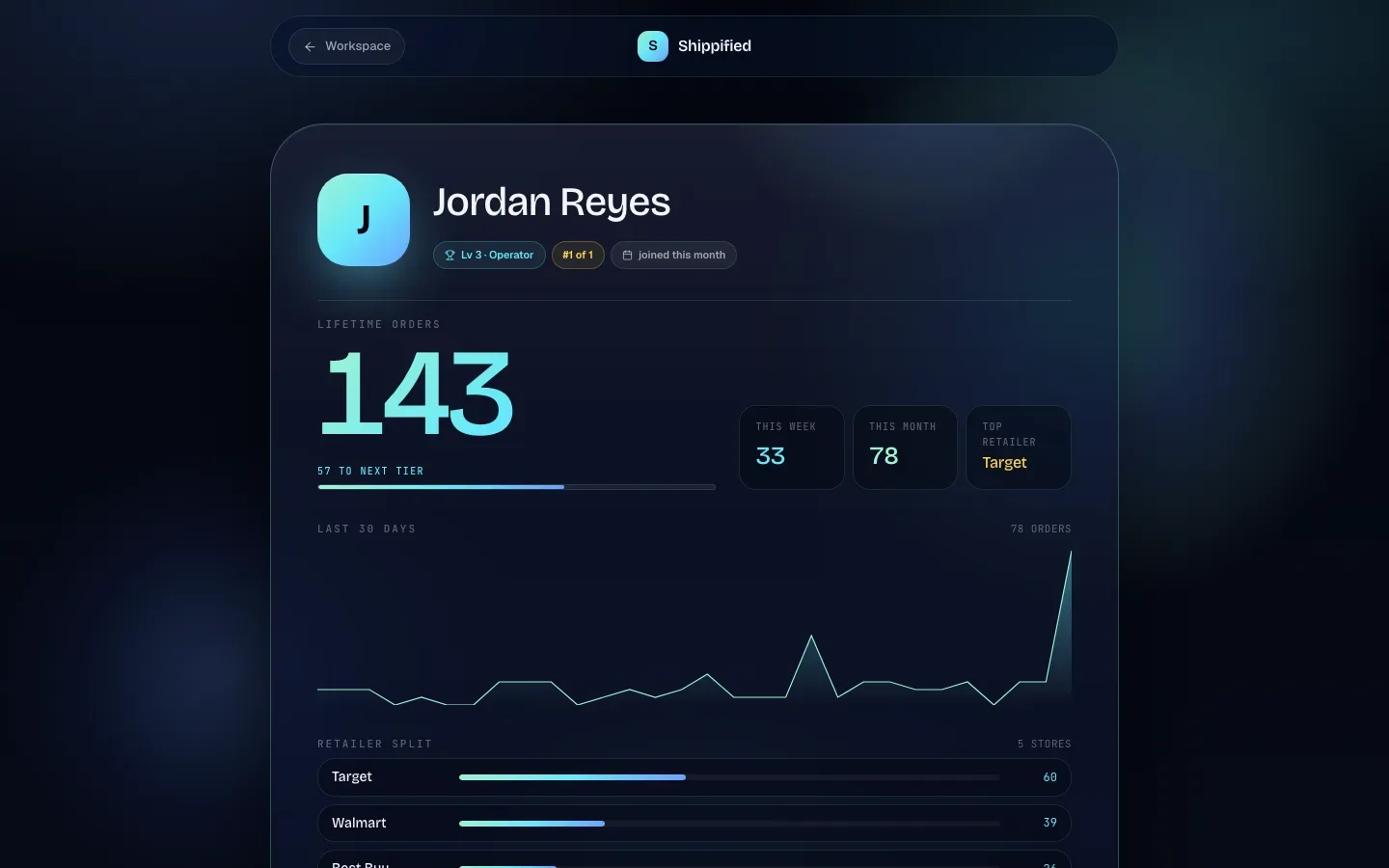
Your public profile lives at https://shippified.net/u/<your-username>. It's a live page: unlike share cards, it always shows your current numbers.
Set up your username and workspace name
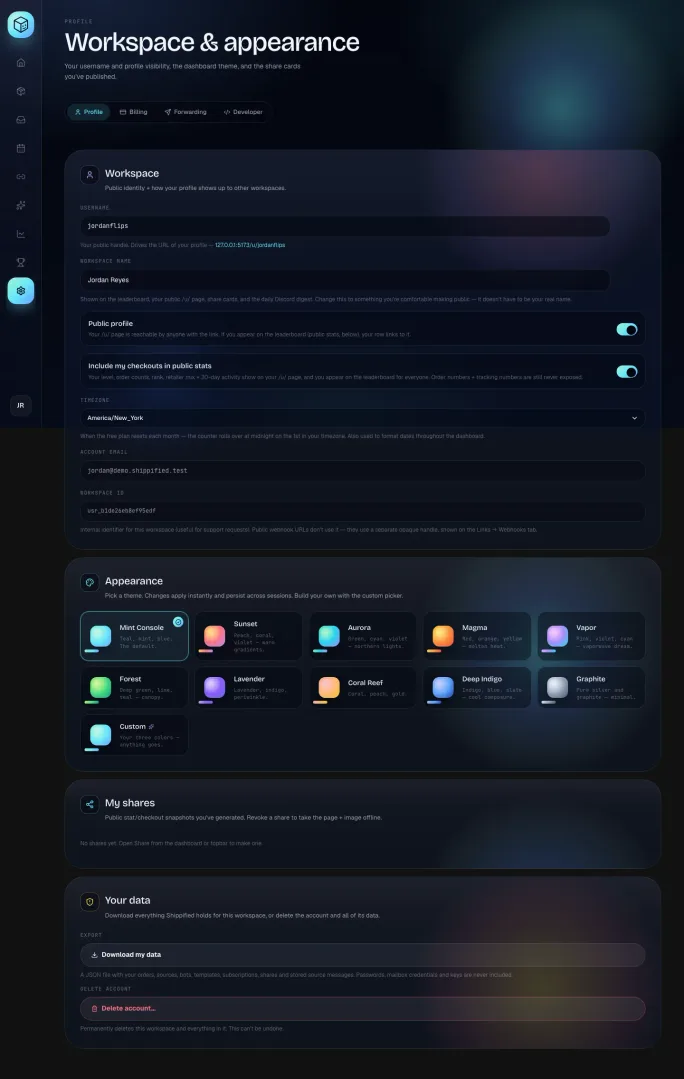
Both are in Settings → Profile, in the Workspace section.
- Choose a username
In Username, type the handle you want in your profile address. It must be 3–32 characters, using only lowercase letters
a–z, numbers0–9, dashes-and underscores_, can't start or end with a dash, and can't have two dashes in a row. Letters become lowercase as you type.As you type, the status next to the field shows Checking…, then Available, or the reason the name can't be used, such as "Use only lowercase a-z, 0-9, dashes, underscores.", "Already taken." or "That username is reserved."
- Save the username
Press Enter or click outside the field. The status shows Saving…, then Saved. The link under the field updates to your new address. A name that's invalid or taken isn't saved; fix it first.
- Set your workspace name
In Workspace name, type the name you want people to see, up to 48 characters. It appears on your profile, share cards, the leaderboard and Shippified's Discord digests. It doesn't have to be your real name. Press Enter or click outside the field to save.
Shippified gives every workspace a username automatically, based on its workspace name, so you have a profile address even if you never change it.
When you change your username, links to your old address stop working, and someone else can take the old name. Share cards aren't affected: they use their own /share/ links.
Some names are reserved and can't be used, including api, admin, settings, share, leaderboard, support and shippified.
Choose who can see your profile
Two switches in the Workspace section control your profile. They're independent.
Switch | Default | On | Off |
|---|---|---|---|
Public profile | On | "Your /u/ page is reachable by anyone with the link. If you appear on the leaderboard (public stats, below), your row links to it." | Anyone but you opening your address gets Profile not found. If you appear on the leaderboard, your row can't be clicked. |
Include my checkouts in public stats | Off | "Your level, order counts, rank, retailer mix + 30-day activity show on your /u/ page, and you appear on the leaderboard for everyone. Order numbers + tracking numbers are still never exposed." | Visitors to your profile see only your name and member-since date. Other people don't see you on the leaderboard; only you see your own position. |
Each switch saves as soon as you click it.
Public stats are off until you turn them on. Turning them on also lists you on the Leaderboard and includes your checkouts in Shippified's community features (see Public stats beyond your profile).
What your profile shows
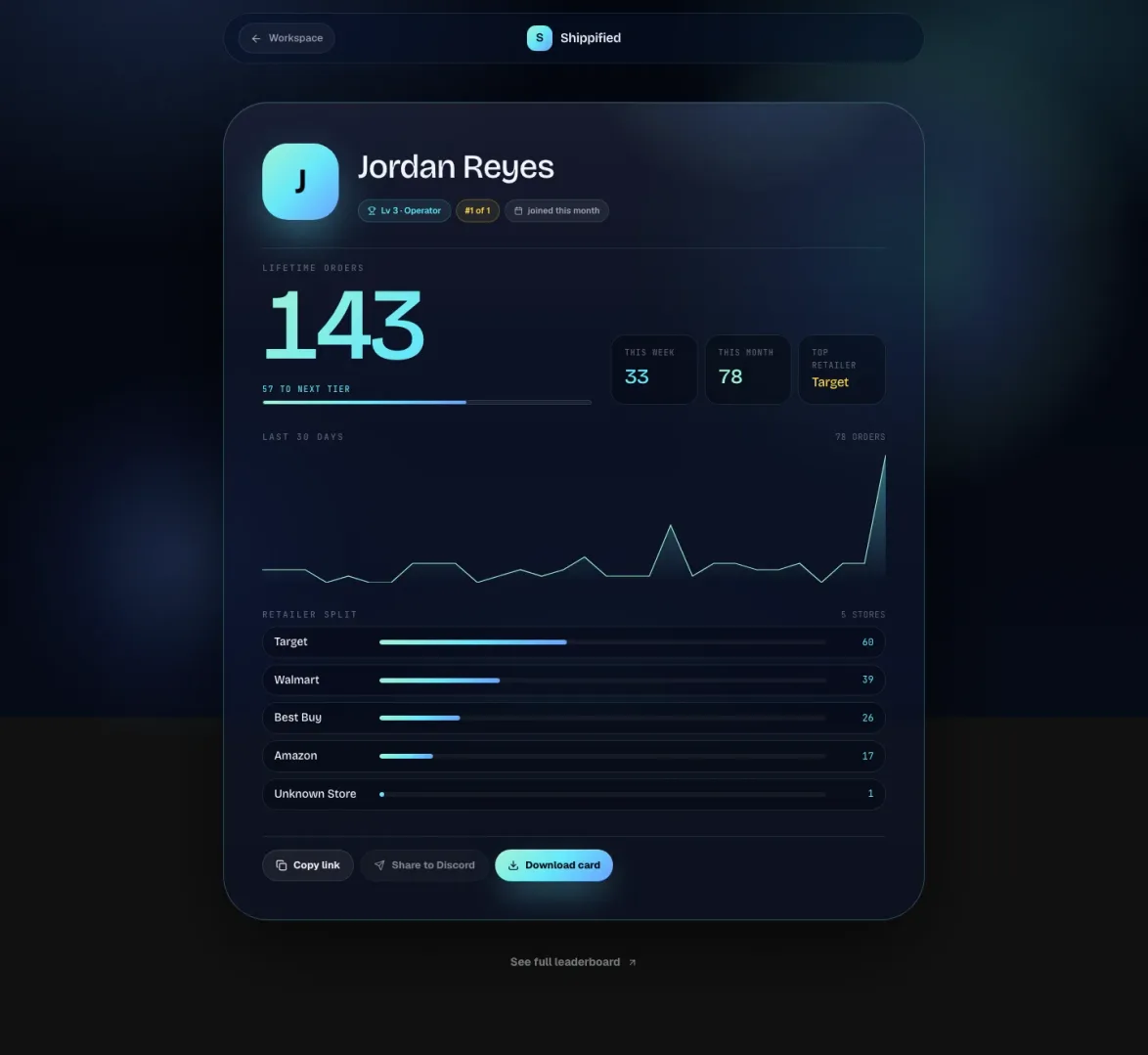
Part of the page | Public stats off | Public stats on |
|---|---|---|
Workspace name and initial | Shown | Shown |
Membership chip, such as joined this month or 5 months in | Shown | Shown |
Level chip, such as Lv 3 · Operator | Hidden | Shown |
Rank chip, such as #1 of 1 | Hidden | Shown once you have at least one order |
Lifetime orders and the N to next tier bar | 0, no bar | Shown |
This week (last 7 days) and This month (last 30 days) | 0 | Shown |
Top retailer | — | The store with the most orders |
Last 30 days chart | Flat, 0 orders | Orders per day over the last 30 days |
Retailer split | Hidden | Every store with its lifetime order count |
The rank is your position by lifetime orders among all workspaces that have public stats on, the same group the leaderboard's All time view ranks. Every order counts toward it, whatever its status. The level comes from your lifetime order count; see Levels.
When you're signed in, your own profile always shows you your full stats, and it opens even with Public profile off, so you can preview it. To see exactly what visitors see, open your address in a private window where you're not signed in.
Share your profile
Three buttons sit at the bottom of the profile:
Button | What it does |
|---|---|
Copy link | Copies the profile's address ( |
Share to Discord | Posts your profile to your Discord output webhook as a message from Shippified, with your lifetime, this week and this month counts, plus your level and global rank when they're shown. It's only active for the profile's owner, and only once an output webhook is set in Settings → Forwarding. Hover over it to see why it's greyed out. |
Download card | Saves a 1200 × 1500 image of your profile: name, level, lifetime orders, this week, this month, global rank (or top store), the 30-day chart and your profile address. It shows Card downloaded. |
Below the card, signed-in visitors see See full leaderboard. Visitors who aren't signed in see Get your own profile · Sign in, and a Sign in button at the top. The Workspace button (or Close for visitors) at the top left leaves the profile.
Public stats beyond your profile
Turning on Include my checkouts in public stats also includes your orders in Shippified's community features in its Discord server, when those are running:
Daily drop breakdown and drop leaderboard. Posts listing the items that landed that day across all opted-in workspaces, with unit counts, how many workspaces bought each item and the combined spend, which bots hit them, and a ranking of workspaces (by workspace name) for each bot.
Public monitor feed. Each checkout your bots receive is posted to a public feed channel as a short card: item name, store, the order total from the message and the product image. It's posted under the name Shippified, not your bot's name. Your monitor's original post is never copied, so order numbers, tracking numbers, profile names, emails and addresses from it aren't shared.
With public stats on, your item names, stores and order totals can appear in the public feed. If you'd rather keep even those private, leave public stats off. Share cards and your profile page still work without it.
What is and isn't public
Information | Share card | Public profile | Leaderboard |
|---|---|---|---|
Workspace name | Yes | Yes | Yes, with public stats on |
Username | No | In the address | In the profile link, when Public profile is on |
Order counts | Yes | With public stats on | With public stats on |
Level | No | With public stats on | With public stats on |
Item names | With Checkouts | No | No |
Store names | With Checkouts | With public stats on | No |
What you paid (spend) | With Stats | No | No |
Sale prices and profit | Never | Never | Never |
Order numbers and tracking numbers | Never | Never | Never |
Addresses and customer names | Never | Never | Never |
Your account email | Never | Never | Never |
Your orders, inbox, templates, bots, subscriptions, settings and API keys are never public.
Troubleshooting
My profile link says "Profile not found"
Either Public profile is off in Settings → Profile (you can still open your own profile while signed in; everyone else gets this message), or the username in the link is out of date because it was changed. Check the current address under Username in Settings.
Visitors see 0 orders and no level on my profile
Include my checkouts in public stats is off. You still see your own numbers when signed in, but visitors don't. Turn it on in Settings → Profile if you want them shown.
The username won't save
The name must be 3–32 characters of lowercase letters, numbers, - and _, can't start or end with a dash or contain --, and can't be reserved (such as admin or support) or taken. The status next to the field shows the reason, such as "Already taken." or "That username is reserved.", and nothing is saved until you fix it.
"Share to Discord" is greyed out
It's only available to the profile's owner, and only after you set an output webhook in Settings → Forwarding. Hover over the button to see which applies. You can always use Download card and post the image yourself.
"Share to Discord" says "Discord rejected (404)" or "Couldn't reach Discord webhook"
Discord refused or couldn't be reached at your output webhook address. The webhook may have been deleted in Discord. Create a new one and paste it into Settings → Forwarding.
My share card shows old numbers
Cards are snapshots taken when you click Generate share. Create a new card for current numbers, and revoke the old one in My shares if you don't want it online.
My share card doesn't use my theme's colours or background
The card uses the theme that's active in Settings → Profile → Appearance in the browser you create it from, at the moment you click Generate share. A background image is only used when Custom is the active theme; presets have none. Pick the theme you want, then generate a new card. Existing cards keep the theme they were made with.
Generate share shows an error
The card couldn't be created, and the dialog shows why. Check that at least one of Stats or Checkouts is on, reload the page to make sure you're still signed in, and try again.