🏠Use the Home dashboard
Read every number on the Dashboard, change its timeframe, find recent orders and share a snapshot of your stats.
- Written for
- Everyone: this is the first page you see after signing in
- Applies to
- All plans
- Deprecated
- + Deprecated
The Dashboard (the Home icon at the top of the sidebar) is your daily check-in: how much you've spent, how many orders you've placed, how many have arrived, and your latest orders. Everything on it comes from orders Shippified has already collected from your Discord bots, email inboxes and manual entries. There's nothing to set up.
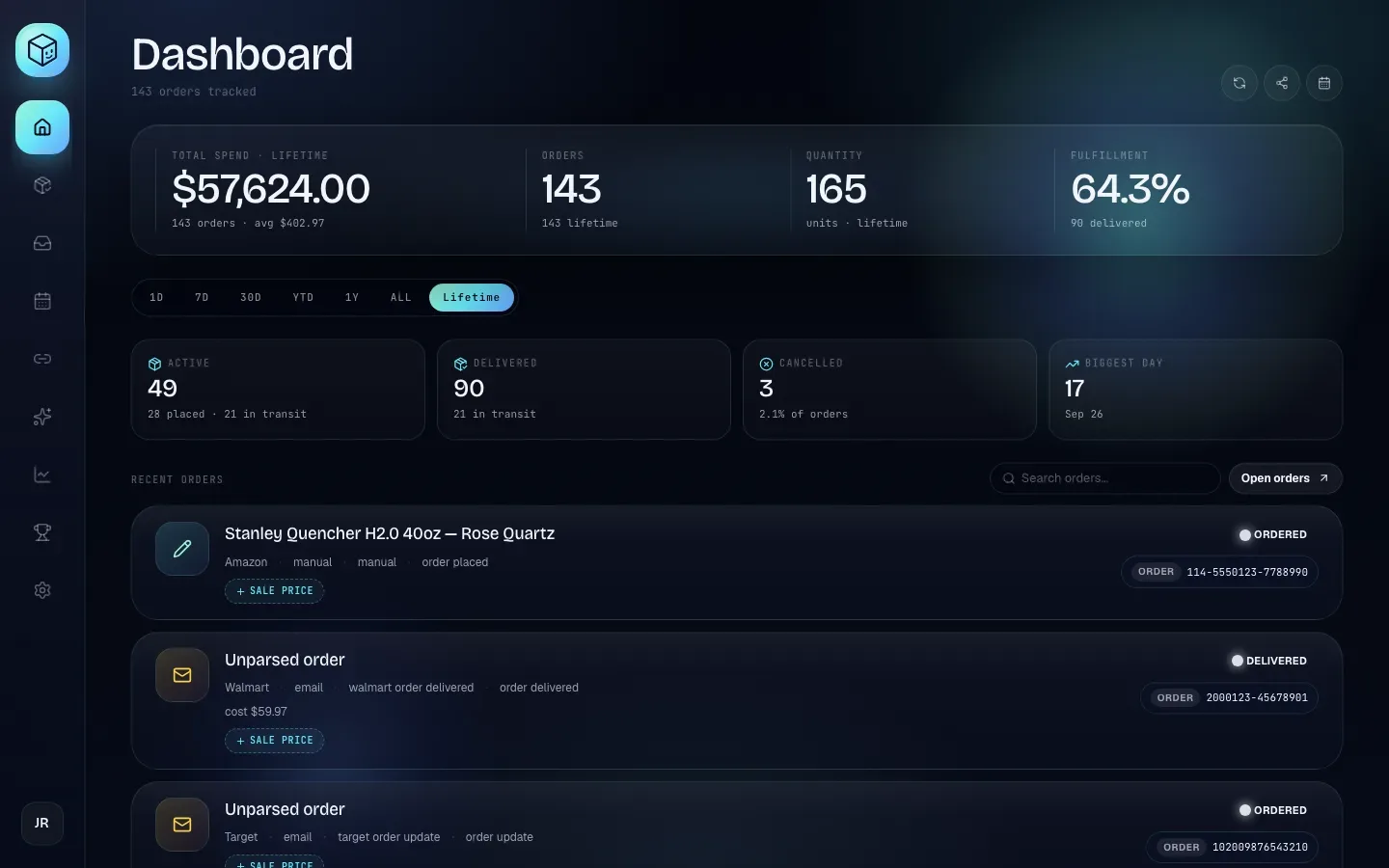
The page has five parts, from top to bottom:
The header, with your order count and three buttons.
The top band: Total spend, Orders, Quantity and Fulfillment.
The timeframe chips: 1D, 7D, 30D, YTD, 1Y, ALL and Lifetime.
Four tiles: Active, Delivered, Cancelled and Biggest day.
Recent orders, with a search box.
The header
Under the Dashboard title, a line such as 143 orders tracked shows how many orders you have in total.
On the right are three round buttons:
Button | What it does |
|---|---|
Refresh (circular arrows) | Reloads your orders and numbers from Shippified. The icon spins while it works. Use it when you've just received an order and it isn't showing yet. |
Share (three connected dots) | Opens Share your stats, which makes a public image and link of your numbers. See Share a snapshot of your stats. |
Open calendar (calendar) | Opens the Calendar. |
The Dashboard doesn't update itself while you look at it. It shows what was true when you opened the page or last clicked Refresh.
The "new orders" banner
If orders arrived since your last visit, a banner above the title says so, for example 3 new orders since your last visit, followed by the first few retailers or item names. Click Open orders to go to the Orders page, or the check mark to dismiss it. Either way, Shippified remembers now as your last visit. "Last visit" is remembered per browser, so a different browser or device starts fresh and won't show the banner until new orders arrive after that first visit.
Level-up message
Shippified gives you a level based on how many orders you've tracked in total. When you cross into a new level, a message says You're now followed by the level name. Dismiss it to continue. The levels are:
Level | Name | Orders tracked |
|---|---|---|
0 | Awaiting first order | 0 |
1 | Bootstrapped | 1 |
2 | Rookie | 10 |
3 | Operator | 50 |
4 | Pro | 200 |
5 | Veteran | 500 |
6 | Legend | 1,500 |
The same level appears on the Leaderboard.
The top band
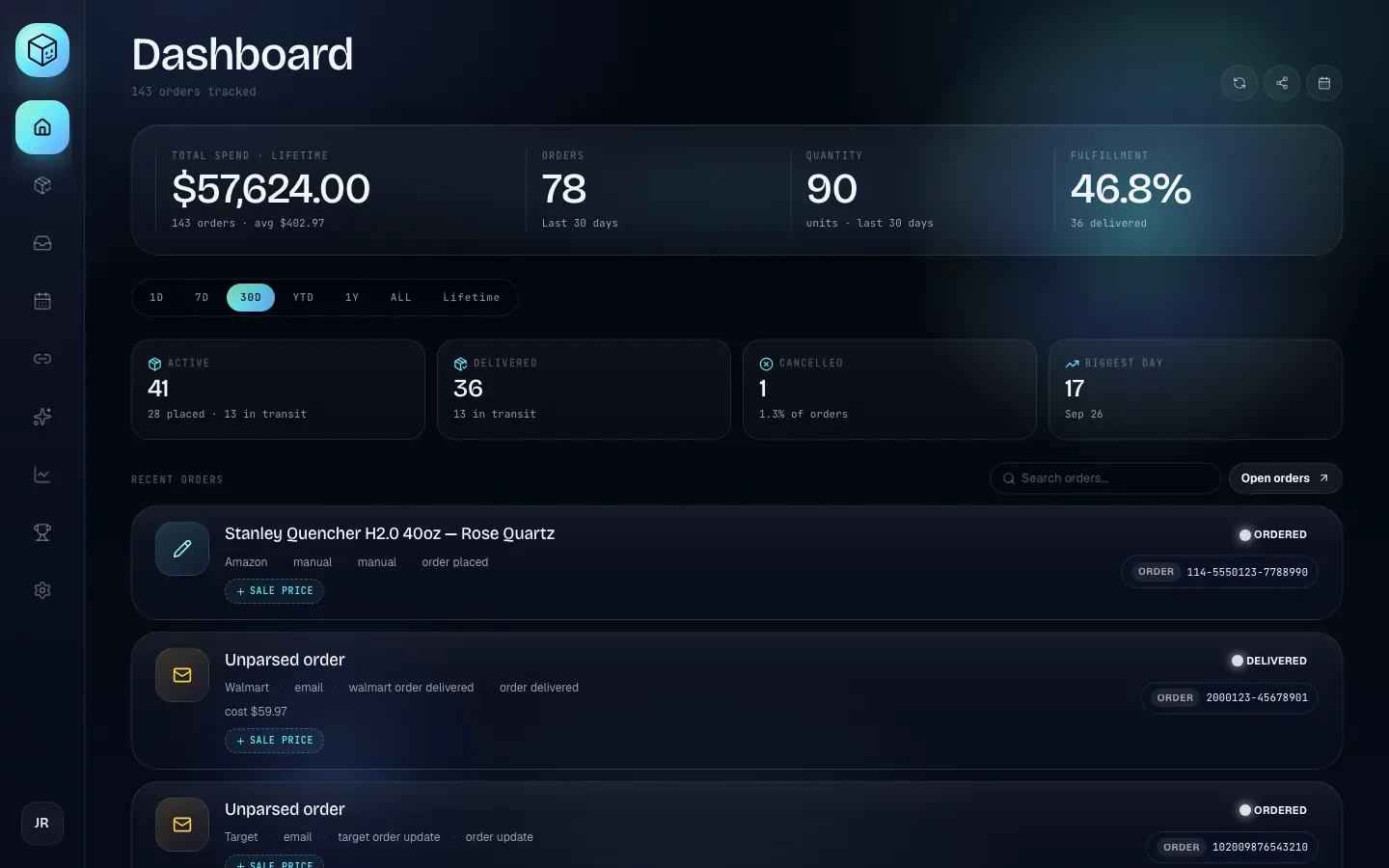
Tile | Big number | Line underneath | Changes with the timeframe? |
|---|---|---|---|
Total Spend · Lifetime | What you've paid across all your orders, with thousands separators (for example | Your total order count and the average spend per order, for example | No, always lifetime |
Orders | Orders in the chosen timeframe |
| Yes |
Quantity | Units in the timeframe |
| Yes |
Fulfillment | The share of orders in the timeframe that have been delivered | How many are delivered, for example | Yes |
How each one is worked out:
Total spend adds up what you paid for each order. For each order it uses the order's cost. If there's no cost, it uses the item price from the message, and if there's no price, the order total. Orders with no amount at all add nothing. Sale prices are never counted here, so recording a sale doesn't change it. For revenue and profit, see Costs, sale prices and profit.
Quantity adds up each order's quantity. An order whose quantity isn't known counts as 1. That's why Quantity can be higher than Orders: one order of "Qty 2" counts as one order and two units.
Fulfillment is delivered orders divided by all orders in the timeframe, as a percentage with one decimal place. Canceled orders are left out, because they'll never be delivered. An order counts as delivered when its status is Delivered, whether a delivery email or carrier tracking set it.
Choose a timeframe
The chips under the top band set the timeframe for Orders, Quantity, Fulfillment and the four tiles below. The Dashboard always opens on Lifetime.
Chip | Includes orders received… |
|---|---|
1D | In the last 24 hours (not "since midnight") |
7D | In the last 7 × 24 hours |
30D | In the last 30 × 24 hours |
YTD | Since midnight on January 1 of this year, in your own time zone |
1Y | In the last 365 days |
ALL | At any time |
Lifetime | At any time (the same orders as ALL) |
An order's date is when Shippified first received a message about it (for a manual order, the Order date you entered).
The chips don't change Total Spend or the Recent orders list.
The tiles
Tile | Number | Line underneath |
|---|---|---|
Active | Orders still on their way to you: status Ordered or Shipped | How many are placed (Ordered) and how many in transit (Shipped), for example |
Delivered | Orders with status Delivered | How many are in transit (status Shipped), for example |
Cancelled | Orders with status Canceled | Their share of all orders in the timeframe, with one decimal, for example |
Biggest day | The most orders received on a single day | That day's date, for example |
All four follow the timeframe chips. Orders with the Issue status (Shippified couldn't identify the store or the item) aren't counted in Active, Delivered or Cancelled.
Biggest day groups orders by calendar day in UTC (Coordinated Universal Time, the world reference clock). If you're far from UTC, an order you placed late in the evening may count towards the next day. If two days tie, the earlier one found is shown.
Recent orders
The list at the bottom shows your 10 most recent orders, newest first, whatever timeframe is selected.
Search orders… searches all your orders, not just the 10 shown or the timeframe. It matches the retailer name, item name, tracking number, order number, template or parser name, and bot name. It shows up to 10 matches.
Open orders goes to the full Orders page, with filters and every order.
Click an order to open its details drawer. See Order details.
If nothing matches, you'll see No orders found. If you haven't connected any bot or inbox yet, it adds a connect a source → link to Links. Otherwise it says orders will appear once a webhook fires or an email is imported.
Reading an order card
Each order is a card. From left to right:
The icon shows where the order came from: the bot's avatar (Discord orders), an envelope (email) or a pencil (added by hand).
The middle shows:
The item name in bold. "Unparsed order" means Shippified couldn't find the item name in the message.
A line with the retailer (or "Unknown Store"), the bot name or source (
email,manual), the template that read the message (for exampletarget order delivered, orgeneric discordwhen no template matched), and the event from the latest message (order placed,order shipped,order update,order delivered,order canceledorunknown).If known, a second line with the cost (
cost $59.97, or the raw price from the message), SKU, Size, and Open link → to the product page.The sale price line (see below).
The right side shows:
Badge | Meaning |
|---|---|
2× confirmed (with a check mark) | The order was seen through more than one channel, for example both a Discord bot and an email. Hover it to see which. |
Status: ORDERED, SHIPPED, DELIVERED, CANCELED or ISSUE | The order's current status. See How orders move through statuses. |
A carrier and a tracking number, such as UPS | The order has a tracking number. The carrier label shows Track if the carrier isn't known. |
ORDER and a number | No tracking number yet, so the order number is shown instead. |
Needs review | The order has neither a tracking number nor an order number. |
Record a sale price
A sale price is what you sold the item for. Shippified uses it to work out profit.
- Open the sale price box
On an order card, click + SALE PRICE. A box with a
$sign appears. - Enter the amount
Type what you sold it for, for example
189.99. Negative numbers aren't accepted. - Save
Press Enter or click Save. To back out, press Escape or click the ×.
After saving, the card shows sale $189.99 and a profit chip: green +$X profit or red −$X profit, which is the sale price minus the order's cost. Click the sale line to change it, or click Clear in the box to remove it.
To remove a sale price, use Clear. Saving an empty box just closes it without changing anything.
Sale prices never change Total Spend. They're used on the profit pages.
Share a snapshot of your stats
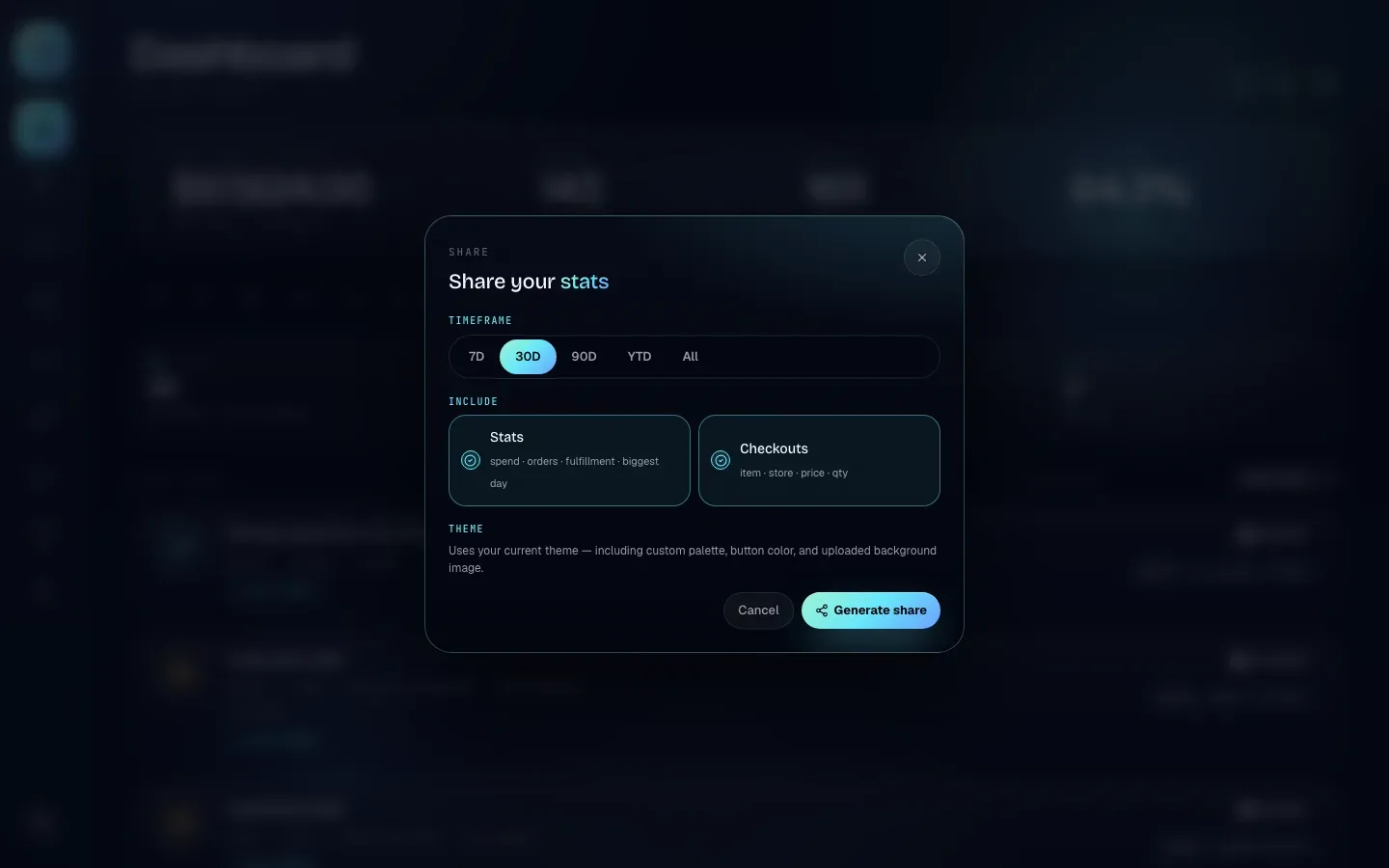
Share makes a picture of your numbers plus a public web page to go with it, for posting in Discord or on social media.
- Open the dialog
Click the Share button at the top right of the Dashboard.
- Choose a timeframe
Under Timeframe, pick 7D, 30D (the default), 90D, YTD or All. This is separate from the Dashboard's chips.
- Choose what to include
Under Include, both options start switched on. Click one to switch it off:
Stats: spend · orders · fulfillment · biggest day.
Checkouts: item · store · price · qty.
At least one must stay on, or Generate share is greyed out.
- Check the theme
Under Theme: the card uses your current theme, including a custom palette, button colour and uploaded background image. To change it, change your theme first (see Settings).
- Generate
Click Generate share. It shows Generating… and then a preview of the image with its link underneath.
With the result on screen:
Button | What it does |
|---|---|
Copy link | Copies the link. The button shows Copied for a moment. |
Open | Opens the share page in a new tab. |
PNG | Downloads the image. |
Make another | Goes back to the options to make a different one. |
Anyone with the link can see the page and image, without signing in. A share is a snapshot: it shows your numbers and theme as they were when you clicked Generate share and doesn't update later.
For managing and deleting shares, and public profiles, see Sharing and public profiles.
Troubleshooting
A new order isn't on the Dashboard
Click Refresh. If it's still missing, check the bot's activity log or your inbox connection: see Connect Discord monitor bots and Connect an email inbox.
Total spend is lower than I expected
Orders with no cost, price or total add nothing. They often show "Unparsed order" or have no cost line on their card. Open the order and fill in the missing cost (see Order details), or build a custom template so future messages are read properly.
Quantity is higher than Orders
That's expected when some orders are for more than one unit. Quantity counts units, Orders counts orders.
Fulfillment looks low
Fulfillment only counts orders whose status is Delivered. If your retailers don't send delivery emails and a package has no live tracking, its order stays Shipped. See Shipment tracking.
Biggest day shows tomorrow's date, or a different day from what I expected
Days are counted in UTC. Orders placed in the evening in the Americas (or early morning in Asia and Australia) fall on the neighbouring UTC day.
ALL and Lifetime show the same numbers
They include the same orders. Use either.
Nothing happens when I click Generate share
Make sure at least one of Stats or Checkouts is switched on. If both are on and the button returns to Generate share without a preview, try again. If it keeps failing, reload the page.