🧑💻Developer tools
Create and revoke API keys, send workspace events to your own URL with outbound webhooks, and find your Embed Copier submission URL.
- Written for
- Anyone connecting Shippified to another tool, from no-code automations to custom code
- Applies to
- All plans
- Deprecated
- + Deprecated
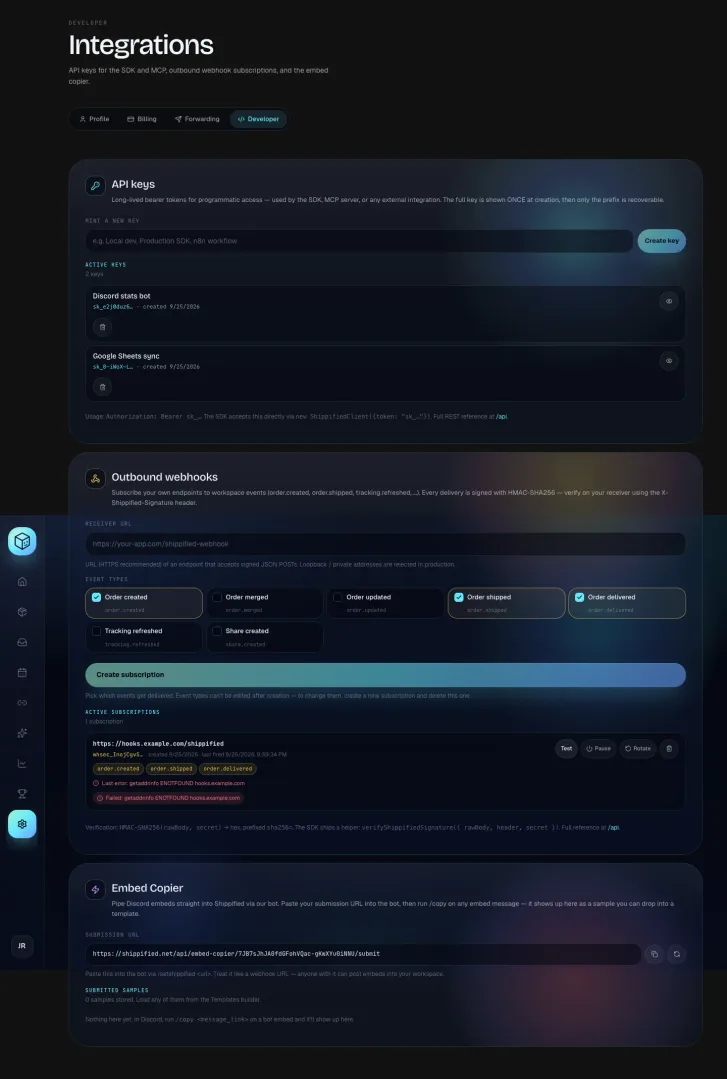
The Developer tab in Settings is where you connect Shippified to other software. You don't have to be a programmer to use it: if a tool such as an automation service, a spreadsheet add-on or an AI assistant asks for a "Shippified API key" or a "webhook URL", this is where you get or enter it.
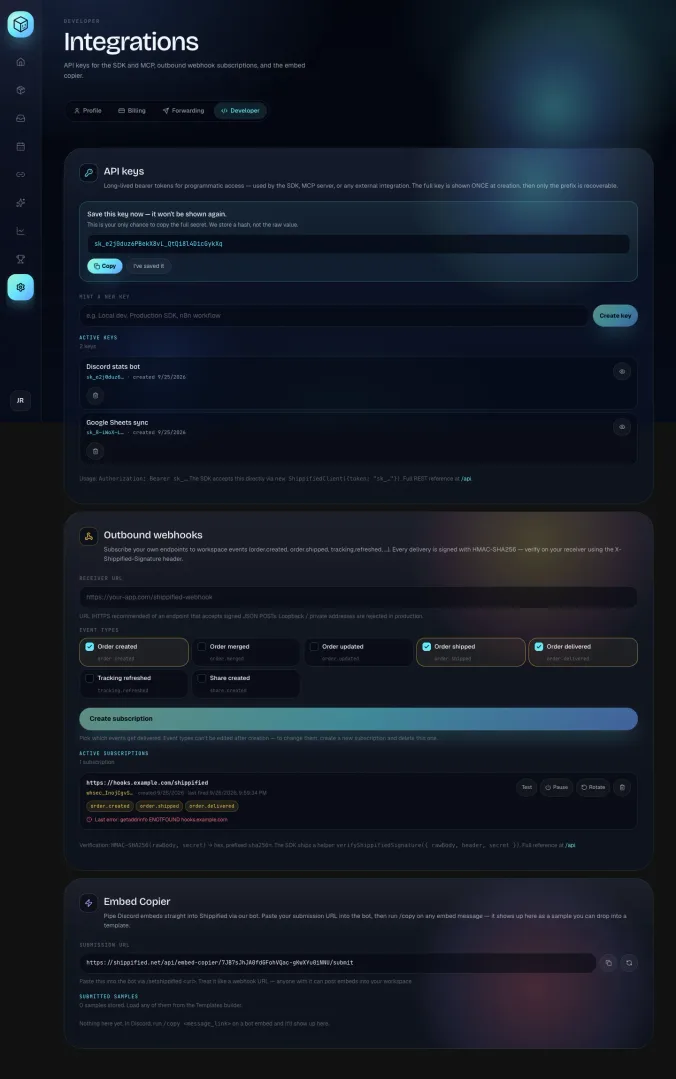
The tab has three sections:
API keys let another program read and change your workspace on your behalf.
Outbound webhooks make Shippified send a message to another program's web address whenever something happens, like an order shipping.
Embed Copier holds your personal submission URL for copying Discord embeds into Shippified.
Open it from the sidebar: Settings, then the Developer tab. The page title is Integrations.
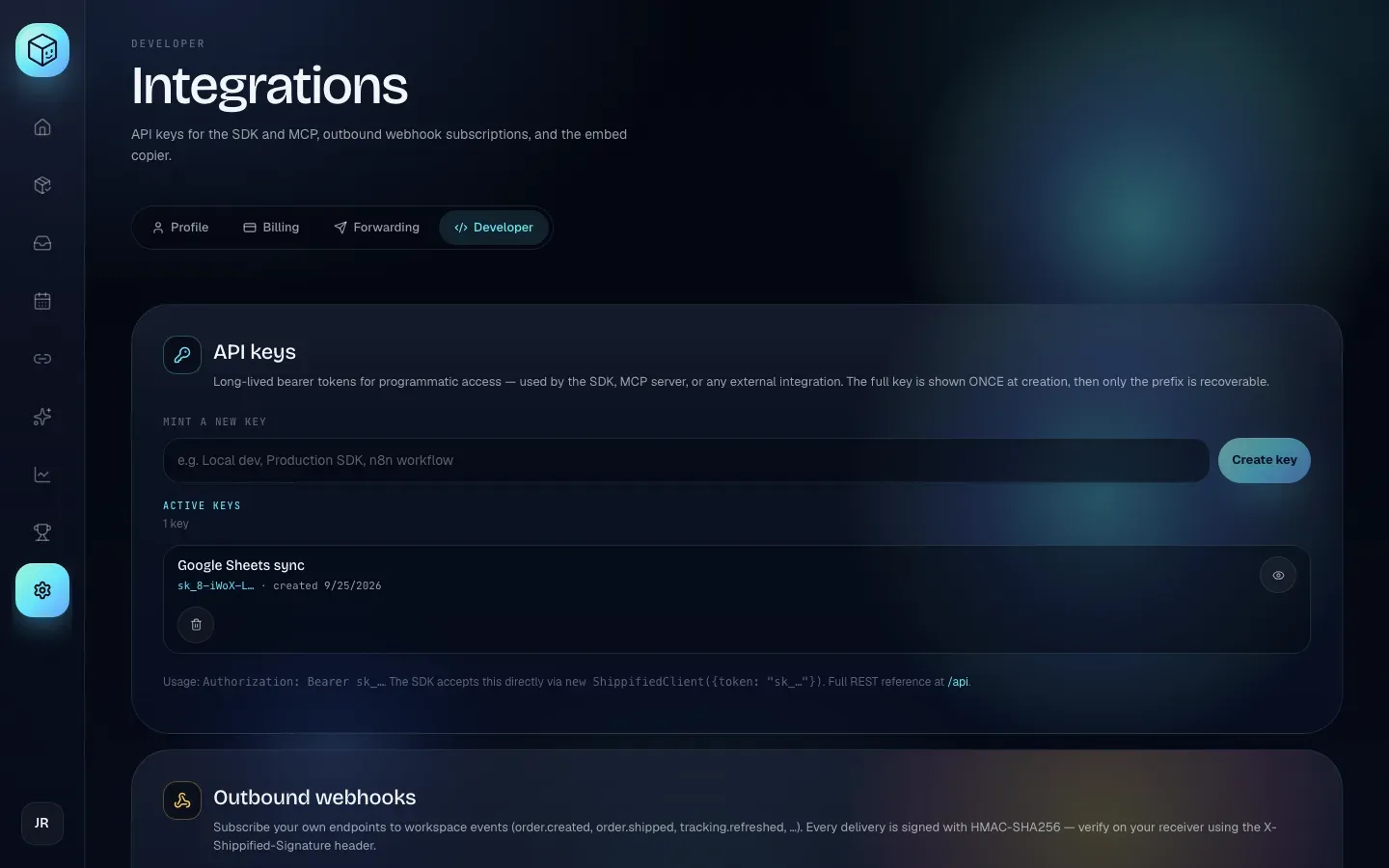
API keys
An API key is a long password that a program uses instead of your sign-in. You give it to the tool you're connecting (the Shippified SDK, the MCP server for AI assistants, an automation like n8n, or your own script), and that tool can then work with your workspace.
Every key starts with sk_. Keys don't expire; they work until you revoke them.
What a key can and can't do
A key acts as you. With a key, a program can do nearly everything you can do in the dashboard: read and add orders, change orders, manage bots, inboxes, templates and share cards, create other API keys and webhooks, and read your settings.
There are two things a key can never do, however it's used:
Download your data export.
Delete your account.
Those only work when you're signed in to the dashboard in a browser, so a leaked key can't take your data out in one go or erase your account.
Treat a key like your password. Anyone who has it can see and change your orders. Don't paste it in Discord, screenshots, shared spreadsheets or public code. If a key might have leaked, revoke it right away and create a new one.
Create a key
- Name the key
Under Mint a new key, type a name that tells you where the key will be used, for example
Google Sheets syncorn8n workflow. The name is only for you; it helps you know which key to revoke later. Names can be up to 80 characters. - Click Create key
Or press Enter. The button is greyed out until you type a name, and shows Minting… while it works.
- Copy the key now
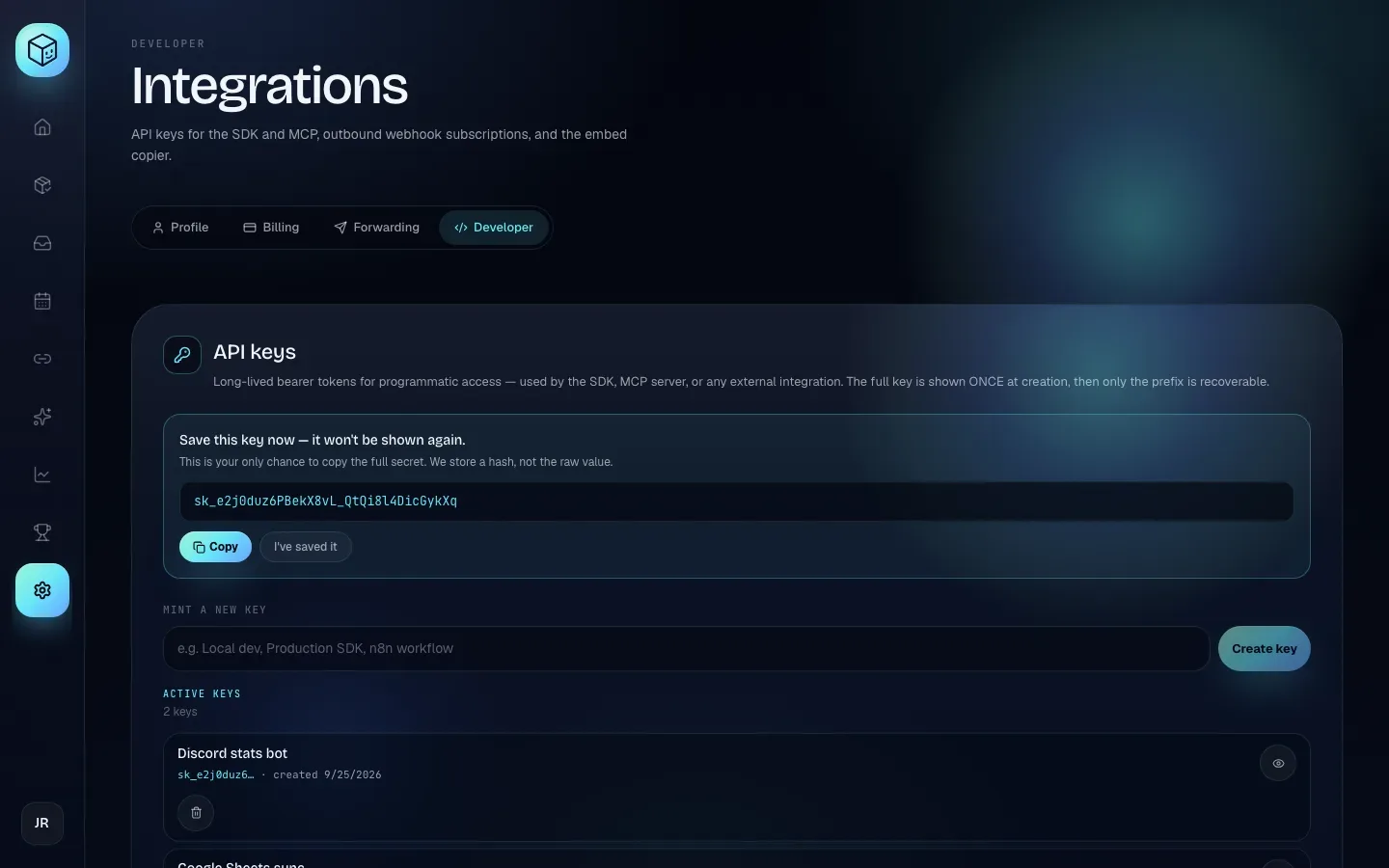
A box appears at the top of the section: Save this key now — it won't be shown again. Click Copy (it changes to Copied) and paste the key straight into the tool you're connecting, or into a password manager.
- Close the box
Click I've saved it. The full key disappears from the page for good.
Shippified only keeps a scrambled fingerprint of each key, never the key itself. Once you close the box (or leave the page), nobody can show you the key again, not even support. If you lose it, revoke it and create a new one.
The new key appears under Active keys. You can have up to 25 keys. When you reach 25, the count reads "limit reached, revoke before minting more".
Check a key
Each row under Active keys shows the key's name, its prefix (the first few characters, like sk_EqMhPGAR…), when it was created and, once used, last used with a date and time. Use the prefix to match a row to the key saved in your tool.
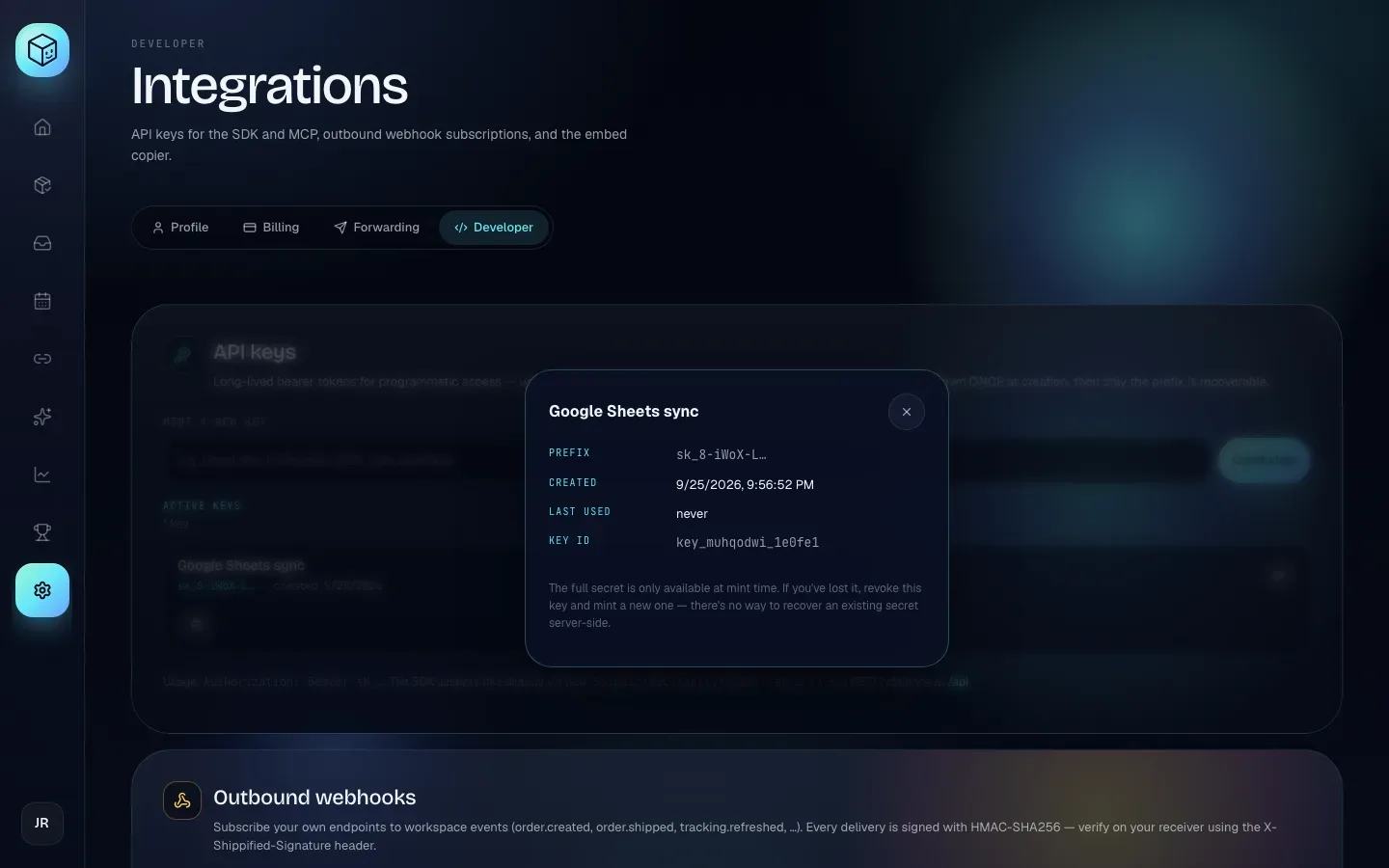
Click Inspect key (the eye icon) for the details in one place:
Field | Meaning |
|---|---|
Prefix | The first characters of the key. |
Created | When the key was made. |
Last used | The last time a program used it, or never. |
Key id | The key's ID (starts with |
Click the × or anywhere outside the box to close it.
A key that says Last used: never weeks after you created it is probably not in use. Revoke keys you don't need.
Revoke a key
- Click Revoke key
Click the bin icon on the key's row.
- Confirm
A box asks Revoke this API key? and warns "Any scripts using it will start getting 401s immediately." Click Revoke key.
The key stops working at once. Anything that used it will get an "unauthorised" (401) error until you give it a new key. Revoking can't be undone.
Use a key
The tool you're connecting will ask for the key; paste it in. If you're writing code, send it as a header on every request:
Authorization: Bearer sk_your_key_hereThe line at the bottom of the section shows the same, plus how the SDK takes it: new ShippifiedClient({token: "sk_…"}). For everything you can do with a key, see Authentication, the REST API and the Orders API.
Outbound webhooks
An outbound webhook is the opposite of an API key. Instead of a program asking Shippified for information, Shippified sends a message to the program's web address (its receiver URL) the moment something happens. Automation tools such as n8n, Make or Zapier give you such an address ("webhook trigger" or "catch hook").
Each message is a JSON POST with the event and the order (or share card) it's about, and it's signed so the receiver can check it really came from Shippified.
These are for your own tools. To post orders into a Discord channel, you don't need this section: use the Discord webhook fields on Settings → Forwarding instead. See Settings and your profile.
Create a subscription
- Enter the receiver URL
In Receiver URL, paste the address your tool gave you, for example
https://your-app.com/shippified-webhook. - Pick the events
Under Event types, tick each event you want sent. Order created, Order shipped and Order delivered are ticked to start with. Hover an event to see a short description. See Event types for the full list.
Choose carefully: the dashboard can't change a subscription's event types after it's created. To change them, create a new subscription and delete the old one, or send a
PATCHwith neweventTypesthrough the Webhooks API. - Click Create subscription
The button is greyed out until you've entered a URL and ticked at least one event. It shows Creating… while it works. If Shippified refuses the subscription, the reason appears under the button.
- Save the signing secret
A box appears: Save this signing secret now — it won't be shown again. The secret starts with
whsec_. Click Copy, paste it into your receiver's settings (it's what the receiver uses to check signatures), then click I've saved it.
The subscription appears under Active subscriptions with its URL, the secret's prefix, when it was created, last fired once something has been sent, and a tag for each event it listens to. You can have up to 25 subscriptions.
Receiver URL rules
Rule | Detail |
|---|---|
Must be a web address | It has to start with |
Must be public | Addresses on a private or internal network (such as |
Must exist | The host name has to resolve. A made-up or mistyped domain is refused. |
Should answer quickly | Shippified waits up to 5 seconds for a reply. Any |
Event types
Event | Label on screen | Sent when |
|---|---|---|
| Order created | A new order is created, from a Discord bot, an email, or added by hand. |
| Order merged | A new bot post or email adds to an order you already have (matched by order number), such as a shipping email. |
| Order updated | You edit an order in the dashboard (status, prices, delivery details). |
| Order shipped | An order first becomes shipped, from an email, a carrier tracking update, or your own edit. |
| Order delivered | An order is first confirmed delivered. |
| Tracking refreshed | Every successful carrier tracking lookup. This can be frequent. |
| Share created | You create a public share card. |
For the exact shape of each message and its headers, see Webhooks.
Send a test
Click Test on a subscription to send a sample event to its URL straight away. The test uses the subscription's first event type and carries "test": true in place of real data. A result appears under the subscription for a few seconds:
"Receiver returned 200." (or another
2xxcode): your receiver is reachable."Failed: …" with the reason, such as
HTTP 404,timeoutor a network error.
A test never counts toward the automatic pause described below.
Pause, resume or delete
Pause stops sending events to that subscription. Nothing is queued while it's paused; events that happen in the meantime are not sent later. The row shows Paused, and the button changes to Resume.
Resume starts sending again and resets the failure count.
Delete subscription (the bin) removes it after you confirm Delete this webhook subscription? with Delete subscription.
Automatic pause. If a subscription fails 10 times in a row, Shippified pauses it and shows "Paused — auto-paused after 10 consecutive failures. Fix your receiver, then resume." The most recent problem is shown as Last error: …. A successful delivery resets the count.
Failed deliveries aren't retried. If your receiver was down, the events it missed are not re-sent. If you need a complete record, read orders through the Orders API as well.
Rotate the signing secret
Rotate the secret if it may have leaked, or if the subscription shows "Deliveries are on hold: this subscription's signing secret needs to be regenerated."
- Click Rotate
On the subscription (or Rotate secret now on the warning).
- Confirm
The box Rotate the signing secret? warns "Your receiver will start rejecting deliveries until you update its configured secret to the new value." Click Rotate secret.
- Save the new secret
Copy the new
whsec_…secret from the box that appears, update your receiver with it, then click I've saved it.
The old secret stops working immediately. Rotating also turns the subscription back on if it was paused and clears its failure count.
Verify signatures
Every message carries an X-Shippified-Signature header. Its value is sha256= followed by the HMAC-SHA256 of the raw request body, keyed with your full whsec_… secret, in hex. Your receiver should work out the same value and reject the message if they don't match. Many automation tools skip this; it's worth doing in your own code.
In Node.js:
import crypto from "node:crypto";

function isFromShippified(rawBody, header, secret) {
  const expected = "sha256=" + crypto.createHmac("sha256", secret).update(rawBody).digest("hex");
  return header?.length === expected.length &&
    crypto.timingSafeEqual(Buffer.from(header), Buffer.from(expected));
}
Use the body exactly as received, before parsing the JSON. The SDK has a ready-made helper, verifyShippifiedSignature({ rawBody, header, secret }). For Python, framework examples and all headers, see Webhooks → Verifying signatures.
Embed Copier submission URL
The Embed Copier section shows your personal Submission URL. You paste it into the embed-copier bot in Discord (with /setshippified <url>), then copy any bot embed into Shippified with /copy. Copied embeds land under Submitted samples, ready to load into the template builder. If an invite button is shown, Invite the embed-copier bot adds the bot to your server first.
Copy URL copies the address.
Rotate URL makes a new address after you confirm Rotate your submission URL?. The old one stops working immediately, so give the bot the new one.
For each sample: Submit for review offers it for the official template library (click again, now In review, to withdraw it), Open original jumps to the Discord message, and the bin deletes the sample.
Anyone with your submission URL can post embeds into your workspace. Keep it private, and rotate it if it leaks.
The full walkthrough is in Embed Copier.
SDK and MCP server
The TypeScript SDK wraps the API for JavaScript and TypeScript projects. Create a key here, then follow SDK.
The MCP server lets AI assistants that support the Model Context Protocol (such as Claude) read and manage your orders. Create a key here, then follow MCP server.
The full API reference is also served by the app at /api, linked from the bottom of each section.
Troubleshooting
My tool says "401" or "unauthorised"
The key is wrong, incomplete, or revoked. Check the prefix in the tool matches a row under Active keys. If there's no match, create a new key and paste the whole value, including sk_.
I closed the box before copying my key or secret
It can't be shown again. For a key, revoke it and create a new one. For a webhook, click Rotate to get a new secret.
Create key or Create subscription shows an error
The message under the button says why nothing was created:
Message | Fix |
|---|---|
| Revoke keys you no longer use. |
| Delete subscriptions you no longer use. |
| Paste the whole receiver URL, starting with |
| The receiver URL must start with |
| The domain doesn't exist. Check for typos. |
| Use a public address, not one on your own computer or private network. |
Test says "Failed: getaddrinfo ENOTFOUND …"
The receiver's host name doesn't exist. Check the URL for typos. If you deleted the address in your automation tool, create a new one and a new subscription.
Test says "Failed: timeout" or "Failed: HTTP 500"
Your receiver took longer than 5 seconds, or returned an error. Make it reply with a 2xx status quickly, and do slow work after replying.
My receiver rejects every message as a bad signature
It's usually one of three things: the receiver has an old secret (after a Rotate), it parses the JSON before checking (use the raw body), or it uses only part of the secret (use the whole whsec_… string).
The subscription says "Paused"
It either was paused by hand or failed 10 times in a row. Fix the receiver, click Test until it succeeds, then click Resume.