📊Analytics
Read the Analytics tab in Insights, which shows which bots, stores and sources your orders come from and what state they're in.
- Written for
- Anyone who wants to see where their orders come from
- Applies to
- All plans
- Deprecated
- + Deprecated
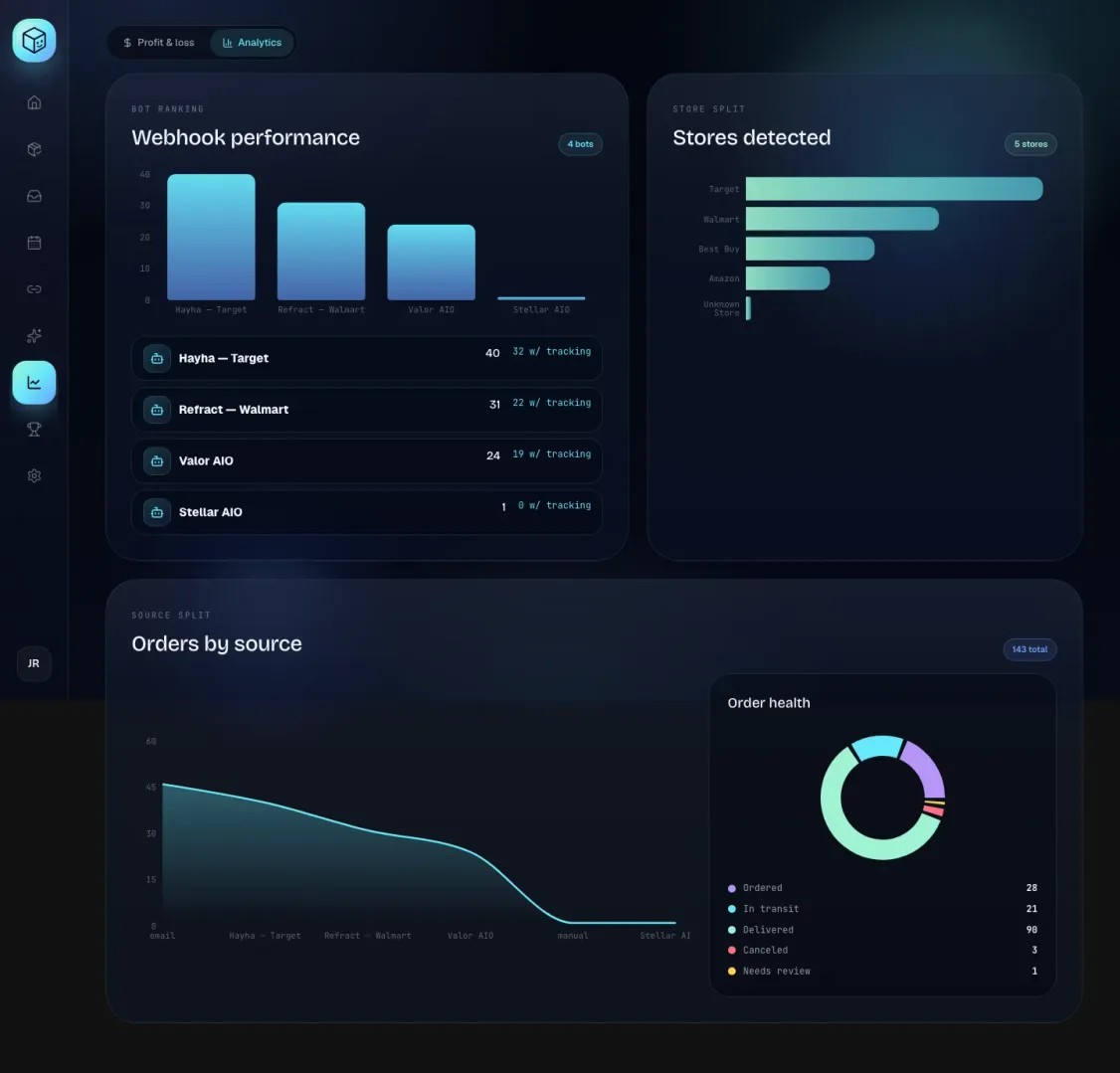
The Analytics tab counts your orders and splits them up by the bot that sent them, the store they came from, and where they entered Shippified. It also shows their current status. Use it to answer questions like "which of my monitor bots actually produces orders?", "how much of my volume is Target?" and "how many orders are still waiting to ship?". It counts orders only. For money (revenue, costs and profit), use the Profit & loss tab, covered in Profit and loss.
Before you start
Analytics has nothing to show until orders exist. You need at least one of these:
A Discord monitor bot posting checkouts to Shippified. See Connect Discord monitor bots.
An email inbox connected so order emails become orders. See Connect an email inbox.
Orders you added by hand with New order on the Orders page. See Orders.
Until then, each panel shows a placeholder drawing with a short hint, such as No bot ranking yet or No stores detected yet.
Open the Analytics tab
- Open Insights
In the sidebar, click Insights (the chart icon). Insights opens on the Profit & loss tab.
- Switch to Analytics
At the top of the page, click the Analytics tab. The page address changes to
/analytics, so you can bookmark it and open it directly next time.
To go back to money figures, click Profit & loss in the same tab strip.
What the Analytics tab counts
Before reading the panels, three rules apply to all of them:
Every order, all time. The Analytics tab has no date filter. It always counts every order in your workspace, from your first to your latest. For a time window, use the chips on Home or the ranges on Profit & loss.
Orders, not units. An order with a quantity of 3 still counts as one order.
Every status. Canceled orders and orders that need review count too, so every order shows up in every panel. If you delete an order, it disappears from every panel.
The numbers reflect your data as of the last time the dashboard loaded it. If orders arrived while the page was open, reload the page (or click Refresh on Home) to include them.
Webhook performance
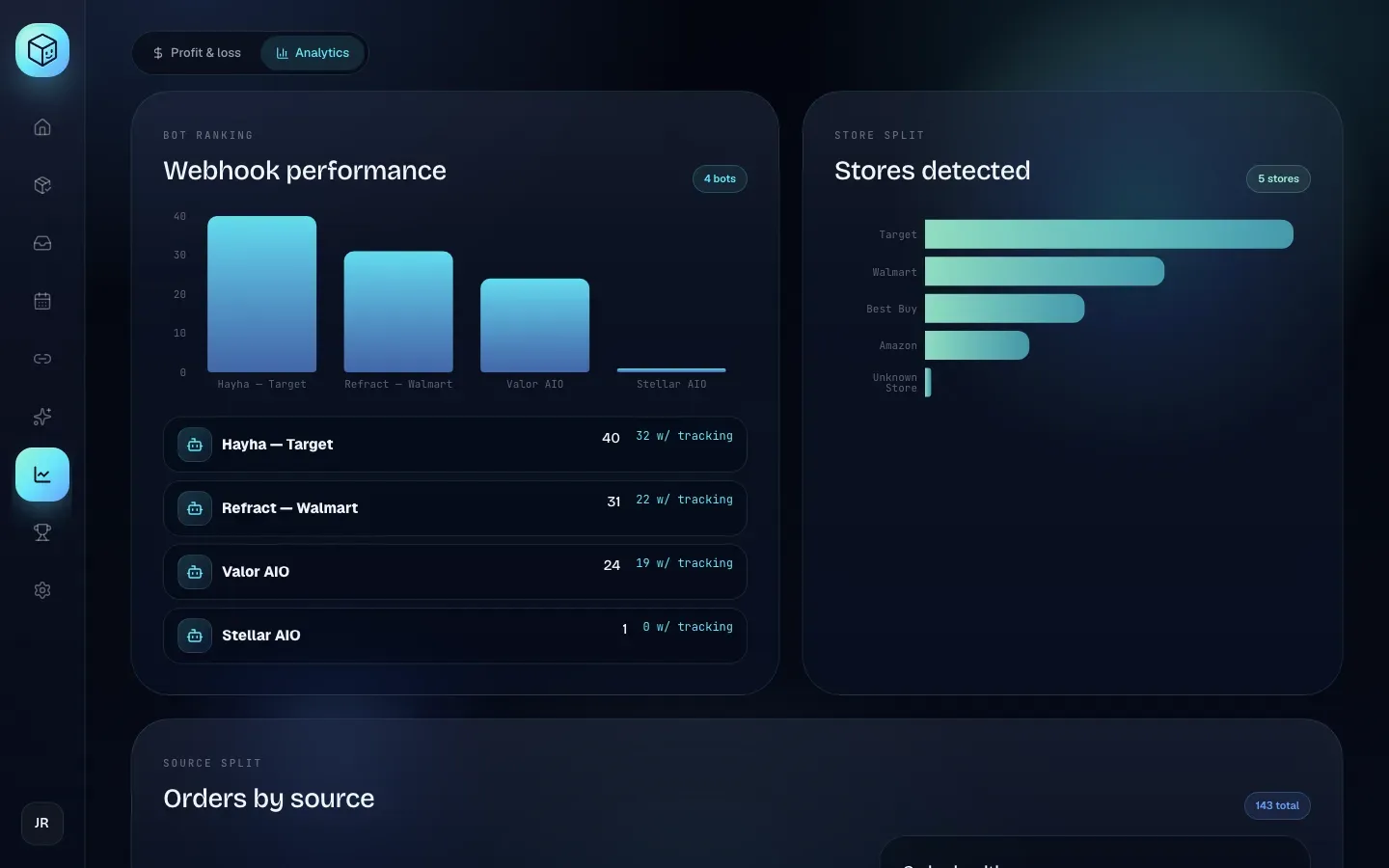
The Webhook performance panel (labelled Bot ranking) compares your Discord monitor bots. A webhook bot is a webhook address in Shippified that one of your monitors posts its checkouts to. You create these on the Links page.
The tag in the corner shows how many bots you have, for example 4 bots.
The bar chart
One bar per bot, with the bot's name underneath. The bar's height is the number of orders that bot has produced. Hover over a bar to see the exact count.
Bars are ranked: the bot with the most orders comes first. When two bots have the same number of orders, the one with more tracking numbers comes first.
The bot list
Under the chart, each bot has a row, in the same ranked order, showing:
Column | What it means |
|---|---|
Bot name and avatar | The bot as you named it on the Links page |
Number | Total orders from this bot, all time |
w/ tracking | How many of those orders have a tracking number |
For example, 24 and 19 w/ tracking means the bot produced 24 orders and 19 of them have a tracking number. The rest are either waiting to ship or never got a tracking number. A large gap on an older bot can mean shipping updates aren't reaching Shippified. Connecting the inbox that receives the retailer's shipping emails usually closes it. See Shipment tracking.
A bot showing 0 orders when you know it has been posting checkouts means the posts aren't reaching Shippified or aren't being read as orders. Open the bot on the Links page and check its activity. See Connect Discord monitor bots.
Orders from email and orders you added by hand don't belong to a bot, so they don't appear in this panel. They do appear in Orders by source below.
Stores detected
The Stores detected panel (labelled Store split) shows how many orders you have from each retailer, as horizontal bars from largest to smallest. The tag shows how many different stores appear, for example 5 stores.
Shippified recognises the retailer on each order automatically:
From emails: by the sender's address, for example mail from
target.comor any subdomain of it.From Discord posts and pasted text: by the store's name appearing in the message.
From a template: a custom template can set the store itself. See Custom templates.
Manual orders: the Retailer you pick in the Add an order dialog.
Automatic recognition covers Target, Walmart, Amazon and Best Buy. When Shippified can't tell the store, the order is counted under Unknown Store.
A big Unknown Store bar usually means one of your bots posts checkouts that don't mention the store's name. A custom template for that bot can set the store. See Custom templates.
Orders by source
The Orders by source panel (labelled Source split) shows where your orders entered Shippified. The tag shows the total number of orders in your workspace, for example 143 total.
Each point along the bottom is one source, from the source with the most orders on the left to the fewest on the right. The height of the curve at each point is that source's order count. Hover over a point to see the exact number.
The sources are:
Source label | Which orders |
|---|---|
The bot's name, such as | Orders created from that Discord bot's posts |
| Orders created from retailer emails |
| Orders you added with New order, or through the API |
The line joining the points is drawn only to make the chart easier to read. The sources are separate categories, so the slope between two points doesn't mean anything. Read the height at each label.
An order that came from a bot stays under that bot's name, even after shipping and delivery emails update it. Other orders are counted under the channel that last updated them: a manual order that a retailer email later matches moves to email.
Order health
The Order health donut shows what state all your orders are in. Every order is in exactly one slice, so the numbers in the legend add up to your total.
Slice | Order status | What it means |
|---|---|---|
Ordered | Ordered | Checked out, not shipped yet |
In transit | Shipped | Has shipped and isn't delivered yet |
Delivered | Delivered | Delivered, confirmed by a delivery email or by live carrier tracking |
Canceled | Canceled | The retailer canceled it |
Needs review | Issue | Shippified couldn't identify the store or the item from the message |
Slices with no orders are left out of the chart and the legend. For how orders move between these statuses, see Order lifecycle.
Needs review orders are worth fixing. They usually mean a message didn't match any template. On the Orders page, set the status filter to Issue to list them, then open each one to fill in the missing details. See Troubleshooting.
Reading the numbers together
A few patterns worth knowing:
A bot's total in Webhook performance matches its point in Orders by source. Both count the orders created from that bot.
Stores detected adds up to your total. Every order has exactly one store, including Unknown Store.
Order health adds up to your total. Every order has exactly one status.
Webhook performance can add up to less than your total, because email and manual orders have no bot.
Troubleshooting
A panel says "No bot ranking yet" even though I have bots
The bar chart appears once you have at least one bot on the Links page. If the bot exists but shows 0 orders, no checkout from it has been turned into an order yet. Use Send test payload on the bot, or check its activity log on the Links page. See Connect Discord monitor bots.
The numbers don't match the Home dashboard
The Analytics tab always covers all time. Home's numbers follow the timeframe chip you picked (7D, 30D and so on). Choose ALL or Lifetime on Home to compare like with like. Also note that Home's Quantity counts units, while Analytics counts orders.
An order I just received isn't counted
Analytics uses the data loaded when you opened the dashboard. Reload the page to include orders that arrived since.
Why is a Target order counted as "Unknown Store"?
The message that created it didn't contain anything Shippified recognises as Target: no target.com sender and no mention of Target in the text. Fixing the template that reads those messages fixes future orders. See Custom templates.
I deleted a bot. Where did its orders go?
Its bar and row leave Webhook performance, because that panel only lists your current bots. The orders themselves still count in Stores detected, Orders by source (under the name the bot had) and Order health.