📅Use the Calendar
See your orders, deliveries, expected deliveries and subscription renewals day by day, and keep track of recurring costs.
- Written for
- Anyone who wants to see when things happened or are due
- Applies to
- All plans
- Deprecated
- + Deprecated
The Calendar shows your activity one month at a time: when orders came in, when packages were delivered, when deliveries are expected, and when your subscriptions (monitors, proxies, servers and so on) renew. Its Subscriptions tab is also where you record those recurring costs, so Shippified can include them in your profit and loss.
Open it with Calendar in the sidebar, or with the calendar button at the top right of the Dashboard.
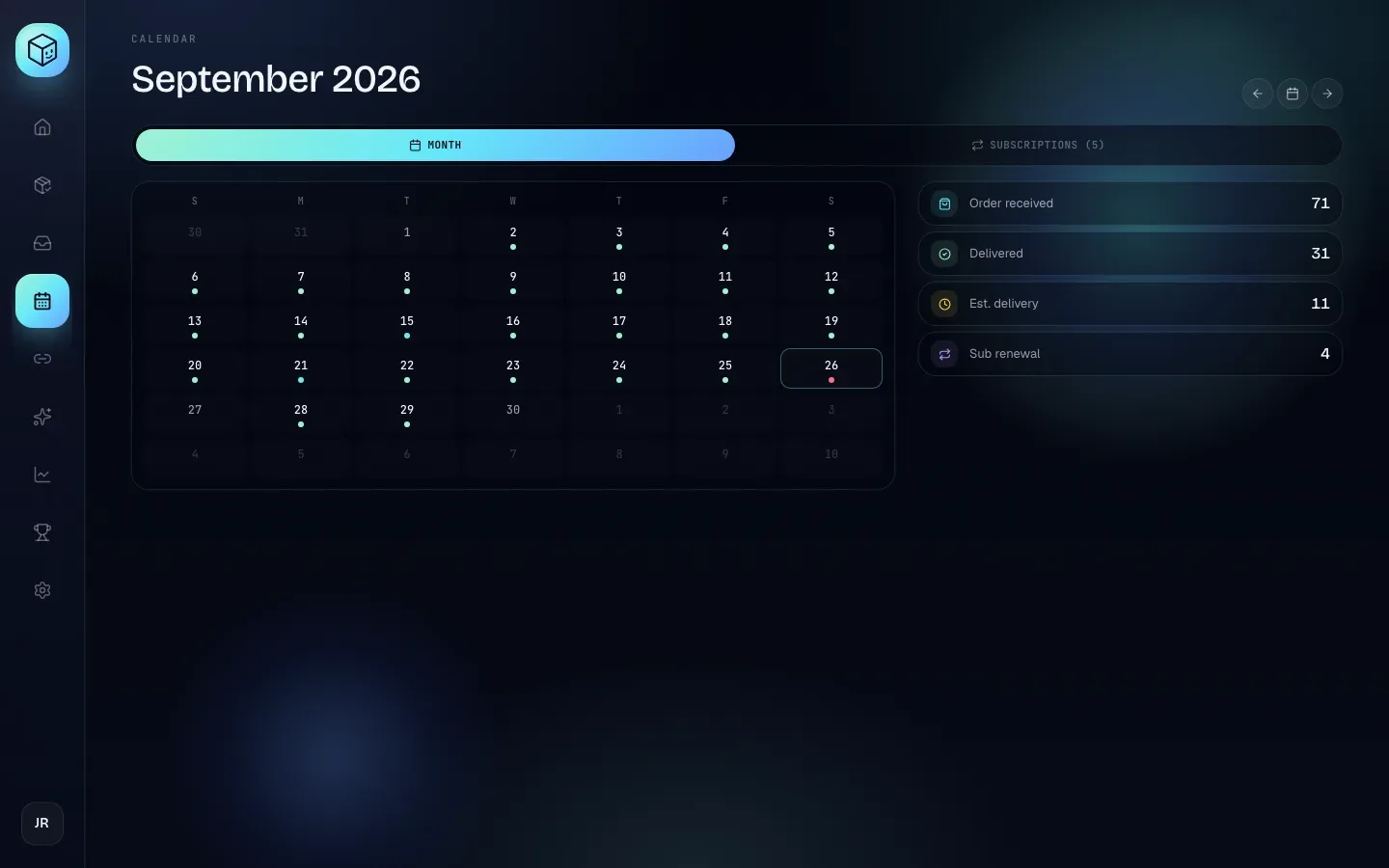
Find your way around
The top of the page shows the month and year, for example September 2026. On the right are three round buttons:
Button | What it does |
|---|---|
Previous month (←) | Shows the month before. |
Today (calendar icon) | Jumps back to the current month and selects today. |
Next month (→) | Shows the month after. You can look ahead to see upcoming renewals and expected deliveries. |
Changing month clears the selected day. The month you're looking at is part of the page address (for example /calendar/2026-09), so you can bookmark a month or share the link, and your browser's Back button returns to the month you were on before.
Below the title are two tabs:
Month: the calendar grid (this is where the page opens).
Subscriptions (N): your recurring costs, with how many you have in brackets.
Read the month grid
The grid has a column per weekday, starting on Sunday (S M T W T F S), and always six rows. Days from the previous and next month fill the gaps and are dimmed. Today's date has an outline, and the day you've clicked is highlighted.
A dot under a date means something happened, or is due, that day. The dot's colour shows how busy the day is, not what kind of event it is:
Dot colour | Events that day |
|---|---|
Mint (green) | 1 to 5 |
Cyan (blue) | 6 to 15 |
Rose (pink-red) | More than 15 |
No dot | Nothing |
To see the events themselves, click the day.
Only the month on screen is loaded. The dimmed days from neighbouring months never show dots, even if something happened on them. Move to that month to see them.
The month summary
With no day selected, the panel on the right sums up the month with one row per kind of event and its count. Kinds with no events are left out.
Row | Icon | Counts |
|---|---|---|
Order received | Shopping bag (cyan) | Orders received this month, one per order, on the day Shippified first received a message about it. For a manual order, that's the Order date you entered. |
Delivered | Check mark (mint) | Packages delivered this month, on the delivery date the carrier confirmed through live tracking. |
Est. delivery | Clock (amber) | Orders expected this month, on their estimated delivery date. Only orders with an estimate and no confirmed delivery yet. |
Sub renewal | Two arrows (violet) | Subscription renewals due this month. |
While the month loads, the panel says, for example, Loading September 2026 events…. If the month is empty, it says No events scheduled in September 2026.
Where the dates come from:
Delivered only appears when a carrier has confirmed the delivery date. An order marked delivered by a retailer's email alone counts as Delivered on the Dashboard, but has no Delivered event on the Calendar.
Est. delivery comes from carrier tracking, or from an estimated delivery date set through the Orders API. Once the carrier confirms delivery, the estimate is replaced by a Delivered event.
Sub renewal dates are worked out from each subscription's start date and frequency (see How renewal dates are worked out).
See what happened on a day
- Click a day
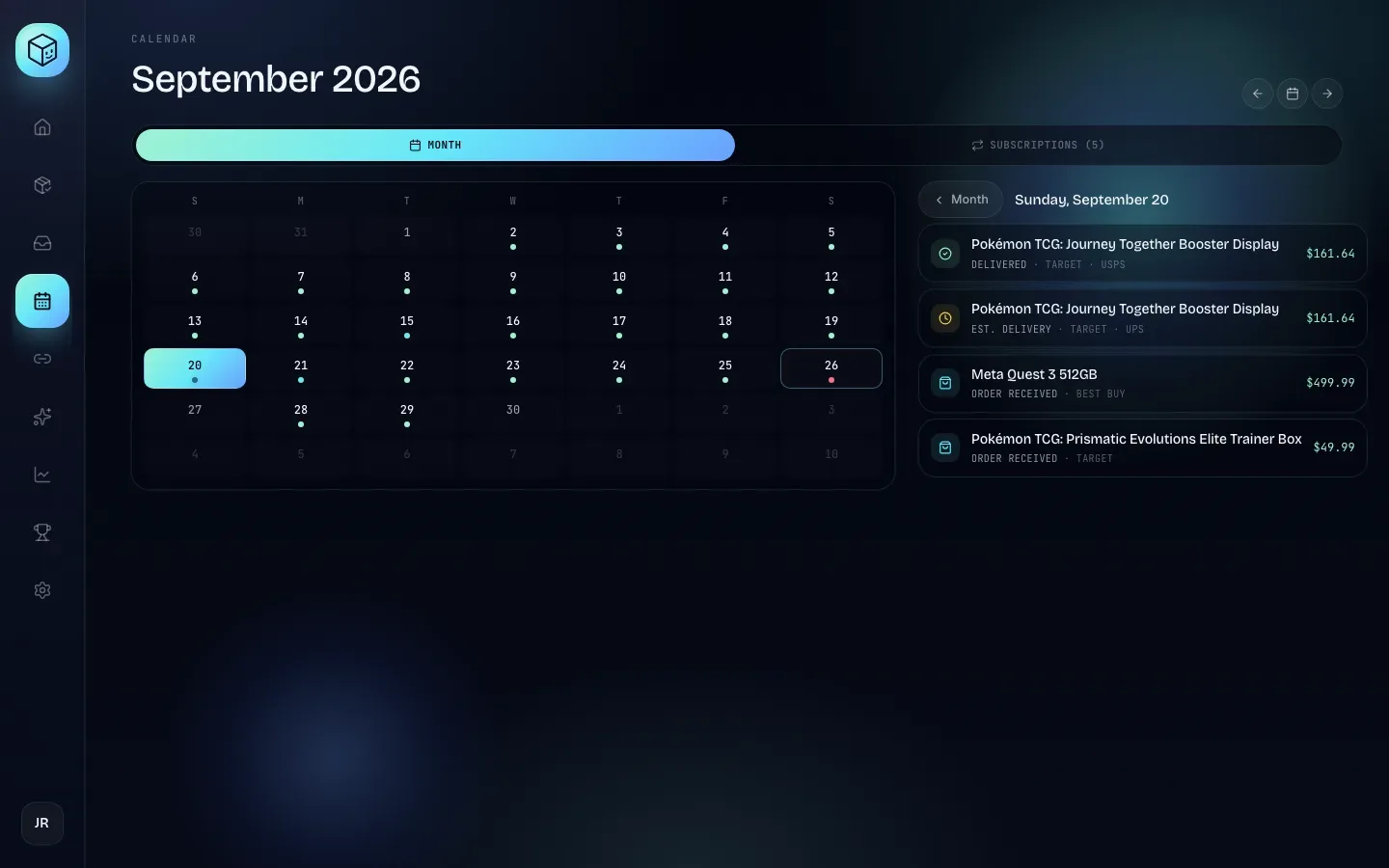
Click any date in the grid. The right-hand panel changes to that day, headed with the full date, for example Sunday, September 20.
- Read the list
Each row shows:
An icon for the kind of event (the same icons as the summary).
The item name, or the subscription name.
The kind (Order received, Delivered, Est. delivery or Sub renewal), then the retailer, and the carrier for deliveries. Renewals show the subscription's category and frequency instead.
The amount on the right: the order's price or total from the message, or the subscription's cost (for example
USD 40.00).
On each day, deliveries come first, then estimated deliveries, then orders received, then renewals.
- Open an order
Click an order row to open that order's details drawer. Renewal rows can't be clicked.
- Go back to the summary
Click Month at the top of the panel.
When several events on one day have the same kind, item name and retailer, they're shown as one row with a count, such as ×3. Clicking that row opens the first of those orders.
A day with nothing on it shows Nothing scheduled for this day.
Why days are in UTC
The Calendar groups everything by UTC day. UTC (Coordinated Universal Time) is the world reference clock, the same as London time in winter. The grid, the month and today's date all follow it.
In practice:
If you're in the Americas, an order placed in the evening can appear on the next day. For example, an order at 9 pm in New York in September is 1 am UTC the following day.
If you're in Asia or Australia, an order placed early in the morning can appear on the previous day.
Today follows UTC as well. In the evening in the Americas, the outlined "today" may already be tomorrow's date, and near the end of a month, Today can jump to the next month.
The Dashboard's Biggest day uses the same UTC days, so the two always agree.
Track recurring costs (Subscriptions)
Click the Subscriptions tab. Under Recurring costs you'll see how many subscriptions you have and a row for each.
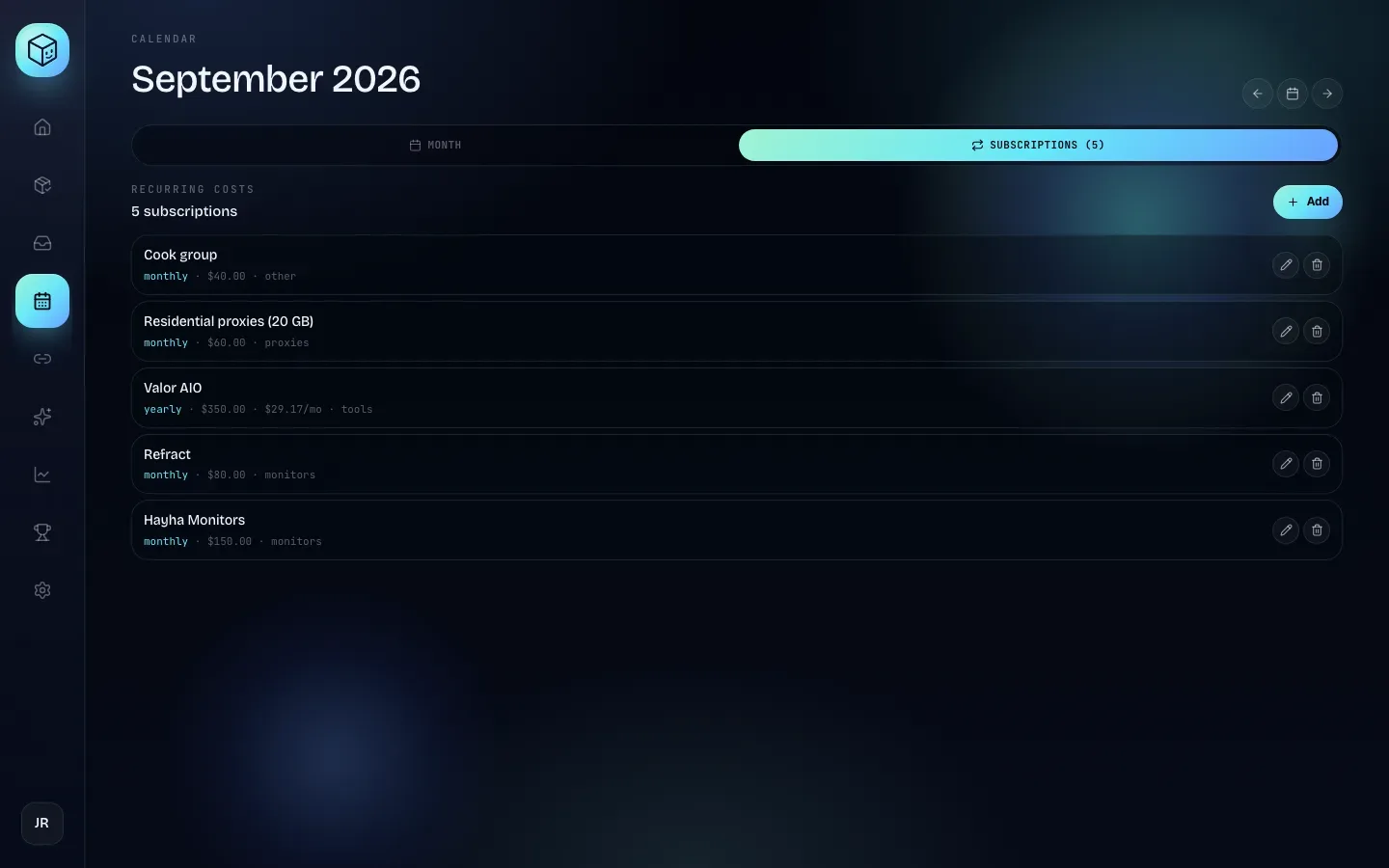
Each row shows the name, then the frequency, the cost, the monthly equivalent (for anything that isn't monthly, for example $29.17/mo for $350 a year) and the category. On the right are Edit (a pencil) and Delete (a bin).
With no subscriptions yet, the tab says: "No recurring costs tracked yet. Add monitors, proxies, server bills, or anything else that renews on a cadence."
Add a subscription
- Open the form
Click Add at the top right of the tab. The form opens and the button changes to Cancel.
- Fill in the fields
Enter at least a Name. See the table below for every field.
- Save
Click Add subscription. It shows Saving…, then the form closes and the subscription appears in the list. Its renewals appear on the Month tab straight away.
Field | What to enter | Example | If left as is |
|---|---|---|---|
Name | What you pay for |
| Required: Add subscription stays greyed out until you type a name. Up to 80 characters; anything longer is cut to 80, when adding or editing. |
Cost | The amount charged each time it renews, in the currency below |
| Starts at |
Currency | A three-letter currency code |
|
|
Frequency | How often it renews: weekly, monthly, quarterly or yearly | monthly | monthly |
Start date | The date of the first charge. Renewals repeat from this date. |
| Today's date (UTC) |
Category | Any label, to group your costs |
|
|
Notes (optional) | Anything you want to remember, such as the account or card used |
| Empty. Notes aren't shown in the list, only when you edit. |
Use the date you were actually first charged as the Start date, not the day you're entering it. The Calendar and your profit figures both start counting from that date.
Edit a subscription
- Open it
Click Edit (the pencil) on the subscription's row. The row turns into the same form, filled in.
- Change the fields
Change whatever you need, including the start date or frequency.
- Save
Click Save changes, or Cancel to leave it as it was.
Changes show on the Month tab and in profit and loss straight away, for past months as well as future ones, because renewals are always recalculated from the current start date and frequency.
Delete a subscription
Click Delete (the bin) on its row. A box asks Delete "name"? and explains that it's removed from your subscriptions and its renewals disappear from the calendar. Click Delete subscription to go ahead, or Cancel to keep it.
Once confirmed, deleting can't be undone. The subscription's renewals disappear from every month of the Calendar and it stops counting towards your costs, including for past months. If you've cancelled a subscription but want to keep its past costs in your figures, don't delete it.
How renewal dates are worked out
The first renewal is on the Start date itself.
weekly: every 7 days after that.
monthly: the same day each month. If a month is shorter, it falls on that month's last day: a subscription started on January 31 renews on February 28 (or 29), then March 31.
quarterly: every 3 months, on the same day (with the same rule for short months).
yearly: every 12 months, on the same day.
Renewals are shown on UTC days, like everything else on the Calendar. The amount shown is the subscription's cost in its own currency. The monthly equivalent in the list is the cost ÷ 3 for quarterly, ÷ 12 for yearly, and × 52 ÷ 12 for weekly.
Troubleshooting
An order or delivery is on the wrong day
The Calendar uses UTC days. See Why days are in UTC.
A delivered order doesn't show a Delivered event
Delivered events need a delivery date confirmed by the carrier through live tracking. Orders marked delivered only by an email don't get one. See Shipment tracking.
I clicked a dimmed day and it says "Nothing scheduled for this day."
Dimmed days belong to the previous or next month, and only the month on screen is loaded. Use Previous month or Next month to go to that month, then click the day.
My subscription doesn't show any renewals
Check the Start date: renewals only appear from that date onwards, so a start date in the future shows nothing before it. Also check you're looking at a month on or after the start date. If you cleared the start date when adding the subscription, it has no renewals: click Edit, choose a date and click Save changes.
The cost shows as "XYZ 40.00" instead of a currency symbol
The Currency isn't a currency code your browser recognises. Edit the subscription and use a standard three-letter code such as USD, EUR or GBP.
The Add subscription button is greyed out
Enter a Name. It can't be empty or just spaces.