🛠️Troubleshooting
Find your symptom, see why it happens and fix it step by step, across sign-in, bots, email, orders, tracking, billing, Discord, sharing and the docs.
- Written for
- Anyone whose Shippified setup isn't doing what they expect
- Applies to
- All plans
- Deprecated
- + Deprecated
This page is organised by symptom. Find the area you're having trouble with, open the question that sounds like your problem, and follow the fix. Where Shippified shows an error, it's quoted exactly as it appears, so you can search this page for the words on your screen (Ctrl+F or ⌘F).
If nothing here matches, see How to contact support at the bottom.
Two screens answer most "where did my order go?" questions. For Discord bots, open Links → Webhooks and click the eye icon (View bot activity) on the bot's card: every post the bot's URL received is listed, including ones that didn't become an order. For email, open Inbox in the sidebar: every email that created, updated or was refused an order is listed with its outcome.
Signing in
I don't see the sign-in form, or it says "Loading sign-in…" forever
The sign-in form is loaded from Shippified's sign-in service at auth.shippified.net. If it doesn't appear:
Reload the page.
Turn off browser extensions that block scripts or third-party content (ad blockers, privacy extensions) for
shippified.netandauth.shippified.net, then reload.Try a private window. If it works there, clear cookies for
shippified.netin your normal browser.
You can also click Use your password instead under the form to use the older Shippified email-and-password form, which doesn't depend on the sign-in service.
It says "The sign-in service didn't respond. Try again in a moment."
Shippified couldn't reach its sign-in service to confirm who you are. Nothing is wrong with your account. Wait a minute and sign in again. If it keeps happening, use Use your password instead (if you have a Shippified password), or contact support.
It says "An account with this email already exists. Sign in the way you did before — or choose “Use your password instead” if you set one."
You already have a Shippified account with that email address, created with a different sign-in method, and Shippified doesn't join accounts just because the email matches (someone else could hold the same address on another service).
To get in, sign in the way you did before. If you set a Shippified password, click Use your password instead and sign in with your email and password, or use the Continue with Google button on that form if that's how you signed up. If you're locked out, contact support.
It says "That sign-in is already connected to a different Shippified account."
The Discord account you used is already linked to another Shippified workspace. Sign in with the method that belongs to the account you want, or sign in to the other workspace with that Discord account. If you don't recognise the other workspace, contact support.
It says "Your sign-in didn't include an email address. Add one and try again."
Every Shippified account needs an email address. The account you signed in with (usually a Discord account) didn't share one. Add and verify an email address on that account, or sign in with email instead.
It says "We couldn't sign you in. Try again."
The sign-in didn't complete. Reload the page and try again. If you switched tabs or waited a long time on the sign-in form, starting again usually fixes it.
It says "Too many sign-in attempts. Try again in a minute." or "Too many auth requests — slow down (60s)."
Shippified allows 10 sign-in, registration or password-reset attempts per minute from the same network. Wait 60 seconds, then try once more, carefully. Shared networks (offices, VPNs) share this allowance.
It says "Invalid email or password"
On the Use your password instead form, the email or password is wrong. Check for typos and Caps Lock. If you signed up with Google or Discord, you may not have a Shippified password: use those sign-in options instead, or click Forgot your password? to set one.
The password reset link doesn't work: "Reset link is invalid or expired. Request a new one."
Reset links last 1 hour and work once. On the sign-in page, click Forgot your password?, enter your email and click Send reset link. You'll see the same confirmation whether or not the email has an account, so check the address you typed. Look in spam too. The new password must be at least 8 characters (Password must be at least 8 characters).
It says "Email already registered"
You tried to create an account on the password form with an email that already has one. Click Already have an account? Sign in and sign in instead, or reset your password.
It says "Verification failed. Refresh the page and try again." or "That verification expired. Refresh the page and try again."
The password form runs a short automatic bot check. It expired or failed. Reload the page and submit again. If it fails every time, turn off extensions that block scripts, or try another browser.
I keep getting signed out
Sessions last 14 days, after which you sign in again. Resetting your password signs you out everywhere else. Clearing your browser's site data for shippified.net also signs you out.
It says "That verification link is invalid or has expired." or "That verification link is incomplete."
The link from your verification email didn't work: it expired (links last 24 hours), isn't valid any more, or was cut off when you opened it. Sign in, then click Resend on the Verify your email. banner and open the new link. If the link was only incomplete, you can also open it again from the email.
There's a "Verify your email." banner on my dashboard
Everything works before you verify. The link in the email expires after 24 hours; click Resend on the banner for a new one. Verification is only required before a paid upgrade, and only when billing is switched on.
Discord monitor bots
These are the webhook URLs you paste into your monitors (Hayha, Refract, Valor and so on). They're set up on Links → Webhooks. See Connect Discord monitor bots.
My monitor checked out but no order appeared
Work through these in order:
Is the URL right? On Links → Webhooks, click Copy on the bot's card and paste it into your monitor again. It looks like
https://shippified.net/api/webhooks/discord/<workspace>/<bot>. Don't paste a Discord webhook URL (discord.com/api/webhooks/…) here; that's for sending to Discord.Did the post arrive? Click the eye icon (View bot activity) on the bot's card. If the list says "Nothing logged yet", the post never reached this bot: recheck the URL in your monitor, and check the monitor's own log for an error.
What happened to it? Each row in the activity list has an outcome:
created,merged,revieworrejected, with the reason underneath when there is one (see the table below).Is the order there under another name? On Orders, search for the item or order number. A post whose item couldn't be read becomes an order called "Unparsed order".
Activity outcome | Meaning |
|---|---|
| A new order was made. |
| The post matched an existing order's order number and updated it. |
| An order was made, but it needs attention: Shippified couldn't identify the store or item (status Issue), or forwarding the order to your Discord channel failed (the reason is shown). |
| No order was made. |
To test the URL without waiting for a real checkout, click Send test payload on the card. It posts a sample checkout and shows the result on the card: "Parsed — new order added", "Parsed — merged into an existing order", a duplicate notice, "Received, but no order could be parsed from it…", or "Received, but not added (…)" with the reason. A new order made by the test is real; delete it afterwards.
My monitor shows an error when it posts to Shippified
Match the message your monitor logged:
Response | Cause | Fix |
|---|---|---|
| The workspace part of the URL is wrong. | Copy the URL again from the bot's card. |
| The bot was deleted, or the last part of the URL is mistyped. | Copy the URL again, or create the bot again with New webhook bot. |
| More than 60 posts in a minute to this one bot URL. | Wait a minute. Your monitor should retry after 60 seconds. |
| More than 60 posts in a minute from one server, across all your bot URLs. | Wait a minute. Splitting across more bots doesn't raise this limit. |
| The post was over 2 MiB. | Real checkout posts are far smaller; check what the monitor is sending. |
| Accepted. | Nothing to fix. Check View bot activity to see what it became. |
Every checkout shows up twice
Discord doesn't give Shippified a message ID, and two identical checkouts can be two real orders, so each post counts as a new order unless it carries an order number that matches an existing order. Duplicates almost always mean the monitor is posting to Shippified twice:
The same monitor is pointed at two of your bot URLs, or the same URL is added twice in the monitor's settings. Keep one.
Your monitor posts to a Discord channel and to Shippified, and something else (a relay bot) also copies the channel to Shippified. Remove the extra path.
To remove leftovers, open each duplicate on Orders and click Delete order at the bottom of its drawer.
The order is created but the item, price or order number is missing
The bot's post didn't match the layout Shippified expected. Built-in templates cover Hayha, Refract and Valor; other bots are read with generic field names (Item, Product, Price, Total, Order…), which don't always fit.
Open the bot's activity (eye icon) and look at the raw post to see the field names your monitor uses.
Build a template for it on the Templates page (the Embed copier can capture a real embed as the sample). See Custom templates.
Edit the bot (pencil icon) and pick the template, or leave it on Auto-detect (recommended) if your template's match rules identify the bot.
Click Re-run parsing on the Templates page to rebuild the orders it already made. Values you typed in yourself are kept.
For a single order, open it and fill in the blanks in its editor. See Order details.
Orders aren't being forwarded to my Discord channel
When a bot has Forward parsed orders to (optional) filled in, each order is posted to that Discord webhook. Bots without one use the Bot throughput fallback webhook in Settings → Forwarding. If neither is set, nothing is forwarded.
When a forward fails, the order is still created; only the Discord post is missing. The bot's activity row shows review with a reason such as:
output webhook forward failed after 3 attempts: HTTP 429 (HTTP 429): Discord was rate-limiting. Shippified tries up to 3 times.output webhook forward failed after 1 attempt: HTTP 404 (HTTP 404): the Discord webhook was deleted. Errors like this aren't retried.The same messages starting
fallback webhook forward failed…refer to the fallback webhook in Settings.
To fix a 404 or 401, create a new webhook in Discord (channel settings → Integrations → Webhooks), then paste its URL into the bot (pencil icon) or into Settings → Forwarding.
Shippified pings don't arrive in my channel
The Shippified pings webhook in Settings → Forwarding gets a post when an order is placed, shipped, delivered or updated, whether the change came from a bot, any inbox, Import an email by hand or carrier tracking. Check:
The webhook is saved, and the event type (Placed, Shipped, Delivered, Updates) is switched on.
A message that repeats an order's current status doesn't ping; only a status change (or an update such as a delay) does.
Orders created through the API don't ping.
Saving a webhook URL fails with "url cannot point at private / loopback addresses"
Shippified only sends to public web addresses. The other messages you might see when saving a forwarding URL:
Message | Fix |
|---|---|
| Paste the whole URL, starting with |
| Use an |
| The domain doesn't exist. Check for typos. |
| The address points at a local or private network. Use a public URL such as a Discord webhook. |
The same checks apply to Settings → Forwarding and to outbound webhooks in Settings → Developer.
Email inboxes
Inboxes are set up on Links → Email. See Connect an email inbox.
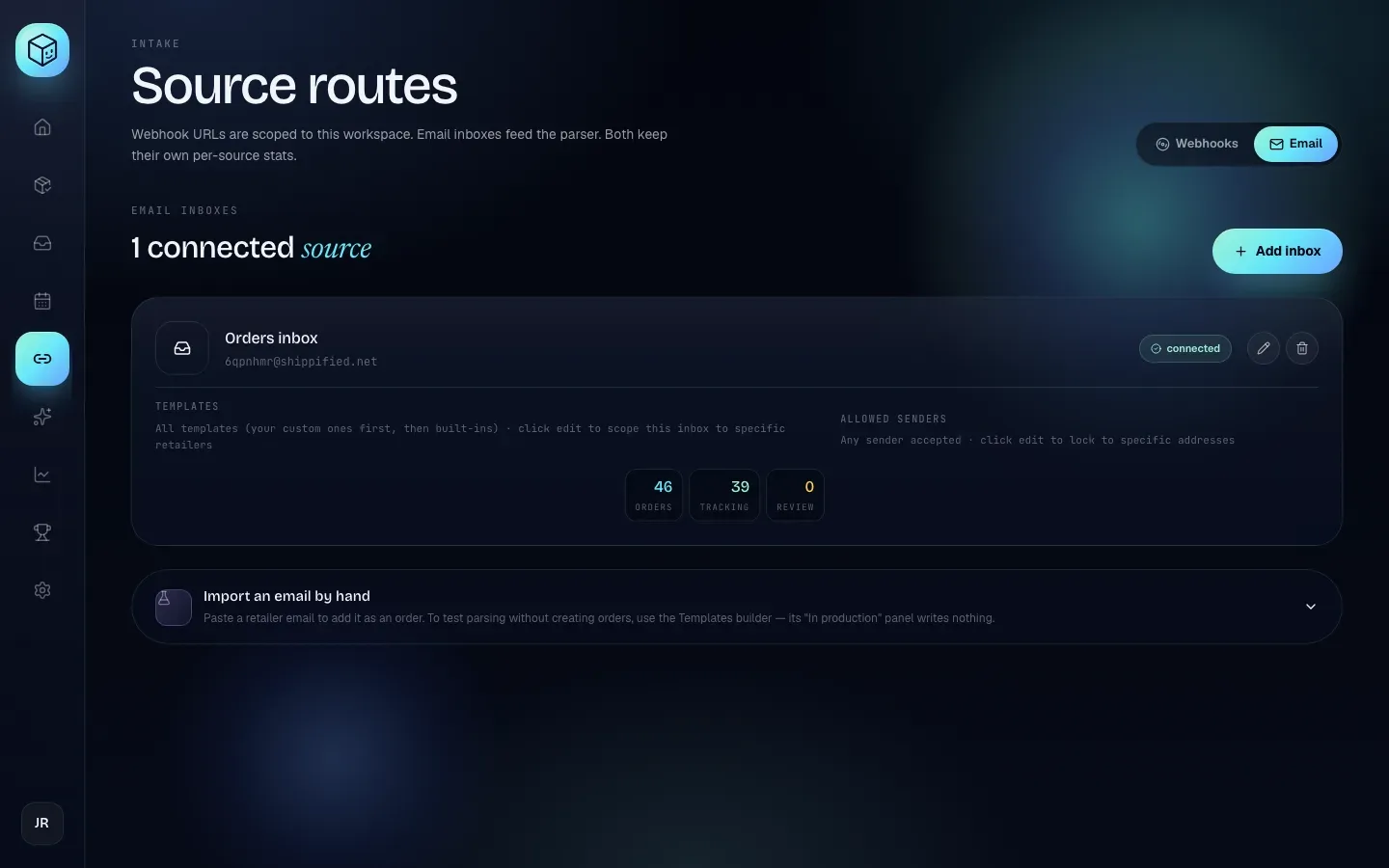
Nothing is importing from my email
Work through these checks in order.
Check the status tag on the inbox card:
Tag | Meaning | Fix |
|---|---|---|
| Working normally. | Carry on with the checks below. |
| A Google or Microsoft inbox that was saved but never signed in. The card says Not connected yet — sign in to Google before this inbox can sync. (or Microsoft), and the section heading counts it as "not connected". | Click Connect Google or Connect Microsoft on the card and finish signing in in the new tab. |
| The mail provider rejected Shippified's sign-in, so checking has stopped. | See "My inbox says auth failed" below. |
Read the sync line under the card. It says Synced with a time, Not synced yet — inboxes are checked about every minute., or Last sync failed: followed by the provider's error. Click Sync now to check immediately; it reports
N order emails imported.orUp to date — no new order emails.Check the folder. IMAP and Microsoft inboxes read the Inbox folder only. A mail rule that moves order emails into another folder hides them from Shippified.
Older mail isn't imported automatically. A new inbox picks up new mail, plus a little recent mail on its first check. Use Rebuild orders from mailbox (the history icon, shown once the inbox is connected) for earlier orders. See Rebuild from mailbox.
The email might not look like an order. See "An order email was ignored" below.
Check Allowed senders and the Inbox page. If the card lists Allowed senders, mail from anyone else is refused, and each refusal is listed on the Inbox page as Rejected.
My inbox says auth failed
The provider refused Shippified's sign-in, and the inbox is paused until you fix it. Sync now shows Source paused (auth_failed) until then. Past orders are safe.
- Google or Microsoft
- IMAP
On Links → Email, click the pencil icon on the inbox.
Click Connect Google account or Connect Microsoft account and approve access again.
This happens when you revoke Shippified's access in your Google or Microsoft account settings, or change your password in a way that ends existing sessions.
On Links → Email, click the pencil icon on the inbox.
Check IMAP host, Port (usually
993), TLS (Enabled) and Username.Type the password again in Password / app password. For Gmail and Google Workspace this must be an App Password, which requires 2-step verification on the Google account; your normal Google password won't work.
Click Save changes.
Saving new IMAP details puts the inbox back to connected without deleting it. Then click Sync now to confirm.
Last sync failed shows an error but the tag still says connected
Errors that aren't about signing in (for example a mistyped IMAP host or a server that didn't answer) are shown on the Last sync failed: line without pausing the inbox, and Shippified keeps trying about every minute. Fix the IMAP host or port with the pencil icon, or wait if the provider is having an outage.
I can't save a new IMAP inbox
The messages you might see:
imapConfig.host is required.: fill in IMAP host, for exampleimap.gmail.com.imapConfig.username is required.: fill in Username, usually your full email address.imapConfig.password is required to connect an IMAP source.: fill in Password / app password.
When editing an existing inbox, leave the password blank to keep the saved one.
Connect Google or Connect Microsoft says to save the source first
The message Save the source first, then click Connect Google on the saved card. (or Microsoft) means you clicked Connect before the inbox existed. Click Connect inbox at the bottom of the form to save it, then click Connect Google or Connect Microsoft on the new card.
If the provider's page shows an error after you approve, for example Google rejected the code: …, start again from the card. Approving with a different Google or Microsoft account than you intended is a common cause. If the page says the sign-in expired ("Start again from Links → Email: use Connect Google account on the source's card."), you took too long or reused an old tab: click Connect again on the card.
Clicking Connect says "Your browser blocked the sign-in window."
The Google or Microsoft sign-in opens in a new tab. Your browser refused to open it. Allow pop-ups for shippified.net (usually from an icon at the end of the address bar), then click Connect again.
An order email was ignored (it's not on the Inbox page either)
Retailers send far more marketing than order mail, so Shippified skips email it doesn't recognise, and skipped mail isn't listed anywhere. Without a matching template, an email becomes an order only if all of these are true:
It's from a recognised retailer: Target, Walmart, Amazon or Best Buy.
It contains an order number.
It reads like an order event: placed, shipped, delivered, canceled or an order update.
It isn't one of that retailer's known non-order emails.
For any other retailer, or an unusual layout, create a custom template for that email. To see how Shippified reads an email without creating anything, paste it into the template builder on Templates and read its In production panel.
Also check the inbox's Templates: if specific templates are picked on the card, only those are tried. Click the pencil icon and clear the selection to let every template run.
The Inbox page shows my email as Rejected with "Sender … is not in this source's allowed senders."
The inbox has Allowed senders set, and this email's sender isn't on the list. For an email that came straight from the retailer, that's the retailer's address. For a forwarded email, it depends on who forwarded it:
You forwarded it from your own address (your Shippified account email, or the inbox's own address or login): Shippified checks the original sender quoted in the forward (the retailer).
Anyone else forwarded it: Shippified checks the forwarder's address, not the quoted one, because a quoted "From:" line is just text anyone can type. The message shows the forwarder's address.
To accept it:
On Links → Email, click the pencil icon on the inbox.
Add the retailer's address (
[email protected]) or domain (target.com, which also coversoe.target.com), or clear the list to accept any sender. If someone else forwards orders to you, add their address, or forward the emails from your own address instead.Save, then use Rebuild orders from mailbox or Import an email by hand for the emails that were refused.
My forwarding address bounces, or Gmail won't forward to it
Forwarding inboxes receive mail at an address like [email protected].
Gmail asks you to confirm forwarding. Gmail sends a confirmation email to the forwarding address before it will forward. Shippified catches it and shows Gmail is asking to confirm forwarding on the inbox card with the code and an Open confirmation link button. Enter the code in Gmail → Settings → Forwarding and POP/IMAP, or open the link.
A bounce starting with
Shippified:gives the reason.No forwarding source for slug …means that forwarding inbox was deleted: create a new one and update your forwarding rule.plan_limit_reachedmeans your monthly limit is used up.A bounce saying
Message exceeds the 5 MiB ceiling.The email was too large. Forward it without attachments.
Forwarding inboxes have no Sync now or Rebuild button, because there's no mailbox for Shippified to read. Mail arrives when your provider forwards it.
Import an email by hand shows an error
Import an email by hand on Links → Email creates a real order from a pasted email:
Message | Fix |
|---|---|
| Choose an inbox in the form. If you have none, add one with Add inbox. |
| The inbox has Allowed senders. Paste the full original email including its From line, or clear the list. |
| The pasted text has no From line. Paste the email's full source (in Gmail: ⋮ → Show original). |
| Shippified couldn't turn it into an order. Build a template for it. |
Run parser stays greyed out until you paste something. Pasting the same email twice doesn't create a second order.
Rebuild orders from mailbox says the mailbox needs to be reconnected
A rebuild checks the inbox before it deletes anything, and refuses to start if Shippified can't read the mailbox. Nothing was changed.
Message | Fix |
|---|---|
| The inbox is |
| Forwarding inboxes can't be rebuilt. |
Rebuild orders from mailbox says a rebuild is already running
A rebuild is already running for this source. Only one rebuild per inbox runs at a time. Wait for the card to stop showing Rebuilding from the mailbox… orders will appear as messages are re-read., then start another. See Rebuild from mailbox.
Orders and parsing
I'm seeing duplicate orders
Shippified prevents most duplicates by itself:
The same email never counts twice. Each email is recognised by its Message-ID (or, if it has none, its exact content), however many times it's polled, forwarded, rebuilt or pasted.
Messages with the same order number become one order, whether they came from email, Discord or both. Orders confirmed by more than one channel show a badge such as
2× confirmed.
If you still see duplicates:
Both came from Discord. See "Every checkout shows up twice" under Discord monitor bots.
The order numbers differ slightly. Open both orders and compare their order numbers. If one message had no order number, it couldn't be matched. A custom template that captures the order number fixes it for the future.
They were imported long ago. Click Re-run parsing on the Templates page. It rebuilds orders from their stored messages and merges any that share an order number. Your own values, sale prices and carrier data are kept.
Delete any leftover with Delete order in the order's drawer.
An order has the wrong status
Statuses come from your messages and carrier tracking, and they only move forward: Ordered → Shipped → Delivered. You can't set one by hand.
What you see | Why |
|---|---|
A late "order placed" email didn't move a delivered order back | Statuses never go backwards. This is intentional. |
A cancellation email didn't cancel a shipped order | Canceled ranks below Shipped, so partial cancellations can't undo a shipment. |
An order shows Canceled but items are still coming | A partial-cancel email arrived before anything shipped. It moves to Shipped when the shipping email arrives. |
An order jumped straight to Shipped | Any order with a tracking number is Shipped, including when you add the number yourself. |
An order is marked Issue | Shippified couldn't identify the store or the item. Fill in the item name, or fix the template. |
A delivered package still shows Shipped | See Tracking. |
If one retailer's emails keep getting the wrong status, a custom template can set the event type for that email; then click Re-run parsing. More detail: Order lifecycle.
An order is called "Unparsed order" or is missing its price
Unparsed order: the template didn't find the item name. Open the order and type an Item name, then click Save changes.
No cost: open the order, fill in Cost ($) under Pricing, and click Save changes. Cost comes from the item price in the message, or the order total if there's no item price.
"Cost must be a dollar amount like 49.99." (or Sale price): the field has something that isn't an amount, and nothing was saved. Type a plain amount such as
49.99,$1,250or.5.A whole bot or retailer is affected: fix it once with a custom template, then click Re-run parsing on Templates.
I can't change a field on an order (it has a lock icon)
The order editor fills in blanks only. Any value Shippified read from a message, or that you already entered, is locked so that your records match the retailer's. Sale price is the exception: you can always change or clear it. If a locked value is wrong across many orders, fix the template and use Re-run parsing; if it's one order, you can delete it and add it again with New order.
I deleted an order and it came back
Orders built from stored emails can be rebuilt. Rebuild orders from mailbox re-reads your inbox, and an email that still produces an order brings it back. If the email isn't an order, fix the template so it's ignored, or add an Allowed senders list to the inbox.
Re-run parsing removed some orders
When a template changes, Re-run parsing rebuilds orders from their stored messages. Orders whose messages no longer look like order mail are removed, unless you edited them. If real orders disappeared, the template change was too strict: adjust it and run Re-run parsing again. Orders you edited are always kept.
The New order dialog says "Item name is required."
Item name is the only required field in Add an order. Type what you bought. Everything else is optional. See Orders.
Tracking
Live carrier tracking currently covers DHL and DHL Express. UPS, FedEx and USPS numbers are recognised, but their timeline comes from your order emails. See Shipment tracking.
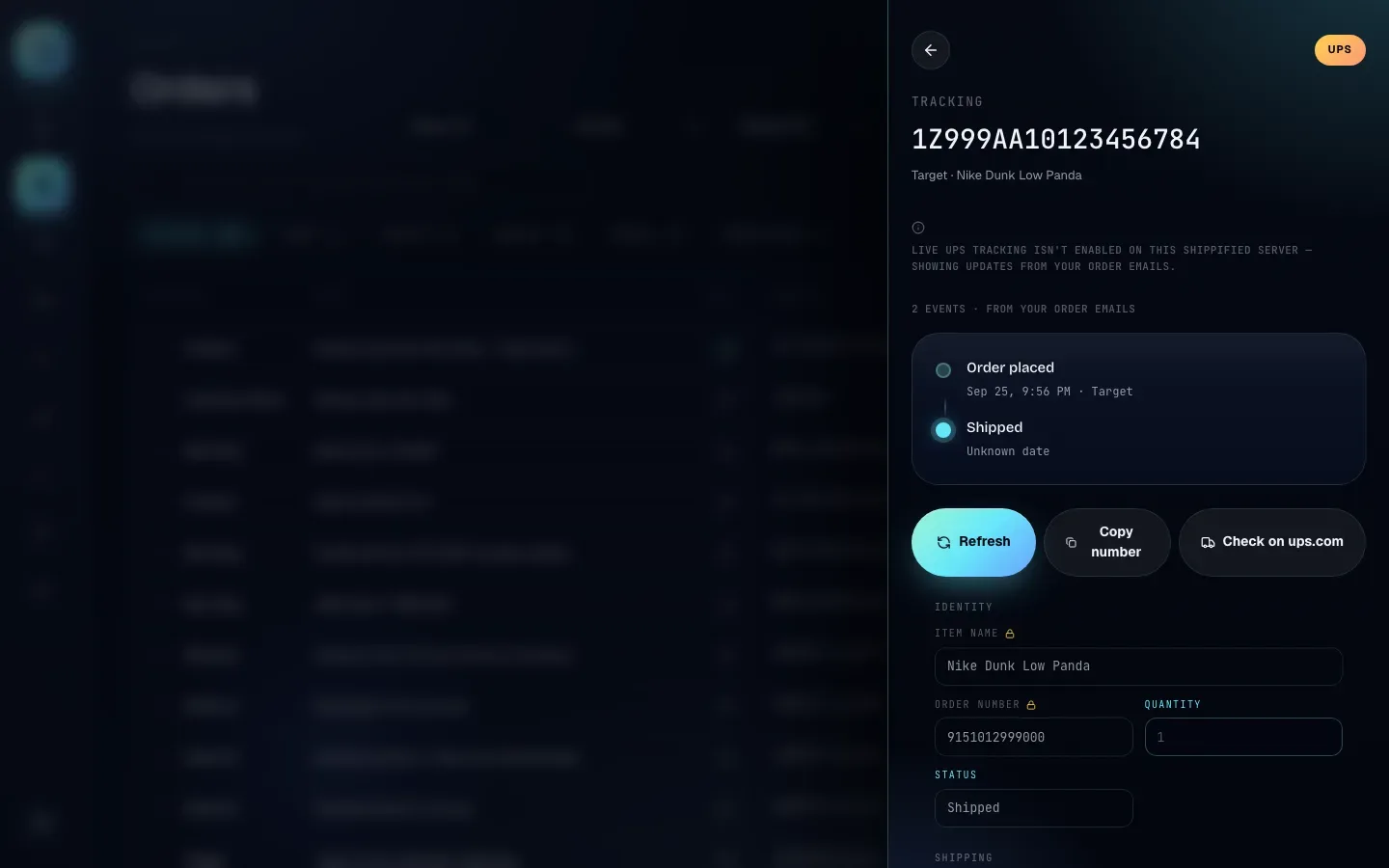
The drawer says "Live UPS tracking isn't enabled on this Shippified server — showing updates from your order emails."
That's expected for UPS and FedEx: live lookups aren't switched on for those carriers. The timeline shows what your emails said, and the order moves to Delivered when the retailer's delivery email arrives. For live scans, click Check on ups.com (or fedex.com), or Copy number and paste it on the carrier's site. There's nothing to change in your settings.
The drawer says "Live USPS tracking isn't available in Shippified"
USPS isn't tracked live. Click Check on usps.com for live scans. The order's status follows your USPS-related emails.
The drawer shows "Unknown carrier"
Shippified couldn't tell the carrier from the tracking number's format, for example Amazon Logistics TBA… numbers or regional carriers. The message reads "Shippified couldn't tell which carrier this tracking number belongs to — showing updates from your order emails. Copy the number to check it on the carrier's site." Status still follows your emails.
If the drawer says No tracking yet instead, the order simply has no tracking number yet. It fills in when a shipping email or bot post brings one.
A DHL package was delivered but the order still says Shipped
Recent DHL and DHL Express orders are checked in the background about every 30 minutes, orders 30 to 90 days old about twice a day, and older ones only when you ask. On busy days checks can be less frequent, because the carrier limits lookups. To check now, open the order and click Refresh, or click Sync tracking on the Orders page.
The drawer says "Tracking lookup failed"
The carrier didn't answer. Click Try again, or Refresh a few minutes later. If the carrier returned an earlier timeline, Shippified shows that one instead.
The drawer says "No tracking events yet"
The carrier hasn't scanned the package yet ("The carrier has not posted any updates for this shipment."), and there's nothing in your emails to build a timeline from. Check again after the package's first scan.
Sync tracking says "Nothing to sync — no open orders with a tracking number on a live-tracked carrier."
Sync tracking only refreshes Ordered and Shipped orders whose tracking number is on a live-tracked carrier (DHL or DHL Express), up to 50 at a time. UPS, FedEx and USPS orders update from your emails instead. When there's something to sync you'll see a summary such as Synced 12/12 · 3 delivered · 0 failed.
I entered the wrong tracking number
A tracking number and carrier can't be changed once they're set. Delete the order (Delete order in its drawer) and add it again with New order and the right number.
Billing and limits
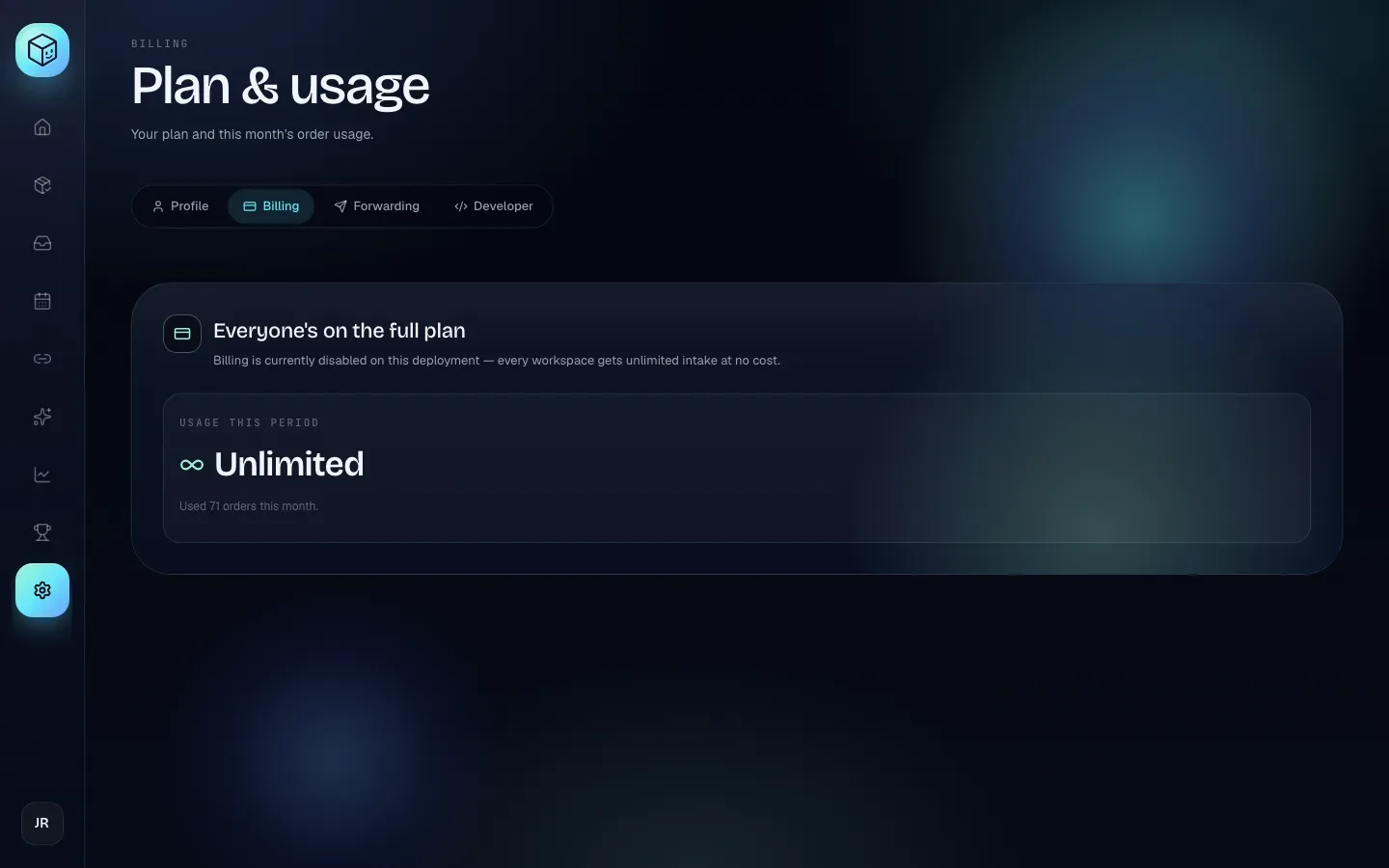
Is there a limit on how many orders I can add?
Open Settings → Billing. If it says Everyone's on the full plan, billing is switched off and intake is unlimited: nothing on this page applies to you.
If it says Free plan, you can add 100 new orders per calendar month. The counter resets at midnight on the 1st in the Timezone set in Settings → Profile. Messages that merge into an existing order, tracking updates and sale-price edits don't count. See Plans and billing.
It says "Free plan limit reached — you've already added 100 of 100 orders this month. Upgrade to keep importing."
You've used this month's free orders. Until the counter resets (the date is shown on Settings → Billing):
Bot posts are accepted but not turned into orders. They appear in the bot's activity as
rejectedwithplan_limit_reached (100/100).Forwarded emails bounce with a
Shippified:message.New order on the Orders page shows Limit reached.
Updates to orders you already have (shipping emails, tracking) keep working.
To keep importing, upgrade on Settings → Billing, or wait for the reset.
Upgrading says "Verify your email before upgrading."
Paid upgrades need a verified email. Click Resend on the Verify your email. banner, open the link within 24 hours, then try again.
Upgrading says "Billing is currently disabled — everyone's on the full plan."
There's nothing to buy: billing is switched off and every workspace already has unlimited intake.
I paid before billing was switched off. How do I cancel?
Settings → Billing shows Manage existing subscription. Click Open billing portal to update your card, see receipts or cancel.
Discord bot and daily digest
The Shippified Discord bot posts a daily checkouts digest. It's set up in Settings → Forwarding under Daily checkouts digest. See Discord bot.
Install bot to your Discord says "Discord isn't configured on this deployment yet." or "Discord integration is not configured on this deployment."
The Discord integration isn't available right now. Try again later, or contact support.
Send a test digest now is greyed out
The test always posts to the saved channel with the saved breakdown, so the button only works once what's on screen is saved. The hint under the buttons says why:
"Save a channel ID first.": type a channel ID into Step 2 — Channel ID and click Save. In Discord, right-click the channel and choose Copy Channel ID; if you don't see it, turn on Developer Mode in Discord's settings (Advanced).
"Save your changes first — the test uses the saved channel and breakdown.": you changed the channel ID or the breakdown since the last save. Click Save.
The test works whether or not the daily digest is Enabled.
The test says "No digest channel configured. Set one in Settings → Forwarding → Daily checkouts digest."
No channel is saved for the digest. Enter the channel ID under Daily checkouts digest, click Save, then Send a test digest now.
The test shows an error starting with "Discord 403" or "Discord 404"
Discord 403: the bot is in the server but can't post in that channel. Give its role View Channel, Send Messages and Embed Links in the channel's permissions (channel overrides can block it even when the server role allows it).Discord 404: the channel ID is wrong, or the bot isn't in that server. Copy the ID again, or reinstall the bot with Install bot to your Discord.
A successful test shows "Posted (Discord message id …)."
The digest didn't post, or shows the wrong day
Check that Enabled ("Post daily digest at the chosen hour.") is ticked and you clicked Save.
The schedule uses the Timezone in Settings → Profile (UTC if you haven't set one).
The scheduled digest covers the previous full day; the test covers today so far.
Shippified checks every 15 minutes, so the post can land up to 15 minutes after the hour. If a post fails, it tries again at each check for the rest of the day.
A digest button says "Sorry, that interaction doesn't go anywhere right now."
That button isn't one Shippified recognises. Post a fresh digest with Send a test digest now and use its buttons.
Sharing and profile
My public profile says "Profile not found"
Anyone other than you sees this when Public profile is off in Settings → Profile, or when the link uses an old username (changing your username changes your profile address). Turn Public profile on and share the new link from Copy link on your profile.
My profile shows zeros, or I'm not on the leaderboard
Your numbers, level and rank are shown to others, and you're listed on the Leaderboard, only when Include my checkouts in public stats is on in Settings → Profile. It's off by default. You always see your own stats. Read Sharing and profiles before turning it on: it also includes your checkouts in the community Discord recaps.
I can't save my username
Usernames must be 3–32 characters: lowercase letters, numbers, dashes and underscores. Letters you type become lowercase automatically. A name that fails a rule or is taken isn't saved; the reason shows beside the field:
"Must be 3–32 characters."
"Use only lowercase a-z, 0-9, dashes, underscores."
"Can't start or end with a dash."
"No consecutive dashes."
"Already taken." (someone else has it) or "That username is reserved."
Change the name until the message goes away, then press Enter or click outside the field. Workspace names can be up to 48 characters and can't be blank.
Share to Discord on my profile is greyed out or fails
Share to Discord posts to the Bot throughput fallback webhook in Settings → Forwarding, and only works for the profile's owner. If it's greyed out, set that webhook. Discord rejected (404) means the webhook was deleted in Discord: create a new one and paste it in.
A share link says "This share doesn't exist or has been revoked."
The share was revoked in Settings → Profile → My shares, or the link is incomplete. Generate a new share. Revoking can't remove images someone already downloaded or link previews Discord already saved.
My share card doesn't show my latest orders
Share cards are snapshots, calculated once when you click Generate share. Create a new one to include newer orders.
My background image won't upload
Theme background images must be PNG, JPG or WebP, under 2 MB ("That file is over 2 MB. Resize it first…"). Themes are saved in the browser you set them in, so a different browser or device shows the default theme.
A share card uses whichever theme is active when you click Generate share. A background image only appears when your custom theme is the active one; preset themes have no background image.
Docs sign-in
You can read these guides without signing in. Signing in with your Shippified account is optional.
I clicked Sign in on the guides and ended up on my dashboard
Clicking Sign in in the guides header takes you to the Shippified sign-in page, then back to the page you were reading. The return trip is set up in the tab where you clicked Sign in, and it's used once. If you signed in in a different tab, or had already signed in, you land on the dashboard. Go back to the guides and click Sign in again: with your Shippified session active, it returns you without another sign-in form.
I signed in to the guides but the header still shows Sign in
Reload the page. If it still shows Sign in, clear cookies for shippified.net and sign in again from the guides header. Browsers that block third-party cookies or use strict tracking protection can prevent the docs from seeing your sign-in; allow cookies for shippified.net and auth.shippified.net.
How to contact support
If you're still stuck, contact us:
Email: [email protected]
Discord: discord.gg/QvfSjnCxsg
To help us fix it quickly, include:
The email address of your Shippified account, or your Username (Settings → Profile).
What you were doing, and what you expected to happen.
The exact error message, copied as text, plus a screenshot.
Where it happened: the page and, for bots or inboxes, the bot's or inbox's name.
When: the date and time, with your timezone.
For a missing or wrong order: the retailer, the order number, and whether it came from a bot or an email.
Never send us passwords, app passwords, API keys, your bot webhook URLs or your email forwarding address. We'll never ask for them. If you've shared one by mistake, revoke the API key in Settings → Developer, delete and recreate the bot or inbox, or change the password.
For privacy requests (a copy of your data or deletion), you can also use Download my data and Delete account… in Settings → Profile → Your data, or the privacy rights form. See Account and privacy.