🔑Create an account and sign in
Sign up for Shippified, sign in with email, Google or Discord, reset a password, verify your email, sign out, and sign in to these docs.
- Written for
- Anyone creating a Shippified account or having trouble signing in
- Applies to
- All plans
- Deprecated
- + Deprecated
You create a Shippified account and sign in on the same page, at shippified.net/auth. Sign-in is handled by Atlas, a secure sign-in service that runs at auth.shippified.net. You can use your email address, your Google account or your Discord account. Accounts that were set up with a Shippified password before Atlas can still use that password through Use your password instead.
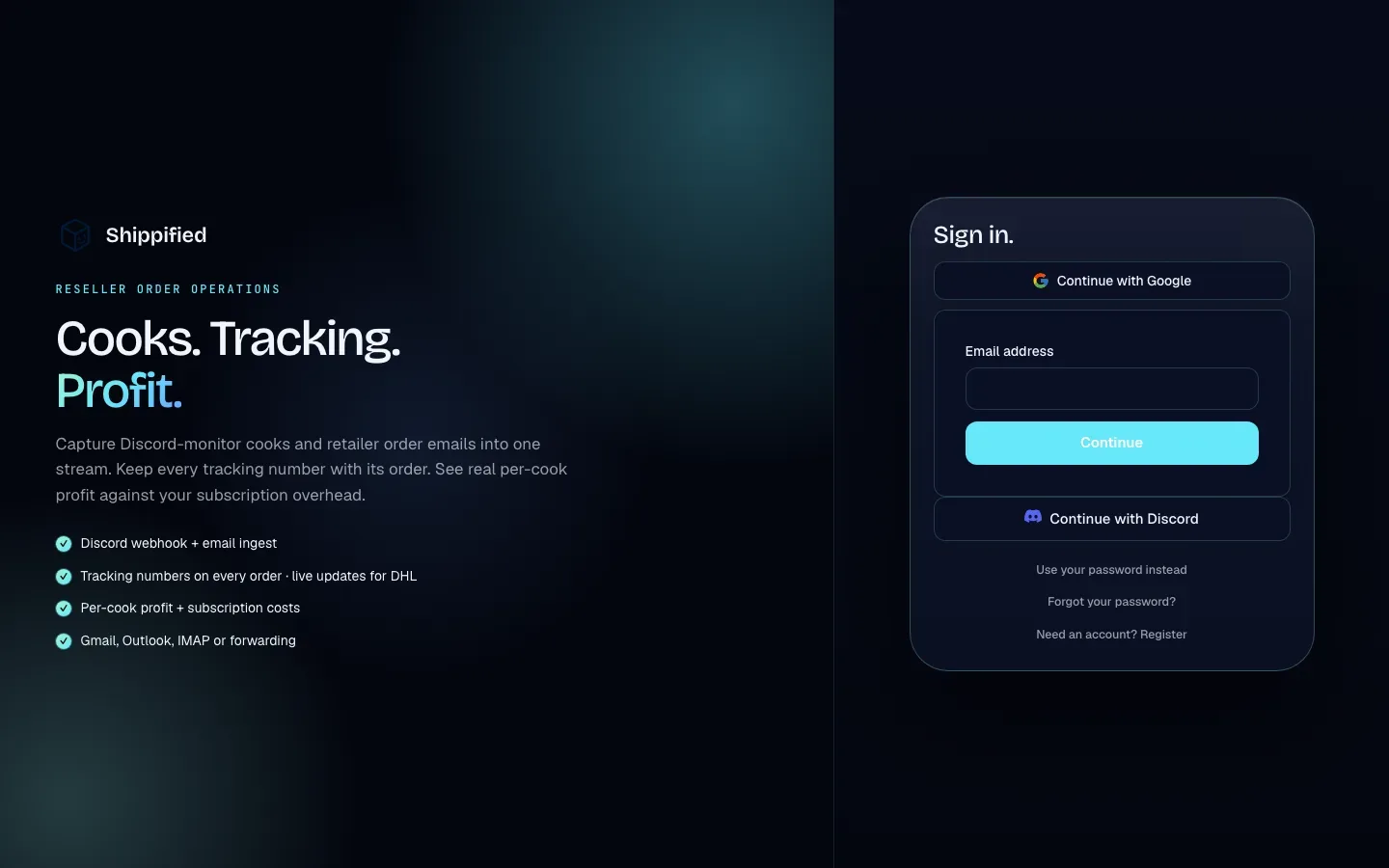
Open the sign-in page
From the Shippified home page at shippified.net:
Start tracking opens the page with the heading Create your workspace. (its address ends in
?mode=register). Use this if you're new.Sign in (in the top bar or under the headline) opens the same page with the heading Sign in. Going straight to
shippified.net/authalso opens the sign-in version.
Switch between the two with the link at the bottom of the form: Need an account? Register or Already have an account? Sign in. The sign-in version also has Forgot your password? (see Forgot your password). Apart from that, the form works the same way either way: if you don't have an account yet, finishing sign-in creates one, and if you do, it signs you in to it. You get one workspace per account, and it's created empty.
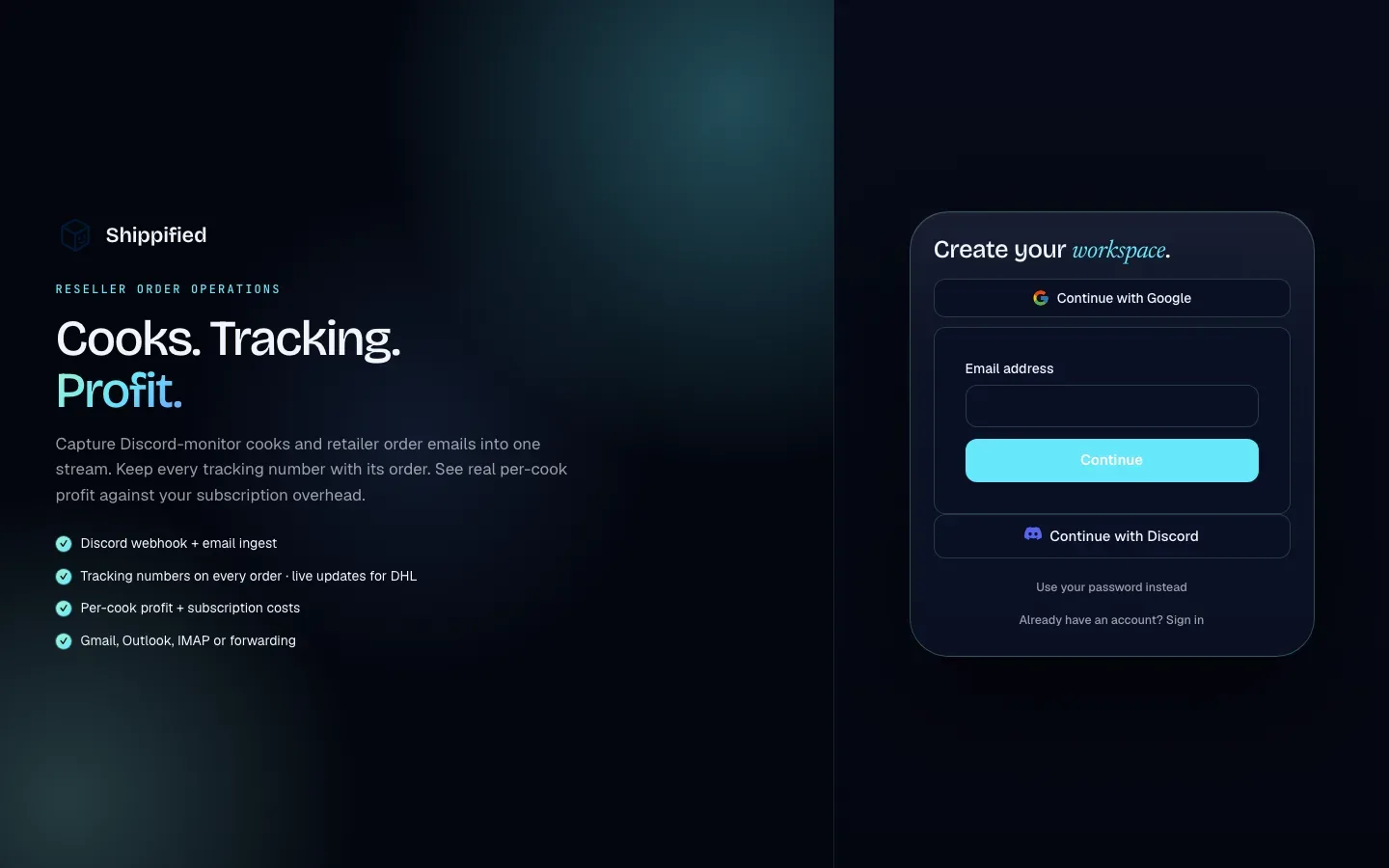
Choose how to sign in
The form offers these methods. Pick whichever you'll remember: next time, sign in the same way.
Method | Button or field | Good for |
|---|---|---|
Email address, then Continue | Anyone. Atlas then asks for your password or sends a one-time code to your email, depending on how your account is set up. | |
Continue with Google | Gmail and Google Workspace users. No password to remember. | |
Discord | Continue with Discord | Resellers who live in Discord. Discord sign-in is provided through RestoreHub. |
Shippified password | Use your password instead | Accounts created with a Shippified password before Atlas sign-in was introduced. |
Sign in with your email
- Enter your email address
Type your address in Email address and click Continue.
- Finish on the next screen
Atlas asks you to finish signing in. Depending on your account, enter your password, or check your email for a one-time code and enter it. The code is sent to the address you typed, so check your spam folder if it doesn't arrive within a minute or two.
- Wait for your workspace to open
You'll see Signing you in… while Shippified opens your session. Then your dashboard opens. If your workspace is empty, the setup wizard opens instead.
Sign in with Google
- Click Continue with Google
The page moves to Google's sign-in.
- Choose your Google account
Pick the account and approve. Google sends you back to Shippified.
- Wait for your workspace to open
You'll see Signing you in…, then your dashboard (or the setup wizard, for a new workspace).
Your Google account's email address becomes your Shippified account email. If Google has verified it, your Shippified email counts as verified too.
Sign in with Discord
- Click Continue with Discord
A Discord sign-in window opens, provided by RestoreHub.
- Approve in Discord
Sign in to Discord if asked, then approve the request.
- Wait for your workspace to open
You're returned to Shippified and signed in.
Shippified needs an email address from your Discord account to create a new account. If your Discord account has none, you'll see "Your sign-in didn't include an email address. Add one and try again." Add and verify an email in Discord's settings, then try again.
If you signed in to Shippified with Discord before Atlas was introduced, your Discord sign-in is recognised and takes you to your existing workspace.
Use your password instead
Use your password instead, at the bottom of the sign-in form, switches to Shippified's own password form. Use it if you created your account with a Shippified password, or if the Atlas form tells you an account with your email already exists.
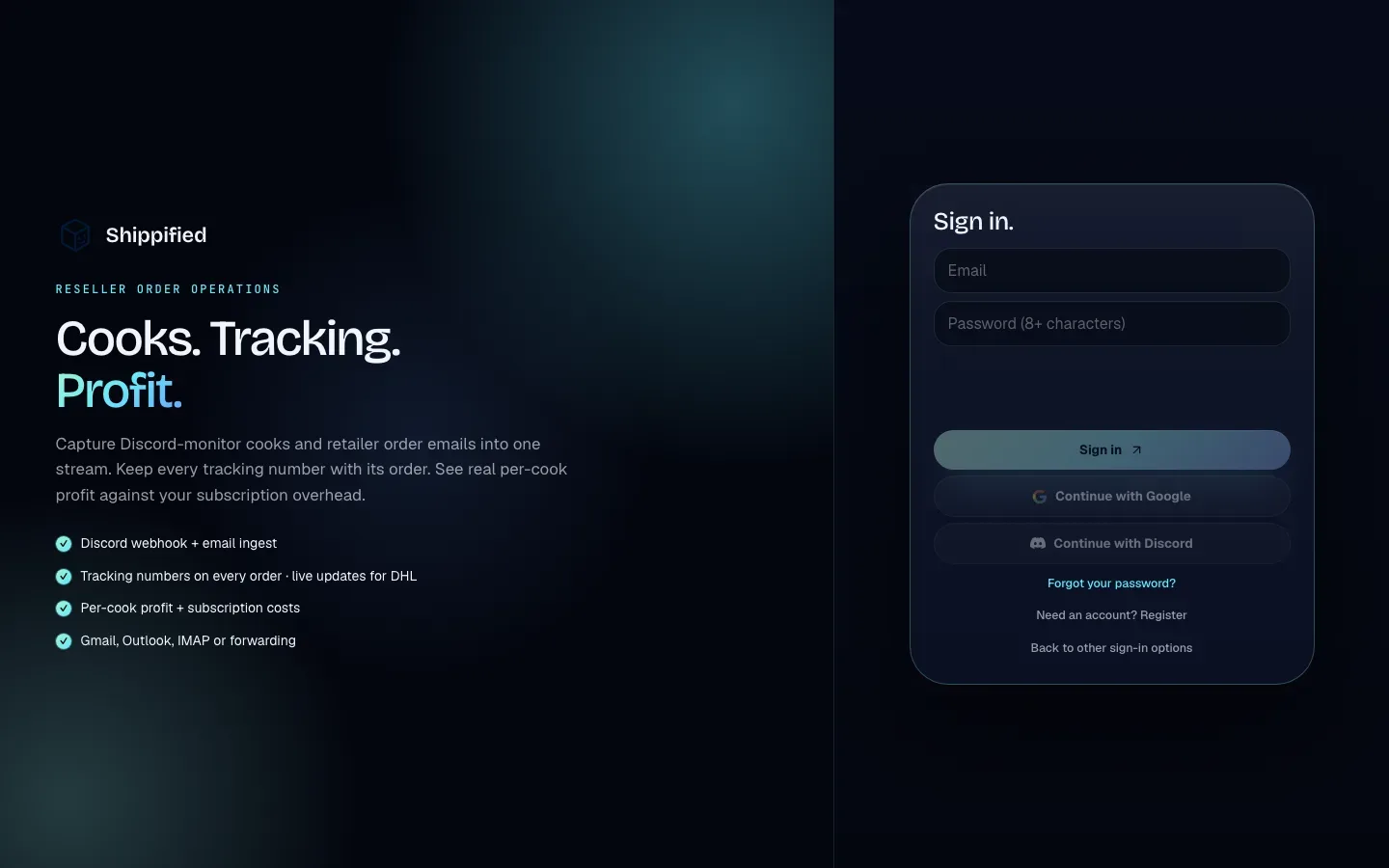
The password form has two modes. The link at the bottom switches between them: Already have an account? Sign in and Need an account? Register. In register mode the form adds a Workspace name field and the button reads Create account.
- Sign in with a password
- Create an account with a password
Enter your Email and Password.
Click Sign in.
If the details don't match an account, you'll see "Invalid email or password". The message is the same whether the email or the password is wrong, so nobody can use this form to find out who has an account.
Workspace name: the name shown on the leaderboard, your public profile and share cards. It starts as
Reseller. Pick something you're comfortable making public; you can change it later in Settings → Profile.Email: your email address. It must look like a real address (
[email protected]), or you'll see "Valid email required".Password: at least 8 characters, or you'll see "Password must be at least 8 characters".
Click Create account. You're signed in straight away, and Shippified sends you an email to verify your address.
If the email already has an account, you'll see "Email already registered". Switch to Already have an account? Sign in instead.
The password form also has its own Sign up with Google (or Continue with Google when signing in) and Continue with Discord buttons. These sign you in to the account that uses the same email address as your Google or Discord account, or create a new one if there isn't one.
On the password form, the buttons stay greyed out until a short automatic security check (the blank area above the buttons) has finished. This usually takes a second or two. If they stay greyed out, reload the page.
To go back to the Atlas sign-in form, click Back to other sign-in options at the bottom of the password form.
Existing accounts
If you had a Shippified account before Atlas sign-in was introduced:
Email sign-in with the same address takes you to your existing workspace if your account has been connected to Atlas. If it hasn't, you'll see the message below.
Discord takes you to your existing account if you'd used Discord to sign in before.
Your Shippified password keeps working through Use your password instead.
Shippified never joins two accounts just because they share an email address, because an email match alone doesn't prove it's the same person. So if you try a new method (for example Google) whose email matches an existing account that isn't connected to Atlas, you'll see:
An account with this email already exists. Sign in the way you did before — or choose “Use your password instead” if you set one.
When that happens, sign in with the method you used before. If your account has a Shippified password, you can also click Use your password instead and sign in with your email and password; if you don't know it, reset it (see below). There's no option for connecting another sign-in method, so keep using the method that works for your account.
Forgot your password
Forgot your password? is at the bottom of the sign-in form, and on the password form in sign-in mode.
- Click Forgot your password?
On the sign-in page (headed Sign in.), click Forgot your password?. If the page is headed Create your workspace., click Already have an account? Sign in first. The heading changes to Forgot your password?
- Request a link
Enter your Email and click Send reset link. You'll see: "If an account exists for that email, a reset link is on the way. Check your inbox (and spam) — the link expires in 1 hour." You see this message whether or not the email has an account.
- Open the link
Click the link in the email within one hour. Shippified opens a page headed Set a new password.
- Set the new password
Enter a new password of at least 8 characters and click Update & sign in. You're signed in on this device and signed out everywhere else.
Click Back to sign in or Cancel to leave the reset flow without changing anything.
Accounts created through Google or Discord don't have a password you know. If you'd like to be able to sign in with a password too, use Forgot your password? with your account email to set one.
Verify your email address
Accounts created with a password start unverified. Until you verify, a banner at the top of every dashboard page says Verify your email. and names the address the link was sent to.
- Open the verification email
Shippified sends it when you create the account. Click the link inside. The link works for 24 hours.
- Check the dashboard
The link takes you to your dashboard, and the banner is gone.
If the email didn't arrive or the link has expired, click Resend on the banner. It changes to Sent when a new email is on its way, or to "Couldn't send — try again in a minute." if sending failed. If Shippified can't send email at all at the moment, the banner says "We can't send email right now — try again later."
Verifying matters because you can't upgrade to Pro until your email is verified. When you sign up with Google, Discord or an email that Atlas has already verified, your email is marked verified automatically and the banner doesn't appear.
Stay signed in and sign out
A sign-in lasts 14 days on that browser. After that, or if you sign out, you'll need to sign in again.
To sign out:
- Open the account menu
Click the round button with your initials at the bottom of the sidebar. The menu shows your workspace name and email.
- Click Sign out
You're taken back to the Shippified home page.
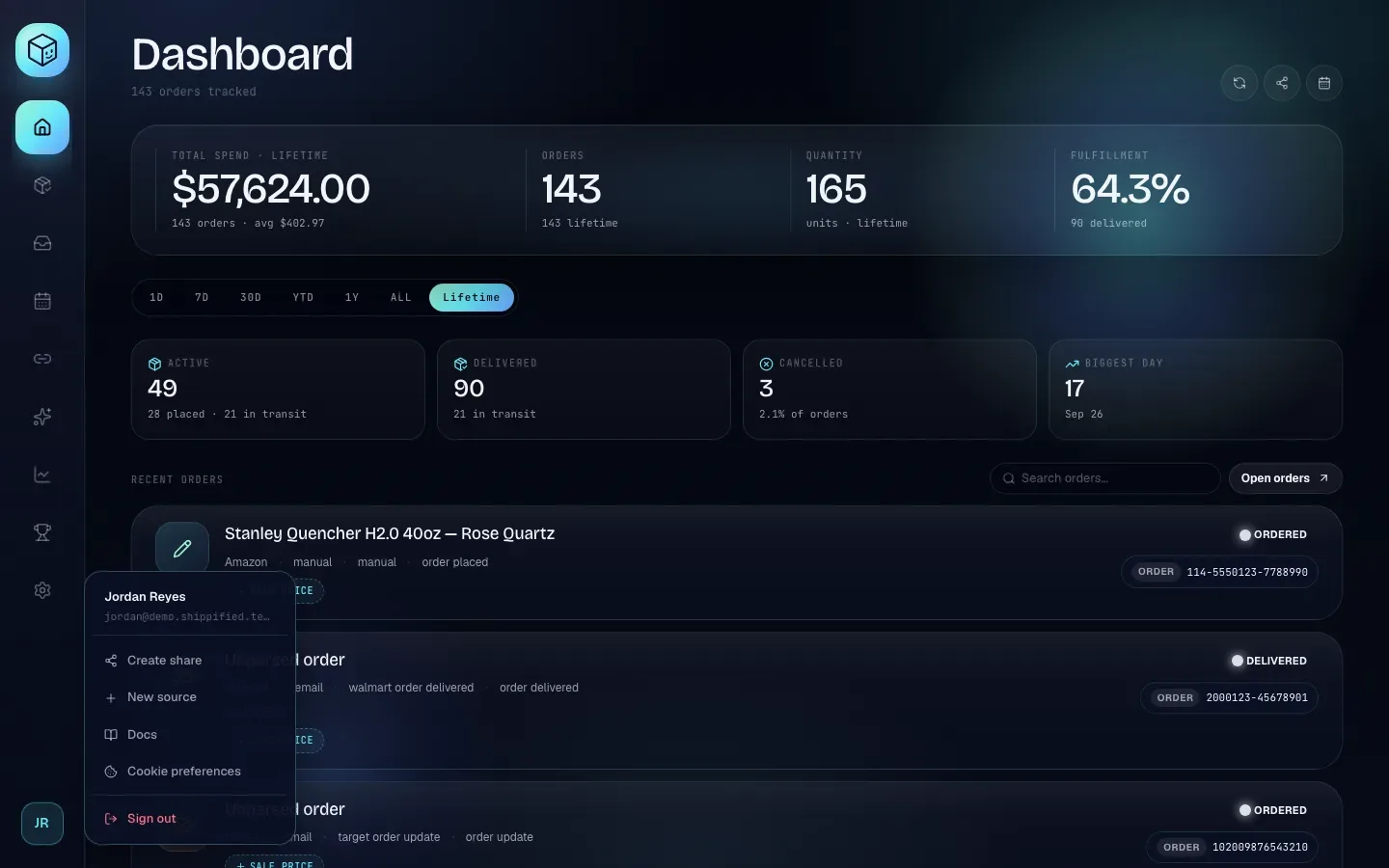
Signing out ends both your Shippified session and your Atlas sign-in on that browser, so the sign-in page won't sign you straight back in. Always sign out on a shared computer.
Sign in to these docs
You can sign in to the Guides and API docs with your Shippified account.
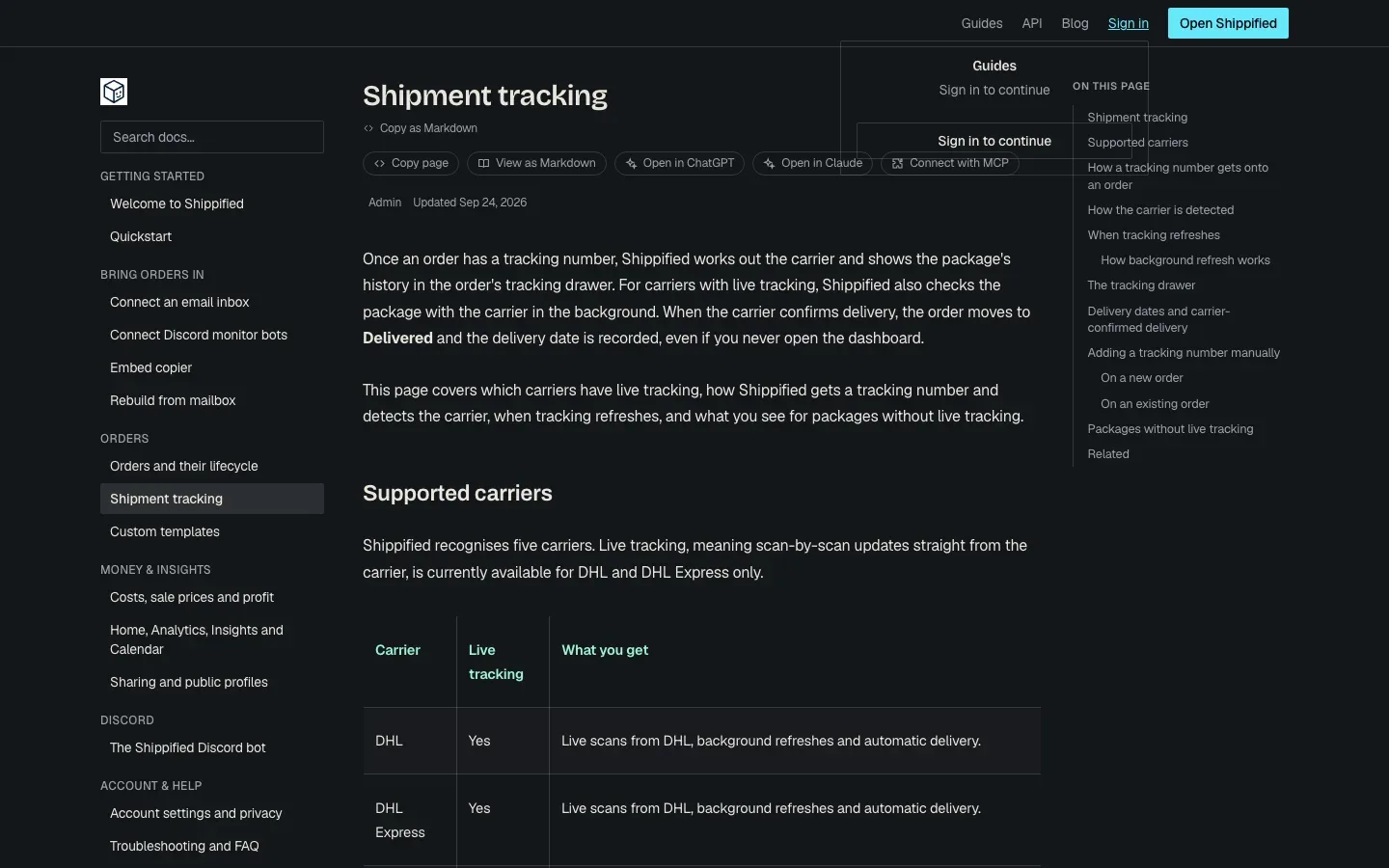
- Click Sign in
In the docs header, click Sign in. A small panel opens.
- Click Sign in to continue
You're taken to the Shippified sign-in page. If you're already signed in to Shippified in this browser, this step is skipped.
- Sign in
Sign in the way you normally do.
- Carry on reading
You're returned to the page you were reading, signed in.
Open Shippified in the same panel opens the app itself instead.
Troubleshooting
"An account with this email already exists…"
Your email belongs to an account that isn't connected to the method you just used. Sign in the way you did before. If your account has a password, you can click Use your password instead and sign in with your email and Shippified password; if you don't know it, use Forgot your password? to set one. See Existing accounts.
"That sign-in is already connected to a different Shippified account."
The Discord account you used is already connected to another Shippified account. Sign in with the method you used for this account, or sign out of Discord and use the right Discord account.
"Your sign-in didn't include an email address. Add one and try again."
Shippified needs an email address to create an account. Add an email to the account you signed in with (for example in Discord's settings), or sign in with your email address instead.
"The sign-in service didn't respond. Try again in a moment."
Shippified couldn't reach the sign-in service. Wait a moment and try again. If it keeps happening, use Use your password instead if your account has a password.
"We couldn't sign you in. Try again."
Something went wrong while opening your session. Reload the page and sign in again.
"Too many auth requests — slow down (60s)." or "Too many sign-in attempts. Try again in a minute."
There have been more than 10 sign-in attempts from your network in the last minute. Wait a minute before trying again.
"Invalid email or password"
The email and password don't match an account. Check for typos and make sure you're using the email you signed up with. If you signed up with Google or Discord, use that button instead, or set a password with Forgot your password?.
"Reset link is invalid or expired. Request a new one."
Reset links work once and expire after an hour. Request a new one from Forgot your password? and use the newest email.
"Missing or malformed Turnstile token…", "That verification expired…" or "Verification failed…"
The automatic security check on the password form failed or timed out. Reload the page and try again.
The sign-in page just says "Loading sign-in…"
The sign-in form is loading from Atlas. If it doesn't appear after a few seconds, check your connection and reload. Browser extensions that block scripts can stop it from loading.
"That verification link is invalid or has expired." or "That verification link is incomplete."
The link in your verification email didn't work (links work for 24 hours), so you were sent to the sign-in page with this message. If the link was cut off, open it again from the email. Otherwise sign in, then click Resend on the Verify your email. banner and use the newest email.