🧭Dashboard tour
A guided tour of the Shippified app, covering the sidebar, the account menu and what every screen is for.
- Written for
- New users finding their way around the app
- Applies to
- All plans
- Deprecated
- + Deprecated
This page walks you around the Shippified app once, screen by screen, so you know where everything lives. Each section says what the screen is for and links to its full guide. Keep the app open in another tab and click along.
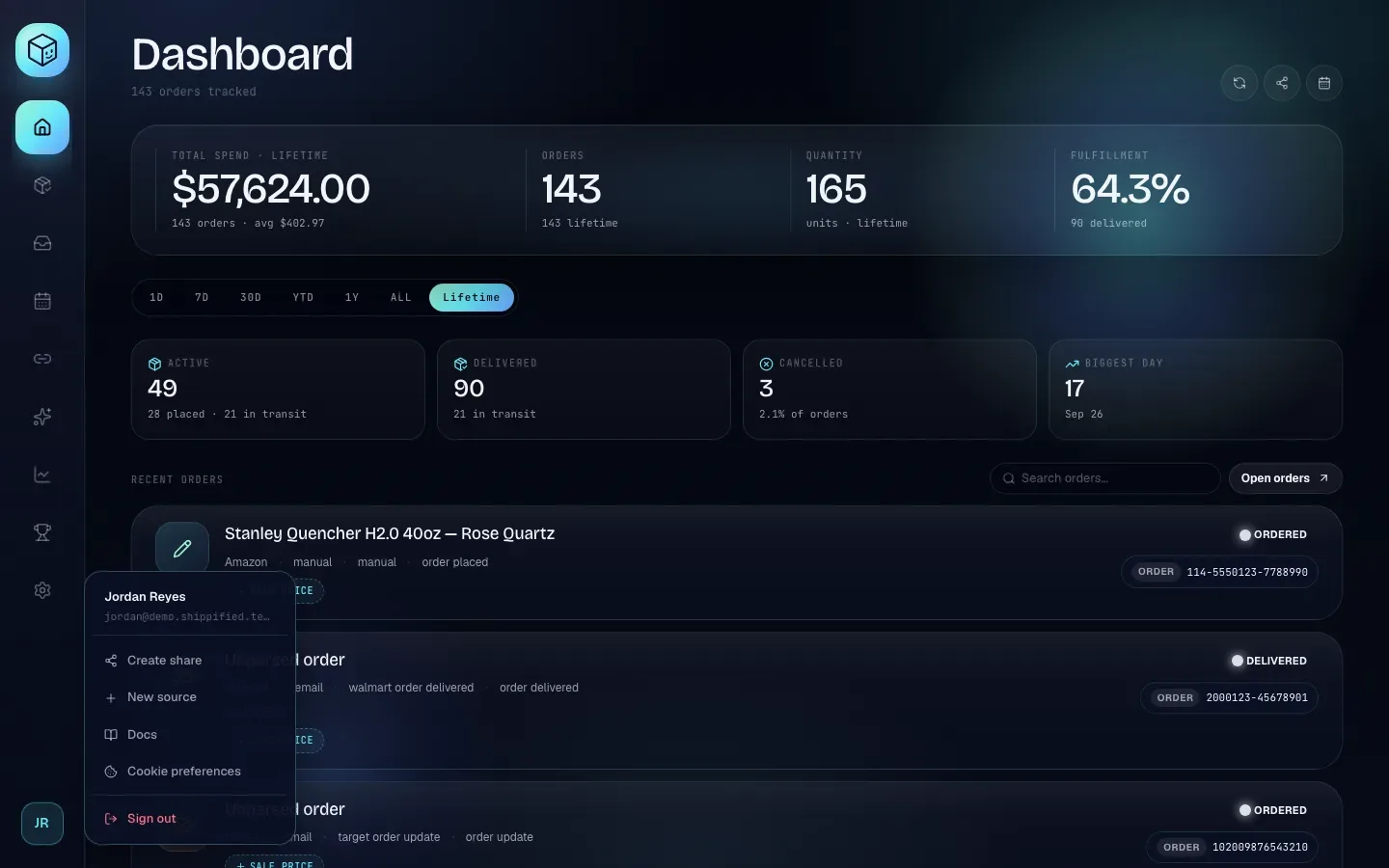
The sidebar
The sidebar runs down the left edge of every screen. It shows icons only; hover over an icon to see its name. The screen you're on is highlighted. On a phone or narrow window, the sidebar becomes a strip you can scroll sideways, and it scrolls itself to keep the current screen in view.
Icon | Name | Where it goes |
|---|---|---|
Shippified logo (top) | Landing | The public Shippified home page. You stay signed in; its Open dashboard button brings you back. |
House | Home | Your dashboard: totals, date ranges and recent orders. |
Box with a check | Orders | The full order list, with search, filters, Sync tracking and New order. |
Inbox tray | Inbox | Every retailer email Shippified read and what it did with each one. |
Calendar | Calendar | Orders, deliveries and subscription renewals by day, plus your subscriptions. |
Chain link | Links | Your sources: webhook bots on Webhooks, email inboxes on Email. |
Sparkles | Templates | The built-in and custom templates that read your messages. |
Line chart | Insights | Profit and loss, and analytics about your sources. |
Trophy | Leaderboard | How your workspace ranks against others by orders. |
Gear | Settings | Profile, appearance, billing, forwarding and developer tools. |
Your initials (bottom) | Account menu | Opens the account menu (below). |
The account menu
Click the round button with your initials at the bottom of the sidebar. The menu shows your workspace name and email at the top, then:
Item | What it does |
|---|---|
Create share | Opens the share dialog, where you make a shareable card of your stats. See Sharing and public profiles. |
New source | Opens Links, where you add a webhook bot or an email inbox. |
Docs | Opens these guides. |
Cookie preferences | Reopens the cookie banner so you can change which cookies you allow. |
Sign out | Signs you out and returns you to the home page. See Create an account and sign in. |
To close the menu without choosing anything, click anywhere outside it or press Esc.
Banners you might see
A few banners can appear across the top of any screen:
Verify your email. Your email address isn't verified yet. Click the link in the email Shippified sent you, or click Resend. See Verify your email address.
… orders left this month. On the Free plan, this appears once you've used 80% of your 100 new orders for the month. At the limit it changes to Free plan limit reached. Click either banner to open Settings → Billing. See Plans and billing.
… new orders since your last visit (Home only). Click Open orders to see them, or the check mark to dismiss the banner.
Home
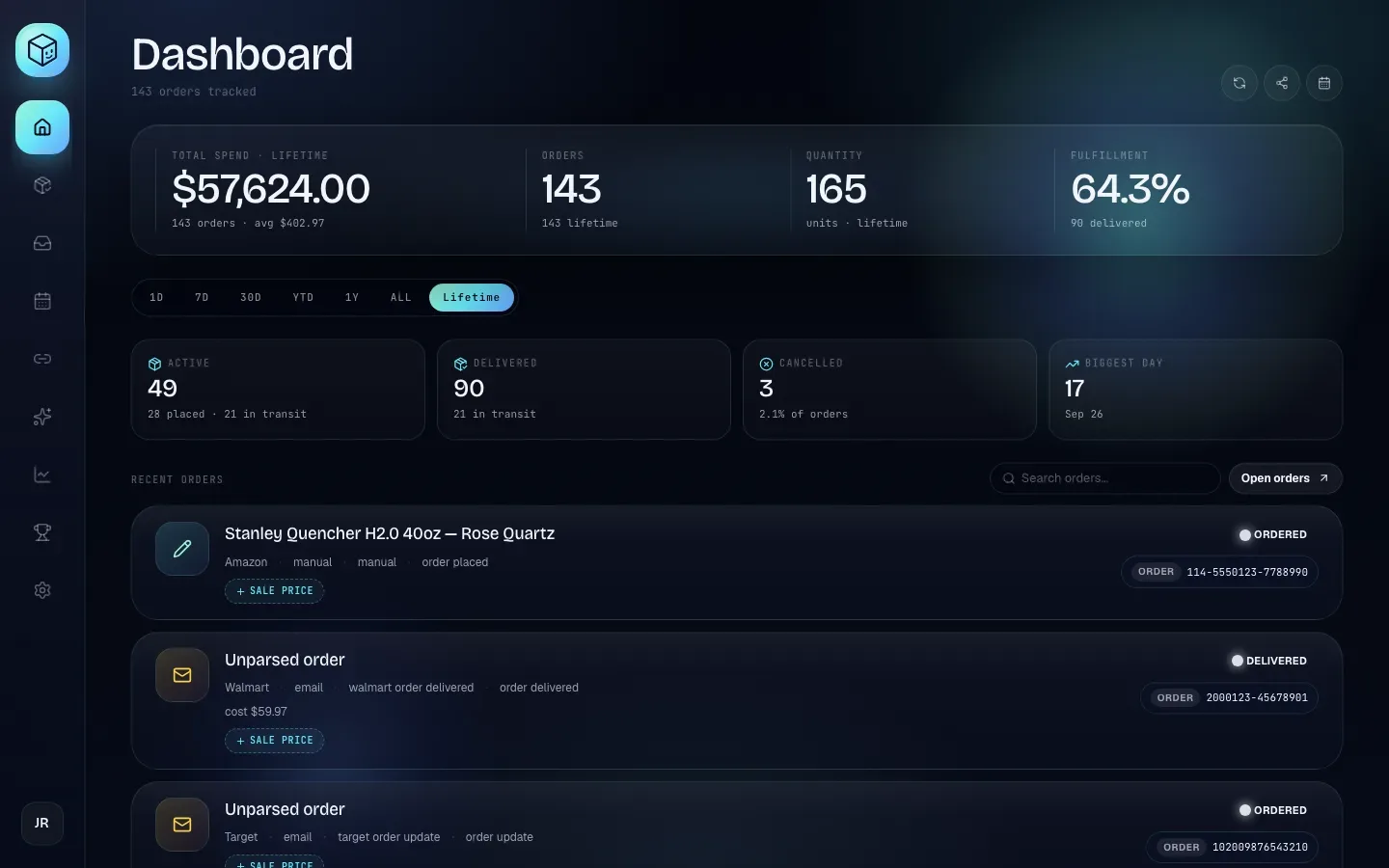
Home (headed Dashboard) is your workspace at a glance. The top band shows Total spend, Orders, Quantity and Fulfillment (the share of orders delivered), and the buttons from 1D to Lifetime change the period they cover. Below are tiles for Active, Delivered, Cancelled and Biggest day, then your Recent orders, with a search box and Open orders. The three round buttons at the top right refresh the page, open the share dialog and open the calendar.
Full guide: Home dashboard.
Orders
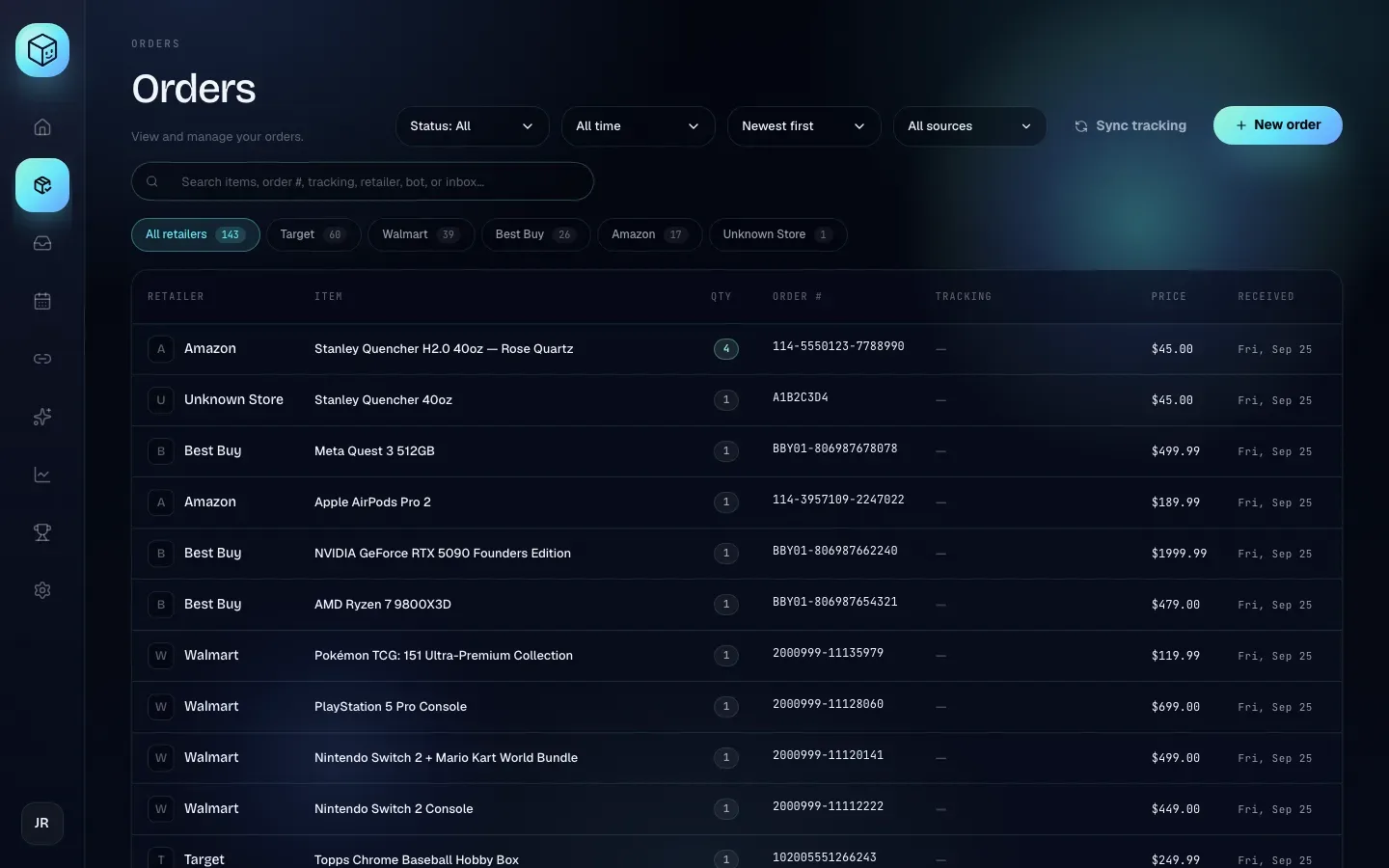
Orders lists every order in your workspace, newest first. Narrow it down with the Status, time, sort and source menus, the search box and the retailer tabs (such as Target or Walmart). Sync tracking checks live-tracked packages with the carrier now, and New order adds an order by hand. Click any row to open that order's detail panel, where you can see its tracking timeline, fill in missing details and add a sale price.
Full guides: Orders, Order details and Order lifecycle.
Inbox
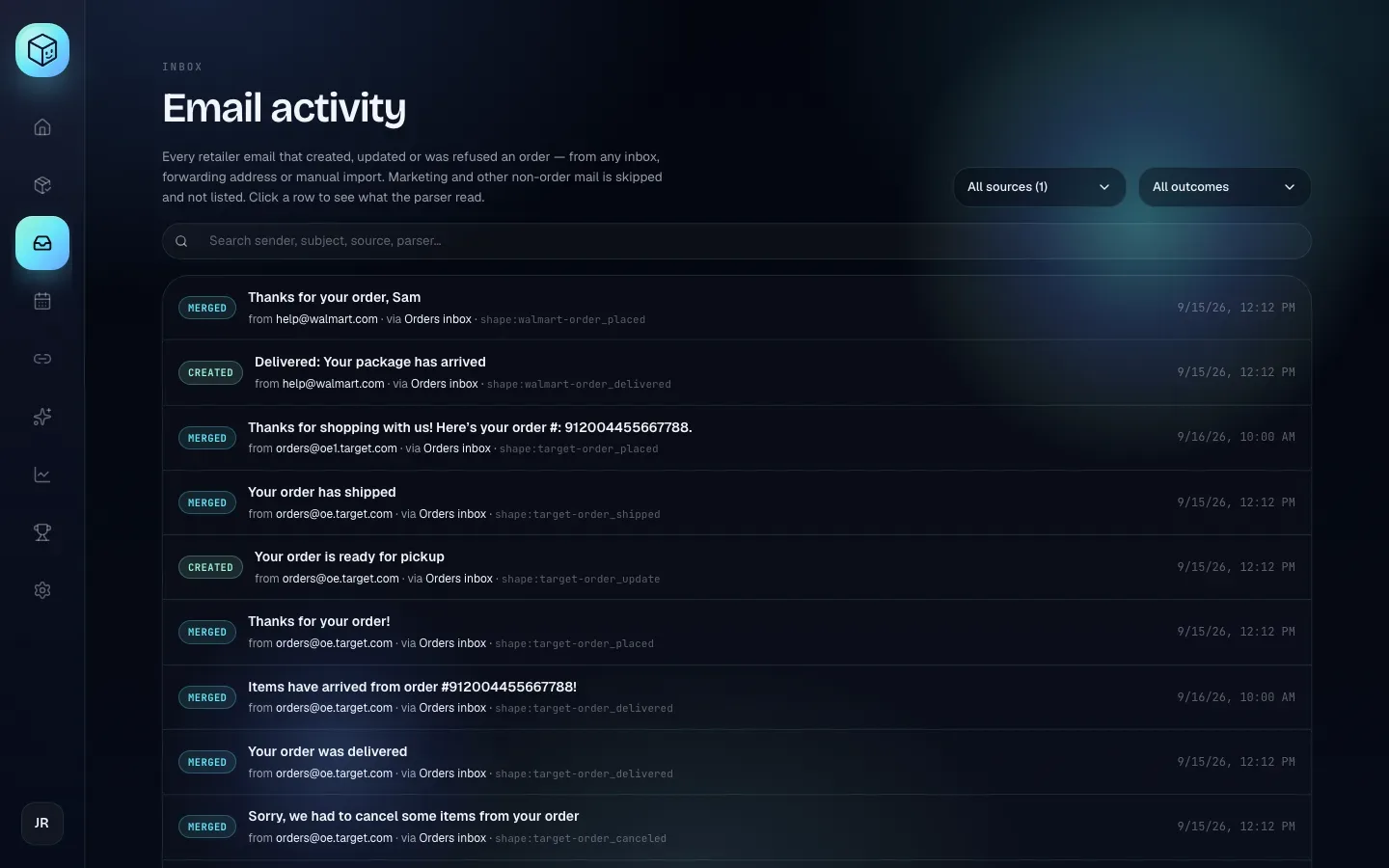
Inbox (headed Email activity) lists every retailer email that created, updated or was refused an order, from any inbox, forwarding address or hand import. Each row shows what happened, such as Created or Merged, along with the sender, the inbox it came through and when. Filter by source and outcome, or search, and click a row to see what Shippified read from the email. Marketing and other mail that isn't about an order is skipped and not listed.
Full guide: The Inbox.
Calendar
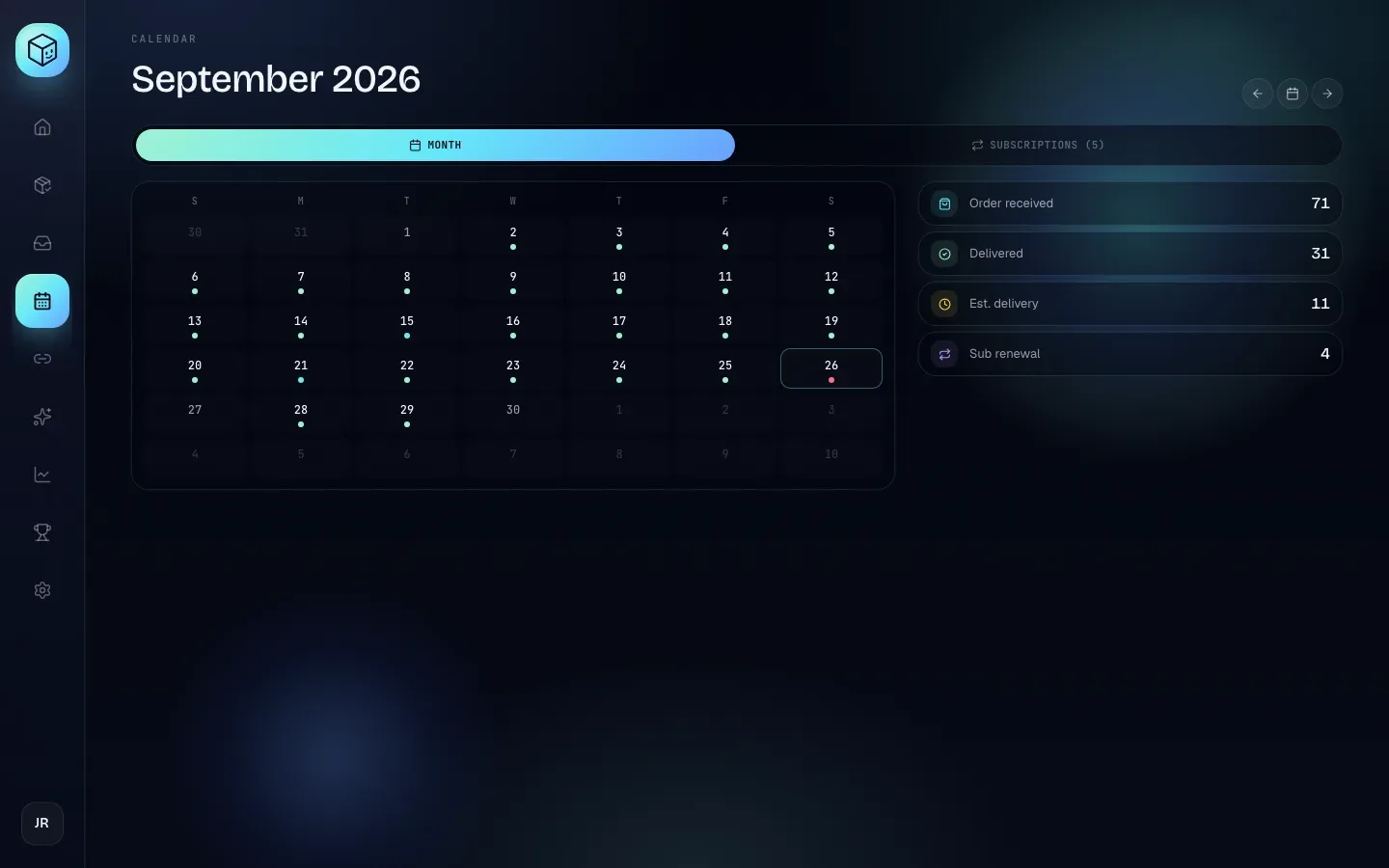
Calendar shows your month day by day. A dot marks each day with something on it, and the list beside the grid counts the month's Order received, Delivered, Est. delivery and Sub renewal events. Click a day to see its events, and use the arrows and the middle button to change month or jump back to today. The Subscriptions tab is where you record the tools you pay for, such as monitors and proxies, so Insights can include their cost in your profit.
Full guide: Calendar.
Links
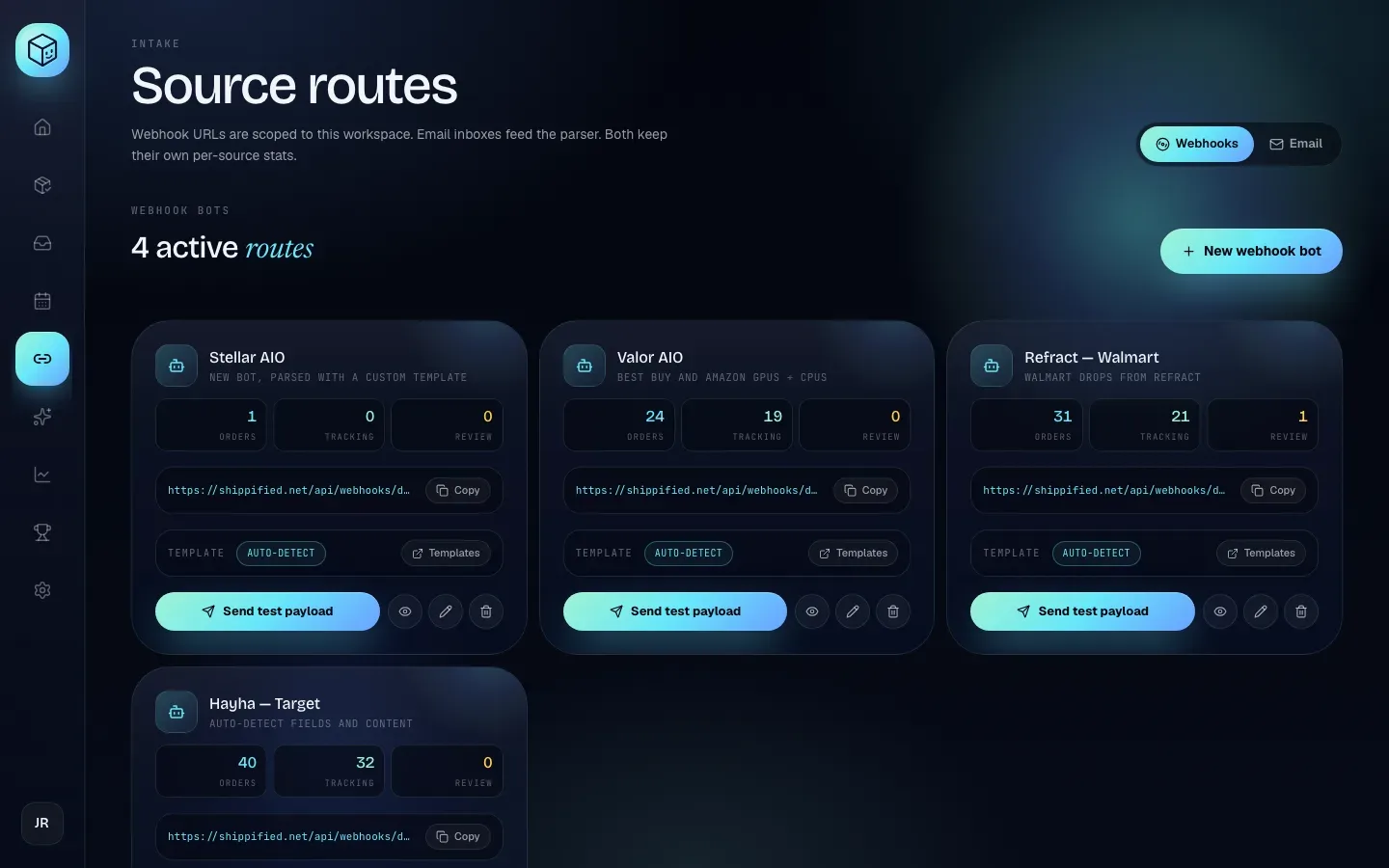
Links (headed Source routes) is where you connect the places your orders come from. The Webhooks tab lists your webhook bots, each with its order stats, its private URL, Copy, a Templates button, Send test payload, and activity, edit and delete buttons, plus New webhook bot. The Email tab lists your connected inboxes, with Add inbox, sync and rebuild controls, and Import an email by hand.
Full guides: Connect Discord monitor bots and Connect an email inbox.
Templates
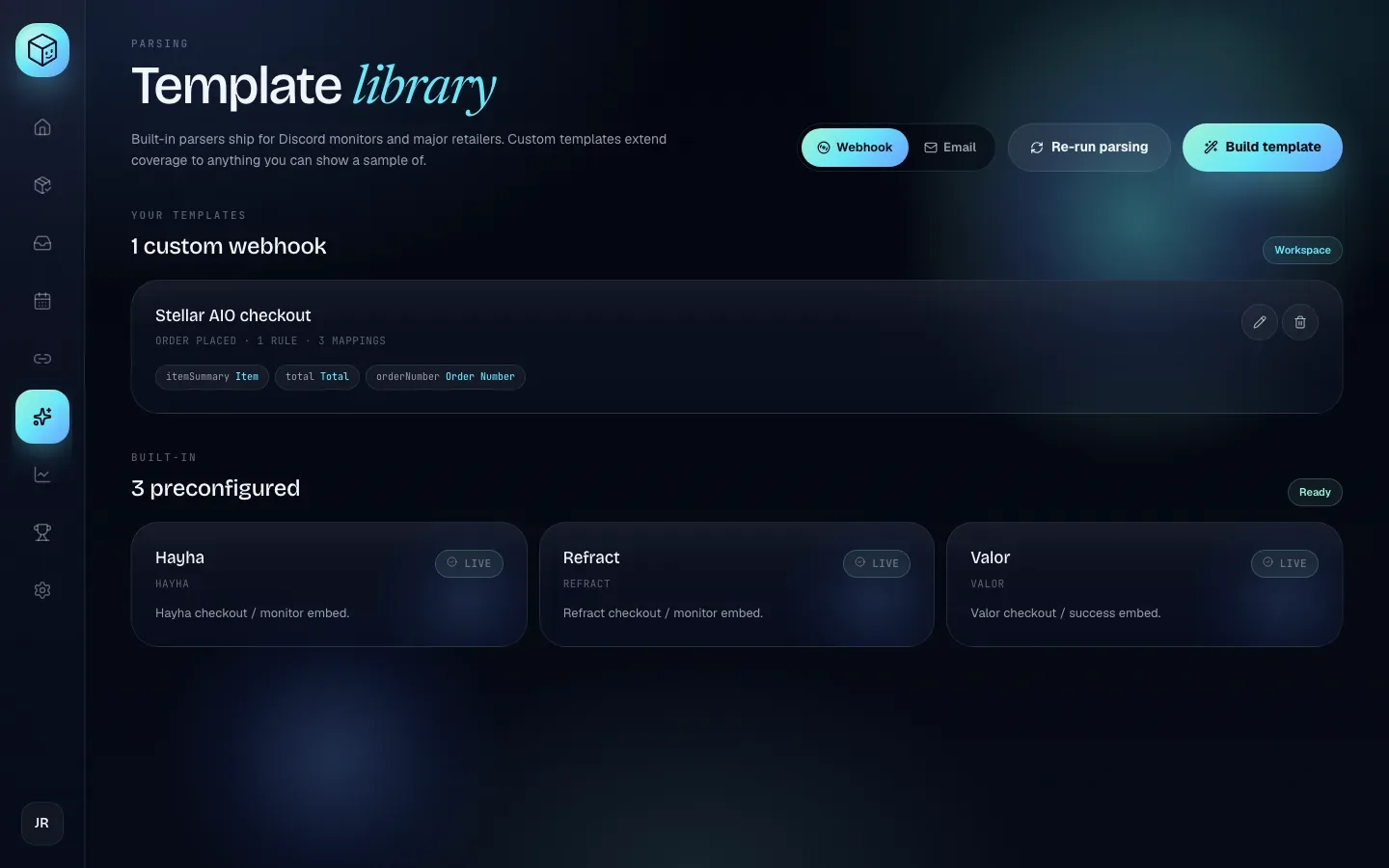
Templates (headed Template library) shows the templates that turn messages into orders. Switch between Webhook and Email templates at the top. Built-in templates come with Shippified, and Your templates are ones you've built. Build template starts a new one from a sample message. Re-run parsing reads your stored messages again with the current templates, which is useful after you add or change one.
Full guide: Custom templates.
Insights
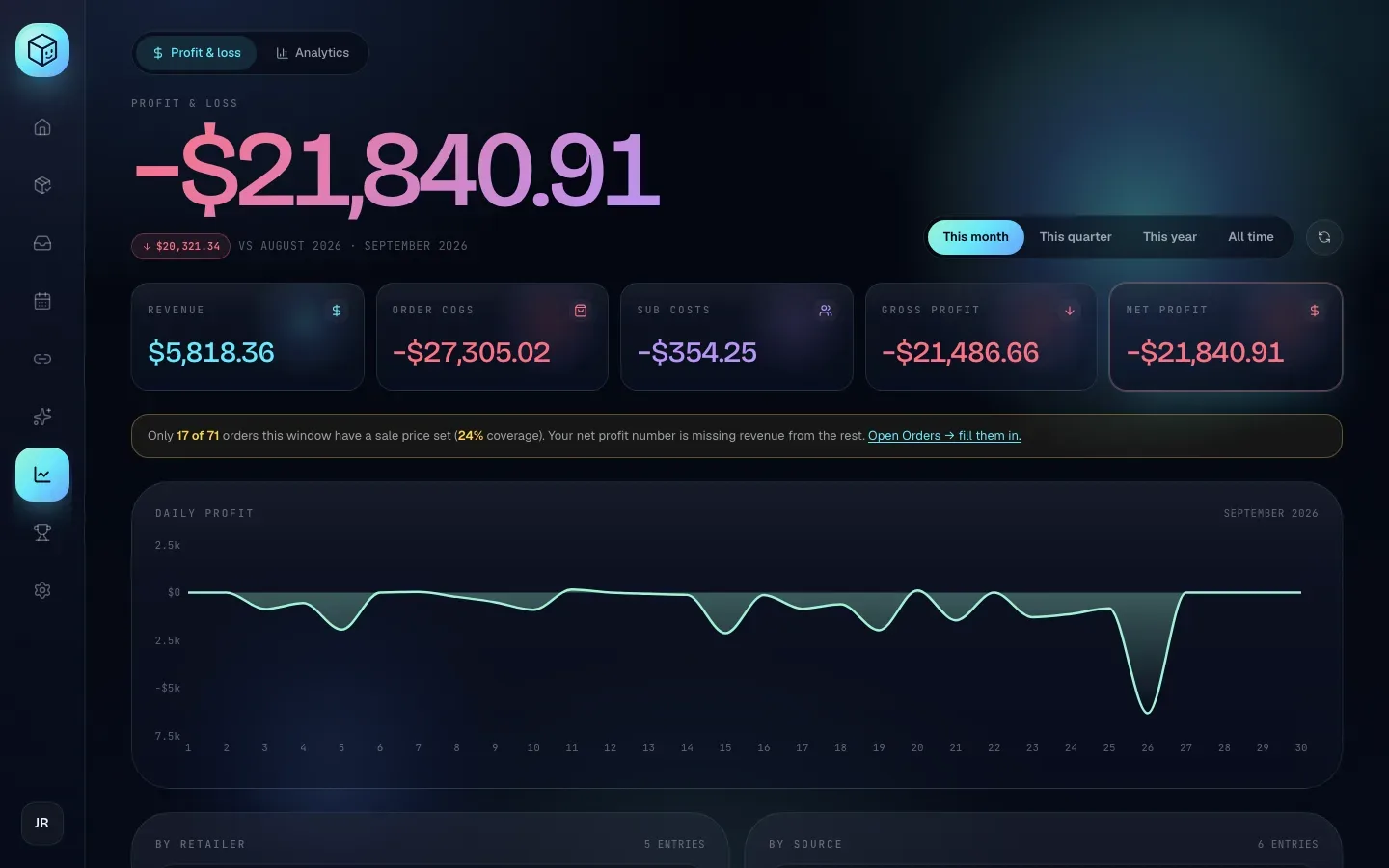
Insights has two tabs. Profit & loss opens first. It shows net profit for This month, This quarter, This year or All time, broken down into Revenue, Order COGS (what you paid for the goods), Sub costs, Gross profit and Net profit, with a daily chart and breakdowns by retailer and source. If many orders are missing a sale price, a notice tells you how many, because the profit number is missing their revenue. The Analytics tab shows how your webhooks perform, which stores were detected and where your orders come from.
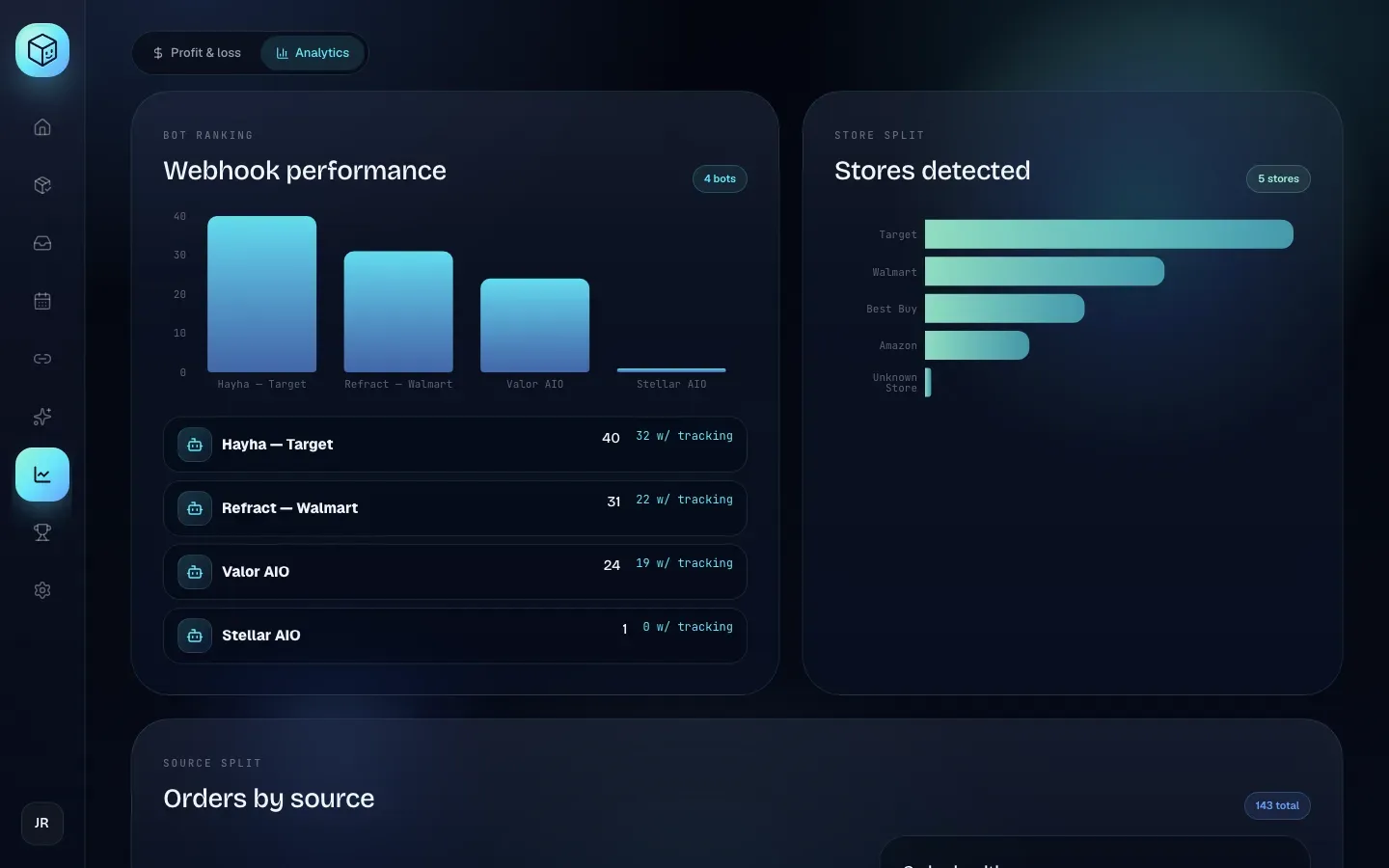
Full guides: Costs, sale prices and profit and Analytics.
Leaderboard
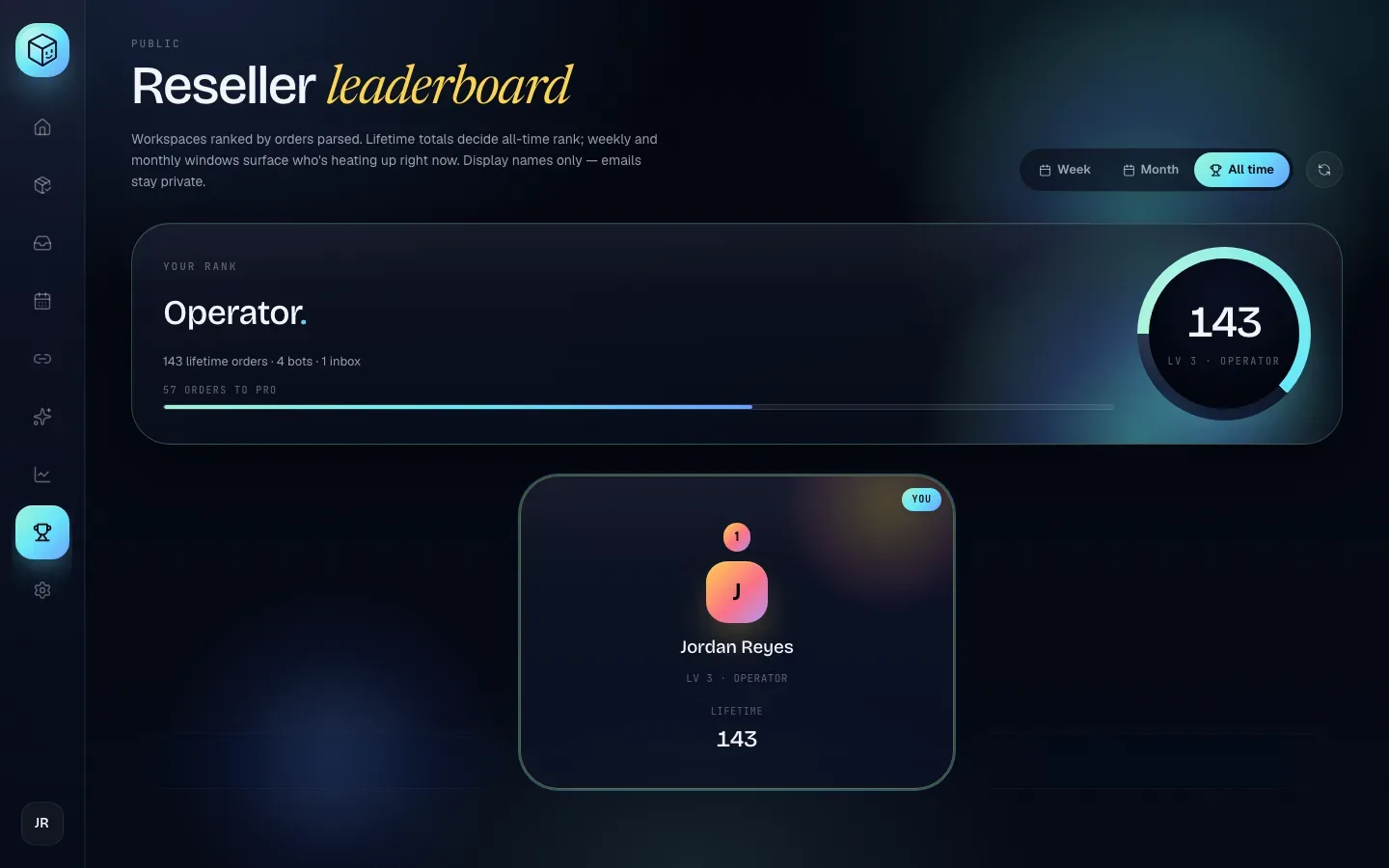
Leaderboard ranks workspaces by the number of orders parsed. Switch between Week, Month and All time. Your rank card at the top shows your level, lifetime orders, bots and inboxes. Only workspace names are shown; emails stay private. You control whether you appear from Settings → Profile.
Full guides: Leaderboard and Sharing and public profiles.
Settings
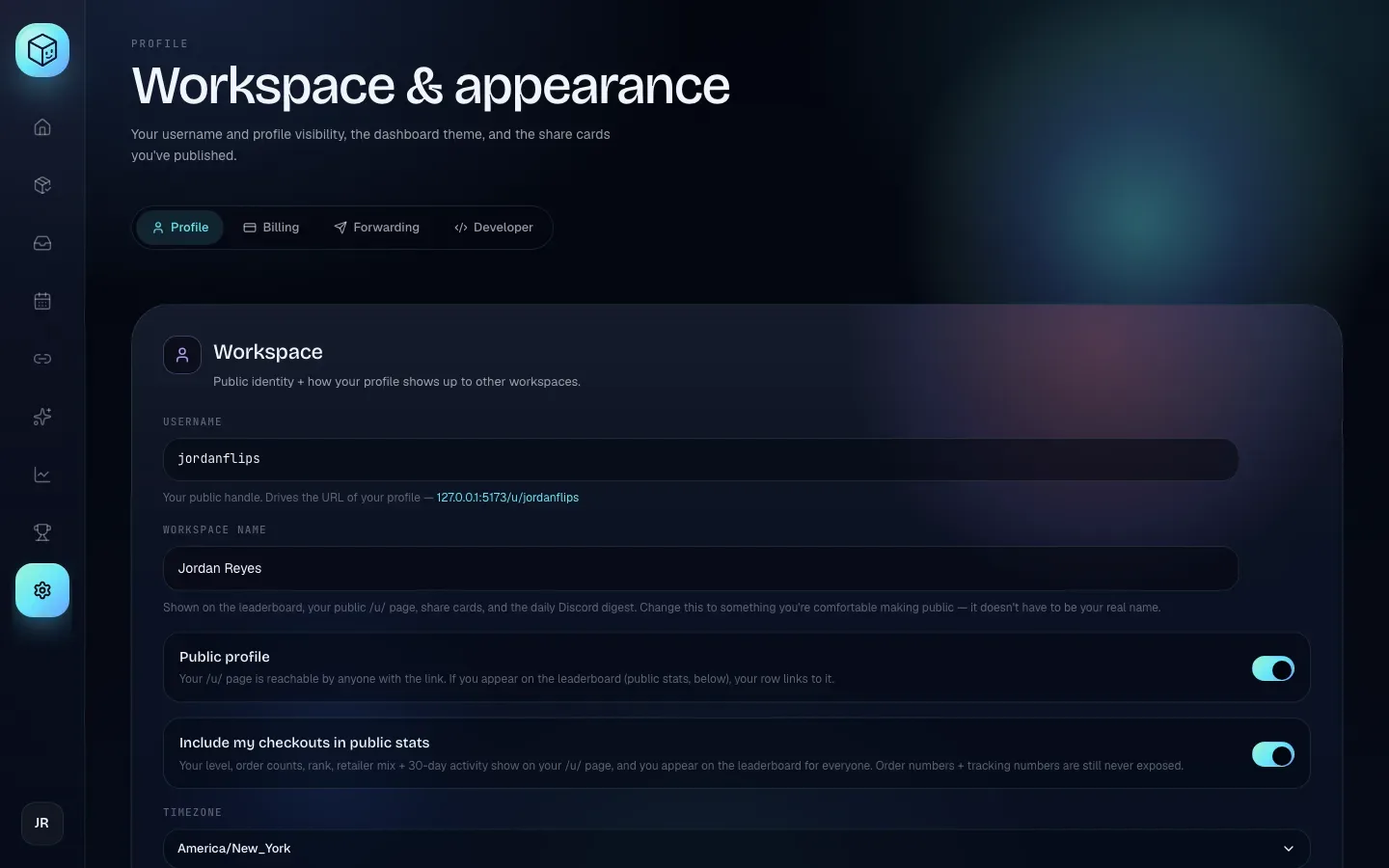
Settings has four tabs:
Tab | What's there |
|---|---|
Profile | Your username, workspace name, public profile and public stats switches, timezone, account email, the dashboard theme, and your share cards. |
Billing | Your plan and this month's usage. |
Forwarding | Where Shippified sends parsed orders and status updates, your email integrations, and the daily checkouts digest for Discord. |
Developer | API keys, outbound webhooks and the Embed Copier. |
Full guides: Settings, Plans and billing, Account and privacy and Developer tools.