🧾Order details
Everything in the order drawer, and how to fill in missing details, set a sale price, or delete an order.
- Written for
- Everyone who uses Shippified
- Applies to
- All plans
- Deprecated
- + Deprecated
Click any order, on the Orders page or in the recent orders on Home, and its details slide out from the right. This panel is the order drawer. It shows the package's tracking timeline (when the order has a tracking number) and an editor where you can fill in anything Shippified couldn't read, add your sale price, or delete the order.
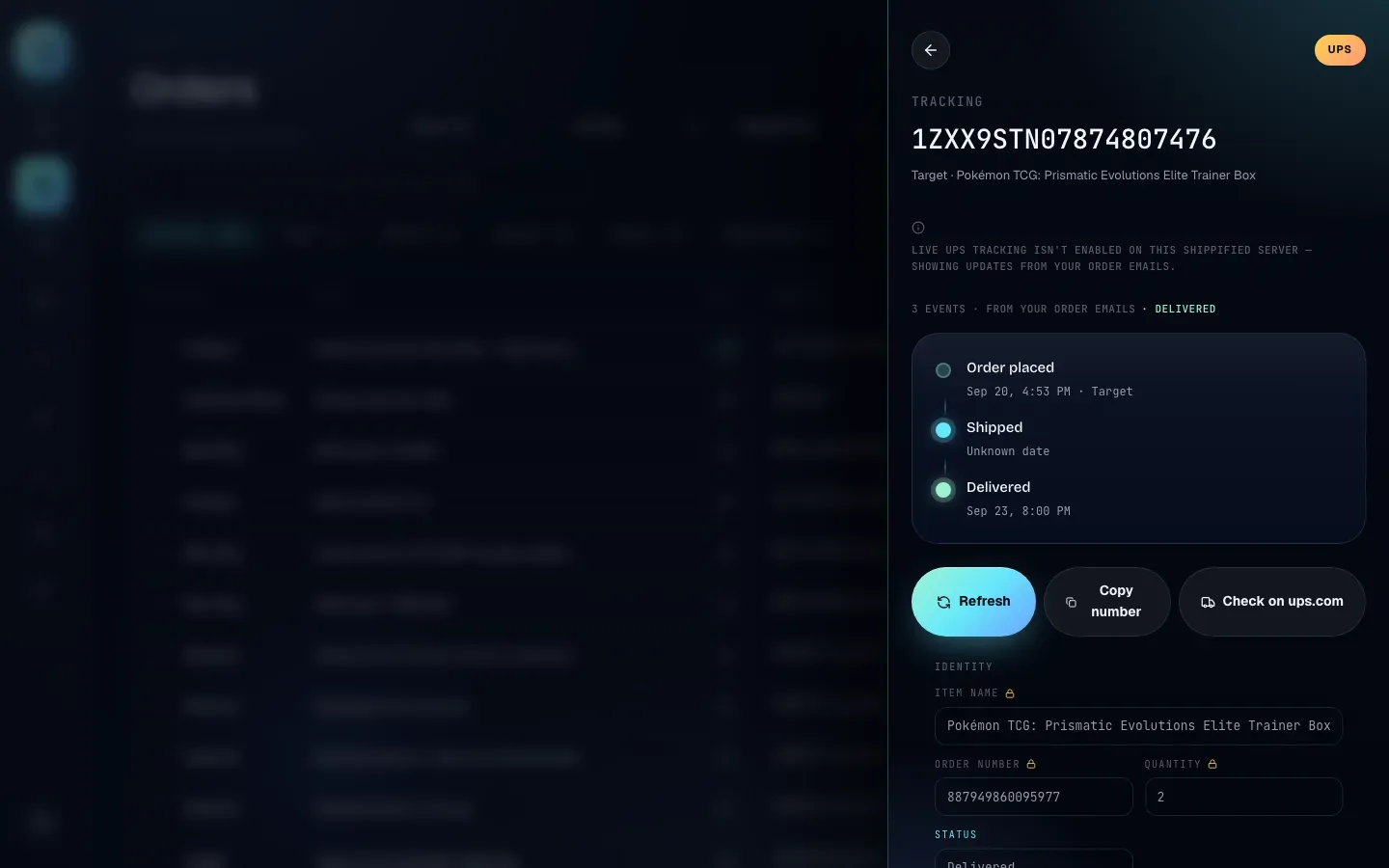
Each order has its own web address (/orders/ followed by the order's id), so you can bookmark an order or open it in another tab. To close the drawer, click the back arrow in its top left corner or anywhere on the dimmed page behind it.
What the drawer shows
The drawer looks slightly different depending on whether the order has a tracking number.
With a tracking number, from top to bottom:
Header: the back arrow and a carrier label (UPS, FedEx, DHL, DHL Express, USPS, or Unknown carrier when the number doesn't match a carrier Shippified knows).
Summary: the word Tracking, the tracking number in large type, and the retailer and item name.
Tracking timeline: the package's history (see The tracking timeline).
Actions: Refresh, Copy number and Check on carrier site.
Order editor: the Identity, Shipping and Pricing sections, the Parser, Source and Received details, and Save changes and Delete order.
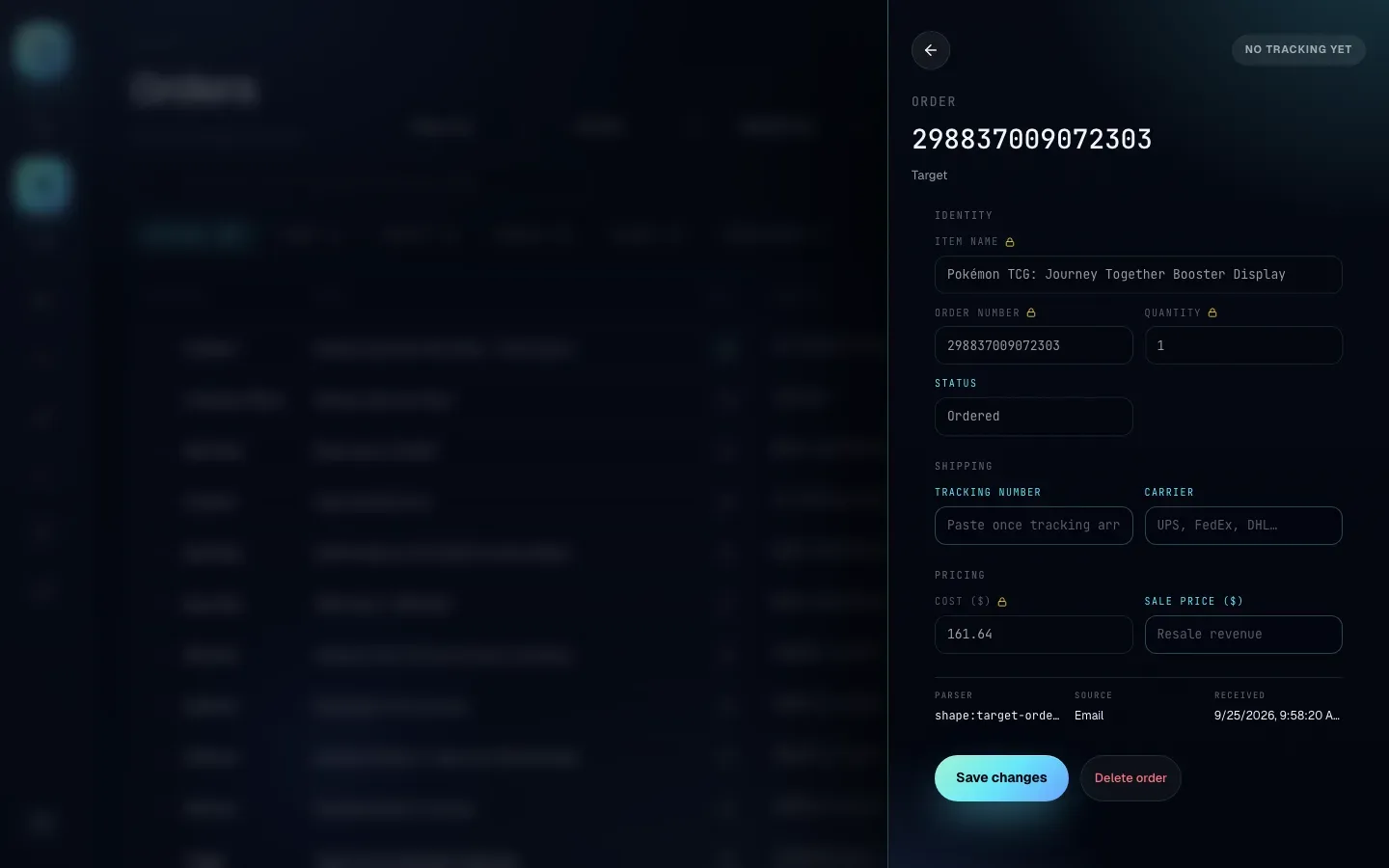
Without a tracking number, the drawer skips the timeline and actions. The summary reads Order, and the heading is the order number. If there's no order number either, the heading is the item name, or "Untitled order" if the item couldn't be read. The carrier label reads No tracking yet.
The tracking timeline
For an order with a tracking number, the timeline lists what has happened to the package, newest information from the carrier where Shippified has it:
A notice (with an ⓘ icon) when there's no live data from the carrier, explaining why. The most common one is
Live UPS tracking isn't enabled on this Shippified server — showing updates from your order emails.It means Shippified can't ask this carrier directly, so the timeline is built from your order's own messages instead. On shippified.net, DHL and DHL Express are tracked live; UPS and FedEx show this notice, and USPS shows a similar one. See Shipment tracking.A summary line, for example
3 events · from your order emails · delivered, or for live tracking12 events · last update 4m ago · delivered · to J REYES.The events, each with a description, a date and time, and a location when there is one. Unknown date means the event happened but no date was recorded for it.
A timeline built from your emails has up to three events: Order placed (the order's date and retailer), Shipped (once the order is shipped or delivered), and Delivered or Estimated delivery (when those dates are known).
Shipment tracking explains every state the timeline can be in, including No tracking events yet and Tracking lookup failed.
Tracking actions
These three buttons appear under the timeline when the order has a tracking number.
Button | What it does |
|---|---|
Refresh | Asks the carrier for the latest status right now, skipping any saved copy. It reads Refreshing… while it works. If the carrier reports a change (shipped, delivered, a new delivery date), the order and the list behind the drawer update straight away. For carriers without live tracking, it reloads the timeline from your emails. |
Copy number | Copies the tracking number to your clipboard. No message appears; just paste it where you need it. |
Check on ups.com (or fedex.com, dhl.com, usps.com) | Opens the carrier's own tracking page for this number in a new tab. Useful for live scans on carriers Shippified can't track live. It doesn't appear when the carrier is unknown. |
The order editor
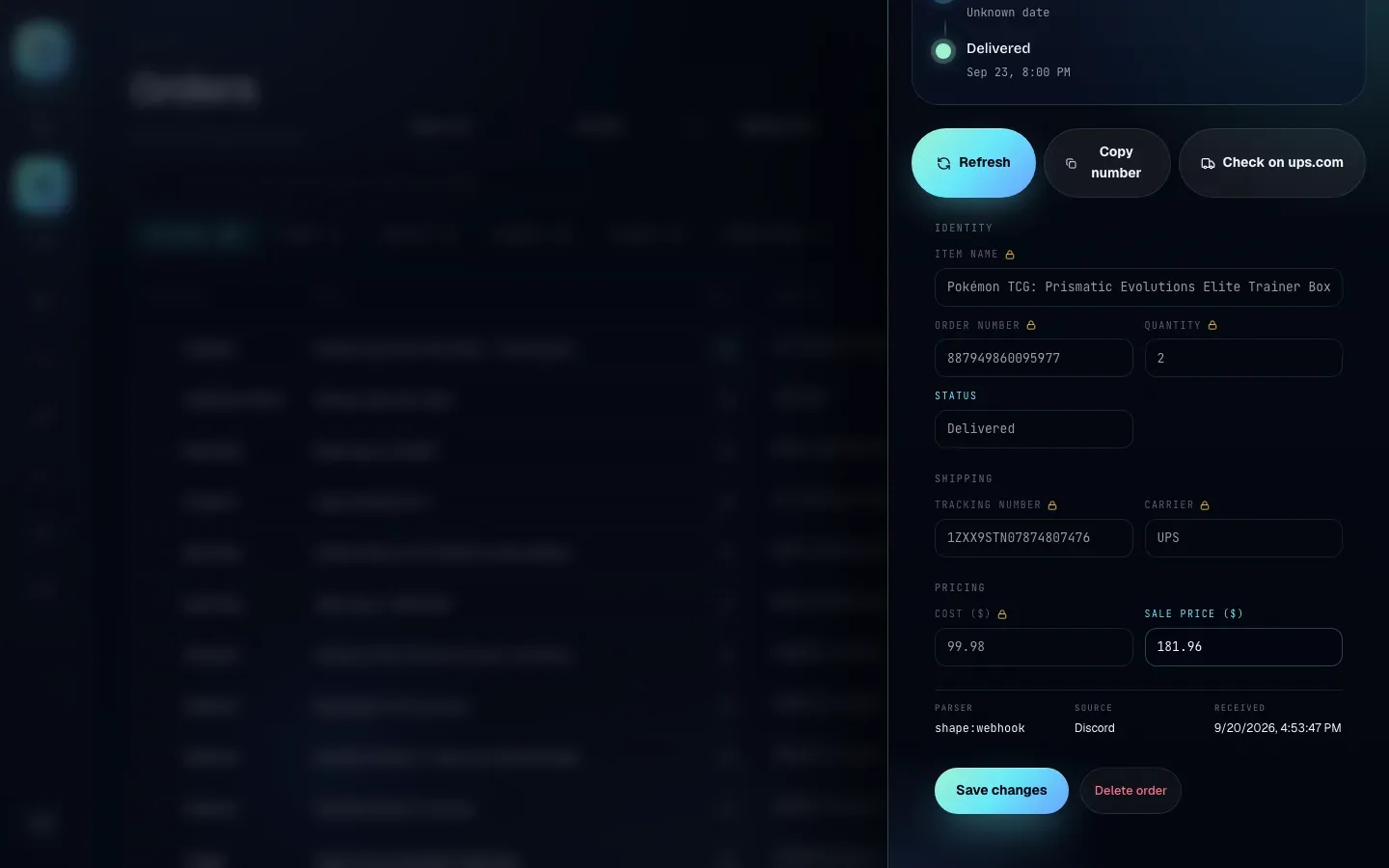
The editor is the lower half of the drawer. It works on a fill-in-the-blanks basis: you can add any detail that's missing, but a field that already has a value can't be changed. The one exception is Sale price ($), which is always yours to set, change or clear.
What the lock icon means
A small padlock next to a field's label means the field already has a value and is read-only. That value came from one of these places:
The order's messages: the bot checkout post or retailer email Shippified read (the most common case).
A carrier: for the carrier name.
You: a value you typed into an empty field and saved earlier. Once saved, it locks too.
Fields without a padlock are empty and waiting for you. Their placeholder text (for example "Paste once tracking arrives") tells you what to put there.
Why the fields lock: order numbers, tracking numbers and item names are what Shippified uses to match new messages to your orders. Keeping them fixed means a stray edit can't break that matching or lose what the retailer actually sent.
Item name is the one exception to "has a value, so it's locked". If Shippified couldn't read the item, the order is called "Unparsed order". In that case the Item name field shows empty and unlocked so you can give the order a real name.
Identity
Field | What it holds | Can you edit it? |
|---|---|---|
Item name | The product name. | Only when the order is still "Unparsed order". |
Order number | The retailer's order number. | Only when empty. Adding one lets later emails and bot posts with the same number merge into this order. |
Quantity | Number of units. Empty means unknown, which counts as 1. | Only when empty. Enter a whole number greater than 0. |
Status | Ordered, Shipped, Delivered, Canceled or Issue. | Never. Status comes from the order's messages and carrier tracking. See Order lifecycle. |
Shipping
Field | What it holds | Can you edit it? |
|---|---|---|
Tracking number | The carrier's tracking number. | Only when empty. |
Carrier | The carrier's name, as free text, for example | Only when empty. You can leave it blank: Shippified works the carrier out from the tracking number's format. |
Adding a tracking number to an Ordered order moves it to Shipped. The drawer then switches to show the tracking timeline, and live tracking starts if the carrier is tracked live (on shippified.net: DHL and DHL Express). See Shipment tracking.
Pricing
Field | What it holds | Can you edit it? |
|---|---|---|
Cost ($) | What you paid the store. Usually read from the checkout post or order email. | Only when empty. Enter an amount greater than 0, for example |
Sale price ($) | What you sold the item for (your resale revenue). Shippified never fills this in; it's always yours. | Always. Change it, or empty the field to clear a saved sale price. |
Cost and sale price are what Shippified uses to work out your profit. See Profitability.
Both fields accept a dollar amount with up to two decimals, with or without a leading $ and thousands commas: 181.96, $181, $1,250 and .5 all work. Anything else (for example sold or 12abc) isn't saved: a red message under the fields says Sale price must be a dollar amount like 49.99. (or Cost must be…, or Cost and Sale price must be…), and nothing is changed until you correct it.
Parser, Source and Received
Under the pricing fields are three read-only details that tell you where the order came from:
Detail | Meaning | Examples |
|---|---|---|
Parser | Which template read the most recent message about this order. |
|
Source | The channel of the most recent message about this order. | Discord, Email or Manual. |
Received | The date and time of the order: the first message about it, or the Order date of a manual order. Shown in your local time. |
|
The Parser is the first place to look when an order came out wrong: it tells you which template to fix or replace.
Fill in missing details
- Open the order
Click the order on the Orders page. Scroll down in the drawer to the editor.
- Type into the empty fields
Only fields without a padlock accept input. For example, paste the tracking number into Tracking number, or enter what you paid in Cost ($).
- Click Save changes
The button reads Saving…, then Saved with a tick for about a second. The order list behind the drawer updates. If the save fails, a red message above the buttons says why, and nothing is changed.
Things to know when you save:
Only new values are sent. Leaving a field empty never clears anything (except Sale price ($), where emptying the field clears a sale price you saved before).
Saving with no changes does nothing. No update is recorded and no notification is sent.
Your edits are protected. Shippified remembers every field you filled in. Re-running parsing on the Templates page never overwrites them. See Order lifecycle.
Adding tracking marks the order shipped. An Ordered order becomes Shipped, and any outbound webhooks you've set up for shipped orders fire.
Changing a sale price doesn't change the status or the Received date.
Set or change a sale price
- Open the order
Click it on the Orders page.
- Enter the sale price
In Pricing, type what you sold it for into Sale price ($), for example
181.96. - Click Save changes
The Price column on the Orders page now shows your sale price, and profit reports include it.
To remove a sale price, clear the Sale price ($) field and click Save changes.
The recent orders on Home also let you add a sale price without opening the drawer: click + sale price under the order, type the amount and press Enter or Save. See The Home dashboard.
Delete an order
Use this for an order that shouldn't exist: a test checkout, a duplicate, or a message that wasn't really an order.
- Open the order and click Delete order
It's the red button next to Save changes at the bottom of the drawer.
- Confirm
A box asks Delete this order? and explains: "It disappears from your order list and analytics. Share cards you already created keep their snapshot." Click Delete order to go ahead, or Cancel to keep it.
The drawer closes and the order disappears from the list. If the delete fails, the drawer stays open with a red message saying why, and the order is kept.
Deleting an order is permanent. There's no undo and no trash. The order, its sale price and your edits are gone, and it's removed from every total, chart and report. Share cards you made earlier keep their copy.
If the order came from an email, and that email is still in a connected mailbox, running Rebuild from mailbox can bring it back as a new order. A new message with the same order number (a late shipping email, say) creates a fresh order too, since there's no longer one to merge into.
Troubleshooting
I can't type in a field
It has a padlock, so it already has a value, either from the order's messages or from an earlier edit. Only empty fields and Sale price ($) can be edited. If the value is wrong, fix the template that read it (check Parser), then use Re-run parsing on the Templates page. See Custom templates.
The item name says "Unparsed order"
Shippified couldn't read the item name from the message. Type a name into Item name and click Save changes. If many orders from the same bot or retailer come out this way, build a custom template so future ones are read properly. See Order lifecycle.
I clicked Save changes and nothing happened
Nothing changed: only values in empty fields and Sale price ($) are saved. If a save fails (for example because you were signed out or lost connection), a red message above the buttons says why; sign in again or reload the page, then retry.
"Sale price must be a dollar amount like 49.99."
The field has something other than an amount in it. Type just the amount, such as 181.96 or $1,250, with at most two decimals, and click Save changes again. Nothing was saved, so your previous sale price is still there. The same applies to Cost ($).
I want to change the status by hand
You can't: status always follows real signals, such as the retailer's emails, the tracking number and the carrier's scans. To move an Ordered order to Shipped, add its tracking number. See Order lifecycle.
The carrier label says "Unknown carrier"
The order's tracking number doesn't match any carrier format Shippified knows. (An order with no tracking number shows No tracking yet instead.) If you know the carrier and the Carrier field is empty, type the carrier's name there and click Save changes. See Shipment tracking.