📦The Orders page
Find, filter, sort and search every order in your workspace, sync tracking, and add orders by hand.
- Written for
- Everyone who uses Shippified
- Applies to
- All plans
- Deprecated
- + Deprecated
Orders is the full list of every purchase in your workspace, whether it came from a Discord monitor bot, a retailer email or you typing it in. Use it to find an order, check what's still on its way, spot problems, and add purchases that didn't come in automatically. Open it by clicking Orders in the sidebar (the box icon, second from the top).
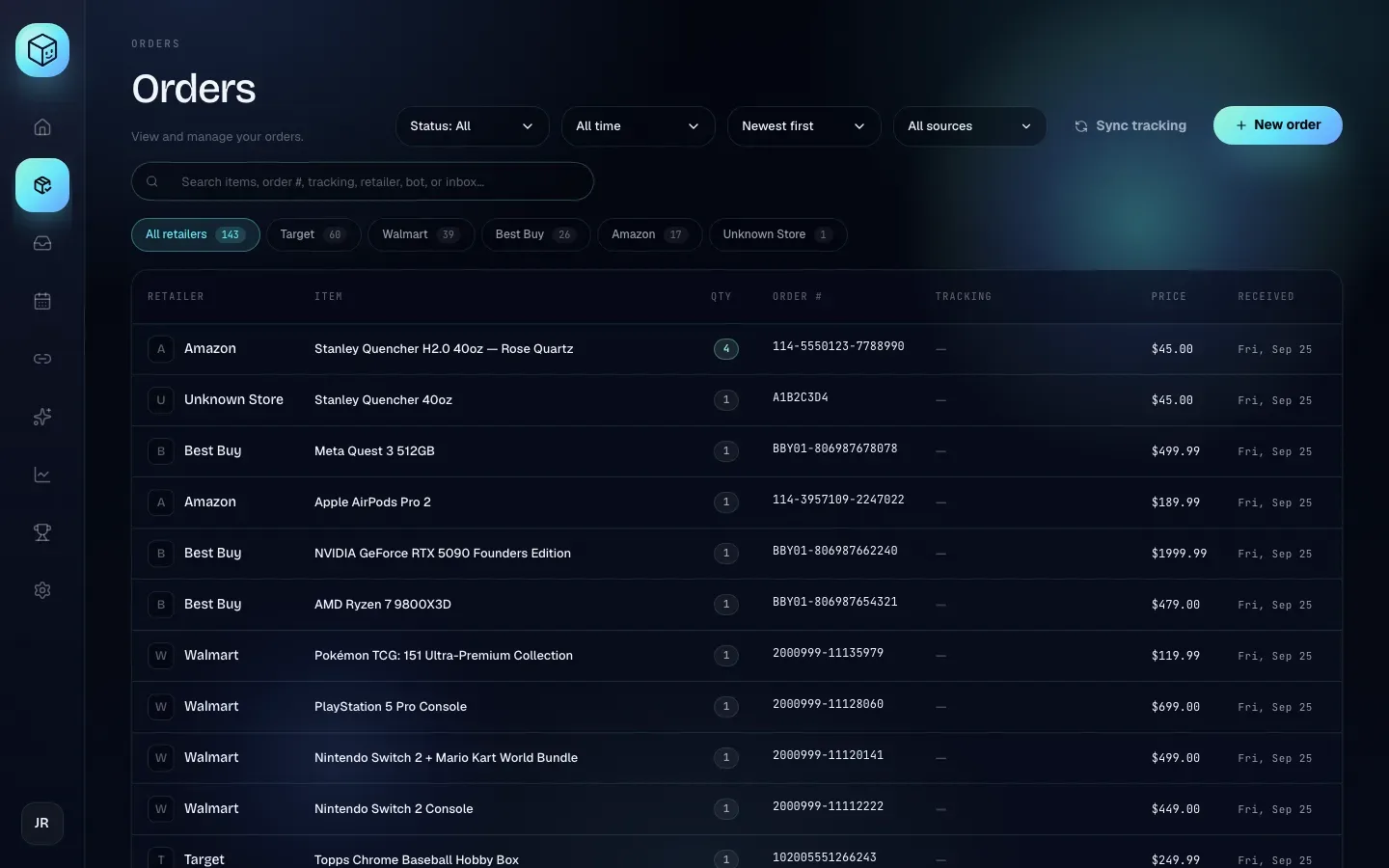
The page has five parts, from top to bottom:
Filter and action bar: the Status, time range, sort and source menus, plus Sync tracking and New order.
Search box.
Retailer tabs with an order count on each.
The order table.
Footer showing how many orders match.
Every filter works together: the table shows only orders that pass all of them. Filters reset when you reload the page.
Before you start
The list fills up by itself once orders arrive. If it says Nothing here yet — connect a webhook bot or email source to start ingesting., you haven't received any orders yet. Connect a source first:
You can also add an order yourself at any time (see Add an order by hand).
Read the order table
Each row is one order. Click anywhere on a row (or select it with the keyboard and press Enter) to open the order drawer, where you can see tracking and edit the order. See Order details.
Column | What it shows |
|---|---|
Retailer | The store's name, with the product image if Shippified found one, or the store's first letter. Orders from a store Shippified couldn't identify show Unknown Store. |
Item | The item name. If the order has a size, it appears underneath (for example "Size 10"). An item called "Unparsed order" means Shippified couldn't read the item name (see Order lifecycle). |
Qty | Number of units. Orders with more than one unit are highlighted. When the quantity is unknown, it shows 1. |
Order # | The retailer's order number, or — if there isn't one. |
Tracking | The tracking number, a copy button, and a link to the carrier's website. — means no tracking number yet. |
Price | Your sale price if you've entered one; otherwise what you paid (cost); otherwise the total from the message; otherwise —. |
Received | The date of the order: the date of the first message about it, or the Order date you entered for a manual order. Shown as a short date such as "Fri, Sep 25". |
Last update | The date the order last changed (a new email, a tracking update, an edit). — means it hasn't changed since it arrived. Hover over the date to see the exact time. |
Status | Ordered, Shipped, Delivered, Canceled or Issue. See Order lifecycle for what each means. |
The Price column shows the sale price once you've entered one, so a row's price can jump from what you paid to what you sold it for. Open the order to see both.
On narrower screens the table scrolls sideways: scroll right to see Last update and Status.
Copy a tracking number
Every tracking number in the Tracking column has two small buttons next to it:
Copy (two overlapping squares) puts the tracking number on your clipboard. Clicking it doesn't open the order, and no confirmation message appears. Paste it wherever you need it.
Open carrier site (an arrow pointing up and right) opens the carrier's own tracking page in a new tab with the number filled in. It appears for UPS, FedEx, DHL, DHL Express and USPS when the order has its carrier recorded.
Long tracking numbers can be cut off in the column. Hover over one to see it in full.
Filter by status
Click the first menu (it reads Status: All until you change it) and choose one option:
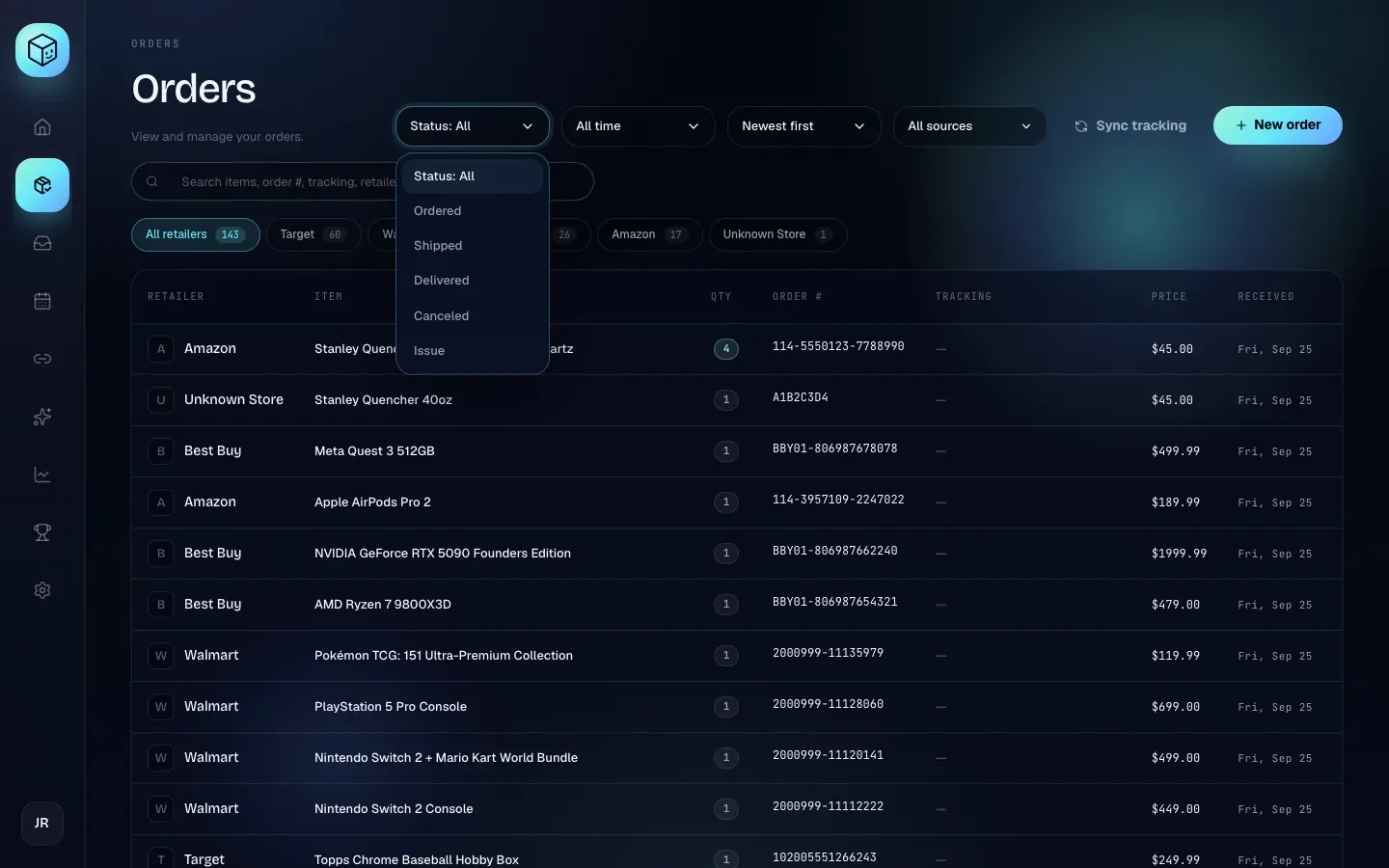
Option | Shows |
|---|---|
Status: All | Every order (no status filter). |
Ordered | Purchased, with no tracking yet. |
Shipped | Has a tracking number or a shipping notice, not delivered yet. |
Delivered | The carrier or a delivery email confirmed it arrived. |
Canceled | The retailer or bot reported a cancellation. |
Issue | Shippified couldn't identify the store or the item. These need your attention. |
Check Issue now and then. Each one is a message Shippified couldn't read properly. Open it to fill in the missing details, or fix the cause with a custom template.
Filter by time range
The second menu (it reads All time until you change it) limits the list to orders whose Received date falls in the range:
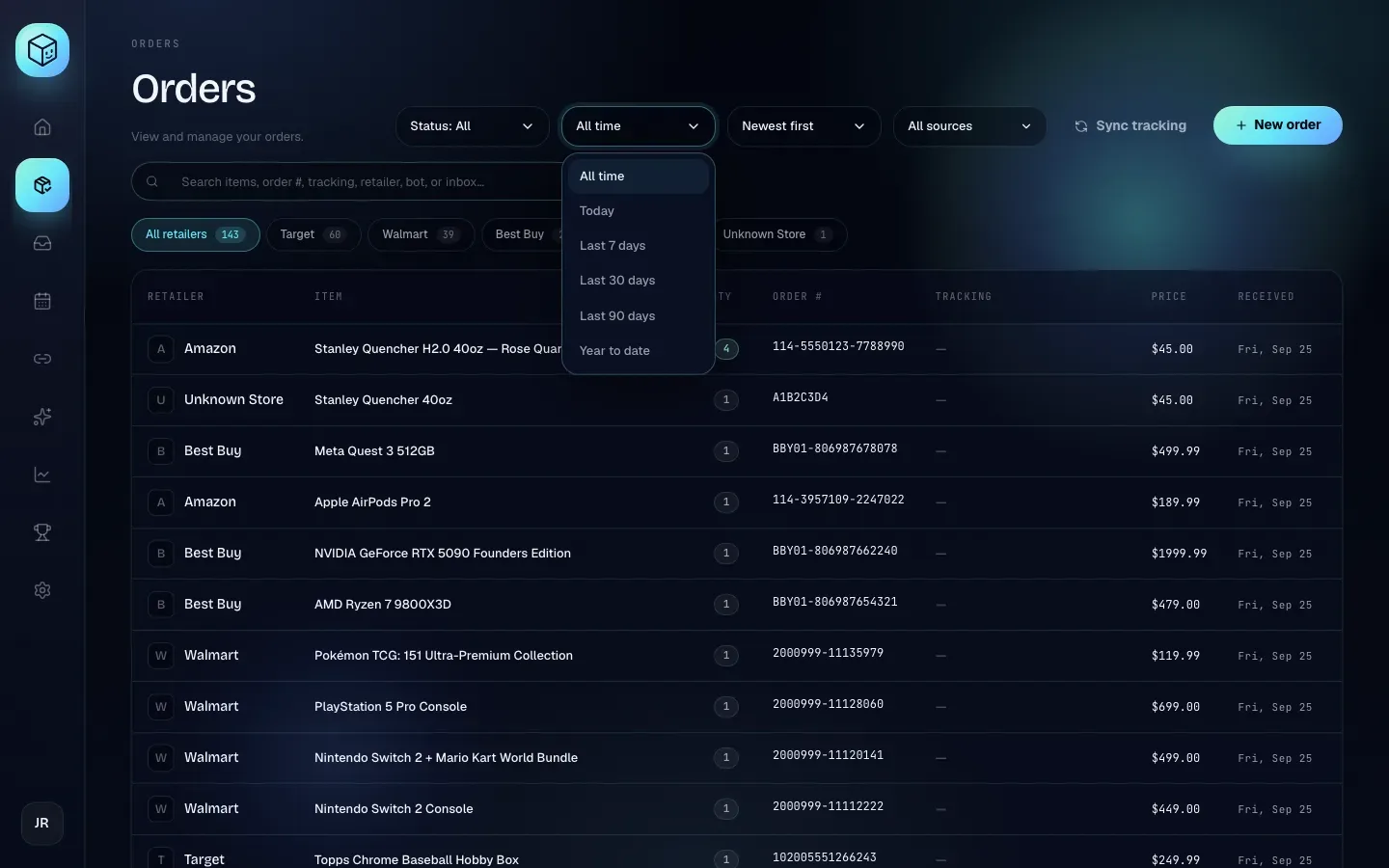
Option | Shows orders received |
|---|---|
All time | At any time (no date filter). |
Today | Since midnight today, in your own time zone. |
Last 7 days | In the last 7 × 24 hours, counted from now. |
Last 30 days | In the last 30 × 24 hours. |
Last 90 days | In the last 90 × 24 hours. |
Year to date | Since midnight on 1 January of the current year, in your own time zone. |
Sort the list
The third menu (it reads Newest first until you change it) sets the order of the rows:
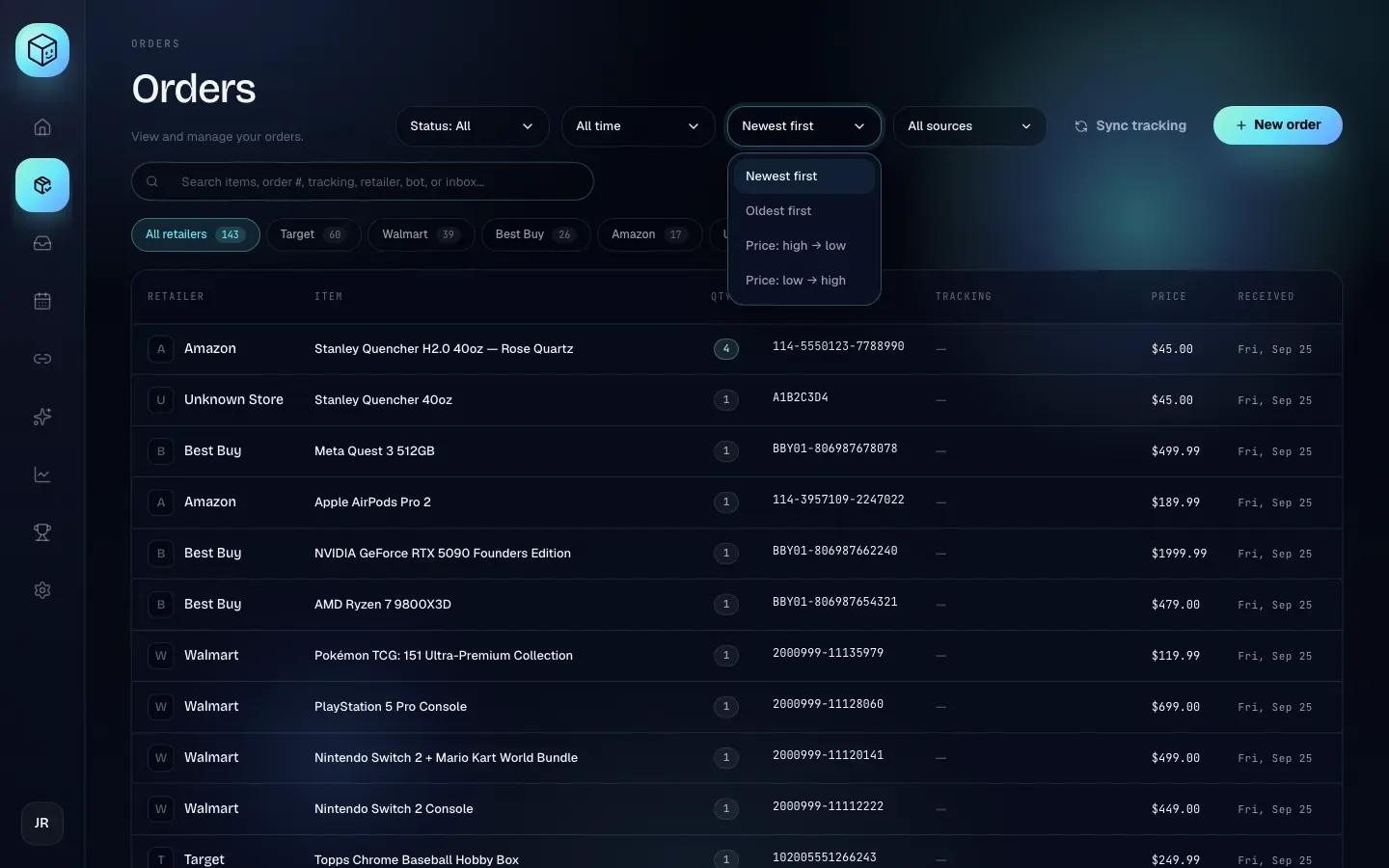
Option | Order |
|---|---|
Newest first | Most recent Received date at the top. This is the default. |
Oldest first | Earliest Received date at the top. |
Price: high → low | Most expensive first, using the same price the Price column shows. |
Price: low → high | Cheapest first. Orders with no price at all sort as $0 and come first. |
Filter by source
The fourth menu (it reads All sources until you change it) lets you see only orders from particular bots or inboxes. Unlike the other menus, you can tick several entries at once.
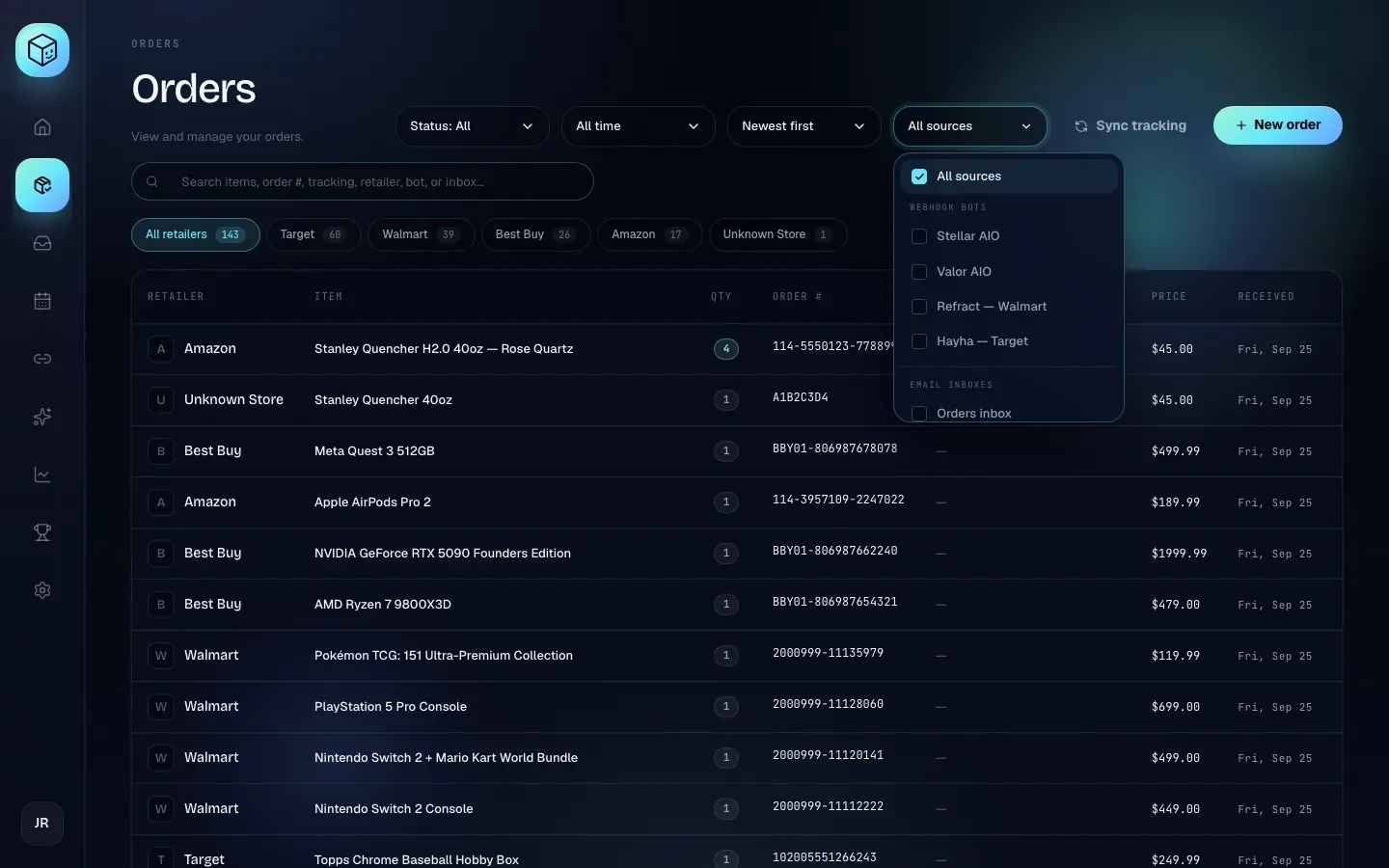
The menu lists:
All sources: ticked when no other entry is. Click it to clear your selection and show everything again.
Webhook bots: each Discord monitor bot you've connected, by name.
Email inboxes: each connected inbox, by its label (or its address if it has no label).
Other: Manual import, for orders you added with New order.
Tick one or more entries to show orders from any of them. The menu button shows the entry's name when one is ticked, or "2 selected", "3 selected" and so on when several are.
An order that arrived from both a bot and an email (because the two were merged, see Order lifecycle) matches the bot and the inbox, so it appears when either is ticked.
Filter by retailer
Below the search box is a row of retailer tabs. Each tab shows the retailer's name and how many orders you have from it. The counts are for your whole workspace and don't change when you apply other filters.
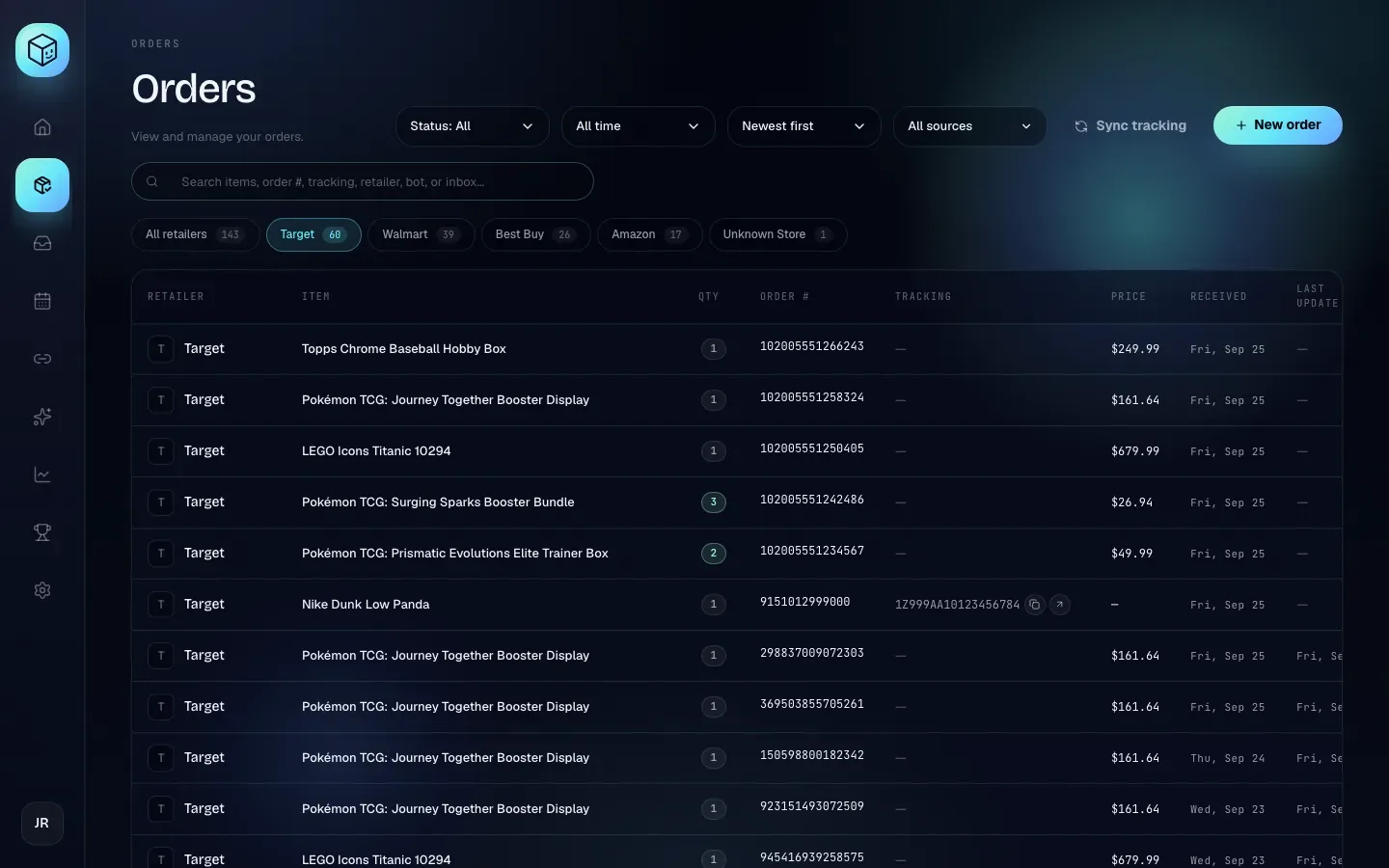
All retailers is selected by default and shows every order.
There's one tab for each retailer that appears in your orders, busiest first. A retailer you've never ordered from doesn't get a tab.
Unknown Store collects orders where Shippified couldn't tell which store they came from.
Click a tab to show only that retailer. Click All retailers to go back.
Search
Type in the box that reads Search items, order #, tracking, retailer, bot, or inbox…. The list narrows as you type.
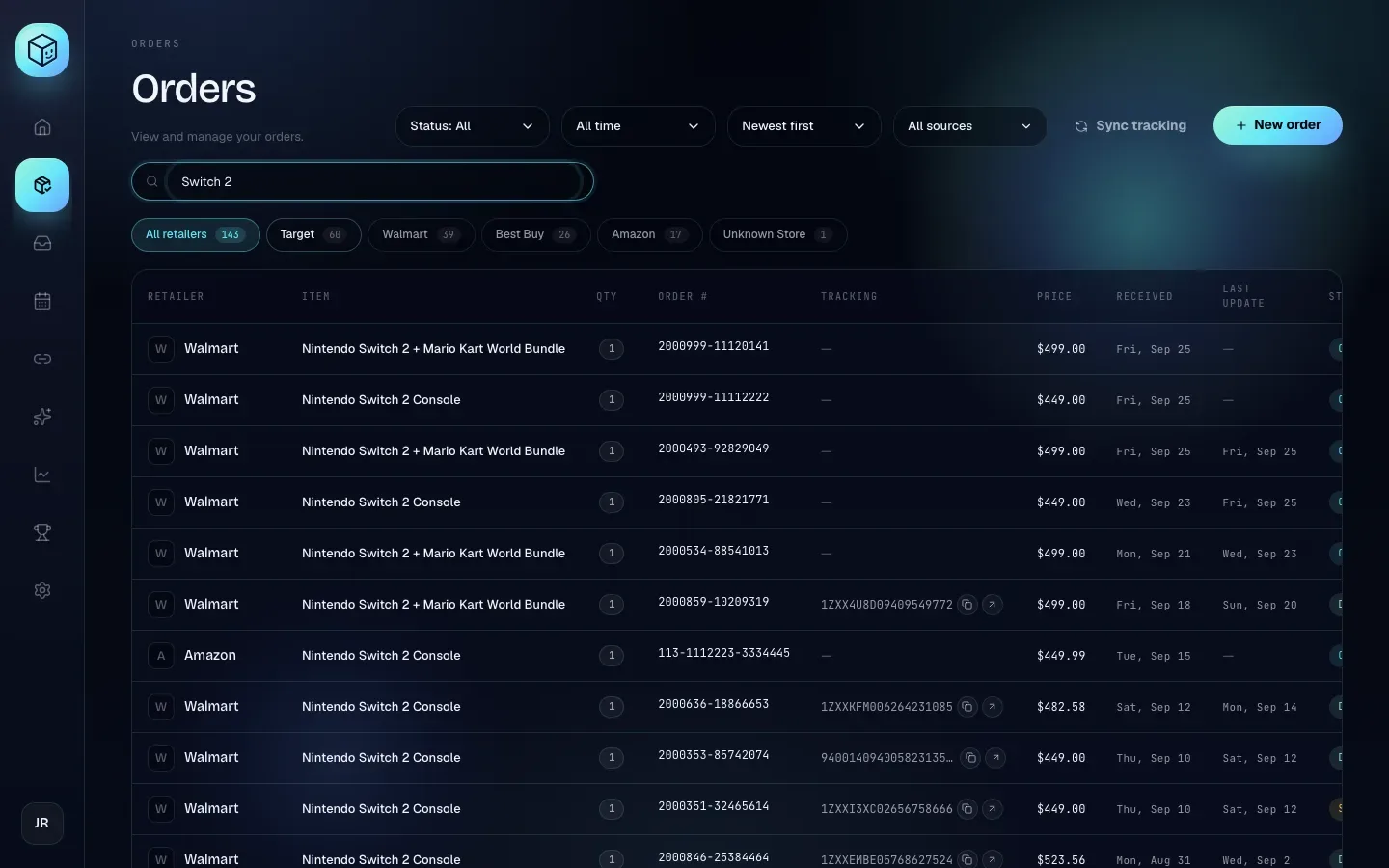
Search looks for your text anywhere inside these fields, ignoring upper and lower case:
the item name
the order number
the tracking number
the retailer name
the name of the webhook bot the order came from
the carrier name as recorded on the order (for example "UPS")
the label and address of the email inbox the order came in through
A partial match is enough: 1ZXX finds every tracking number containing it, and switch 2 finds "Nintendo Switch 2 Console". Search doesn't look at the sender's email address or at the body of the original message.
Search works together with the other filters. If nothing matches, the table says No orders match the current filters. Clear the search box or reset the menus to see more.
The footer
Under the table, the footer says how many orders match, for example Showing 12 of 143 orders. When some orders have more than one unit, it also shows the total units, for example · 18 units.
Sync tracking
Sync tracking asks the carriers for the latest status of your in-flight packages in one go, instead of opening each order.
- Click Sync tracking
It's in the top bar, left of New order. The button changes to Syncing… while it works. With many packages this can take a little while.
- Read the result
A message appears under the retailer tabs for about six seconds, for example:
Synced 12/12 · 3 delivered · 0 failed.That means 12 packages were checked, 12 answered, 3 of them are now delivered, and none failed. Orders the carrier reports as delivered move to Delivered in the list straight away.
What Sync tracking checks:
Only orders that are Ordered or Shipped, have a tracking number, and are on a carrier with live tracking. On shippified.net that's DHL and DHL Express. See Shipment tracking.
At most 50 orders per click.
If none of your orders qualify, you'll see Nothing to sync — no open orders with a tracking number on a live-tracked carrier. This is normal when your packages are all with UPS, FedEx or USPS, which aren't tracked live on shippified.net. Those orders are updated by shipping and delivery emails instead.
You rarely need Sync tracking. Shippified checks live-tracked packages in the background every few minutes, even while you're signed out. Use it when you want an answer right now. See Shipment tracking.
Add an order by hand
Use New order for a purchase that didn't come through a connected bot or inbox: something bought in store, on a site you don't monitor, or before you connected Shippified.
- Open the form
Click New order in the top right. The Add an order form opens.
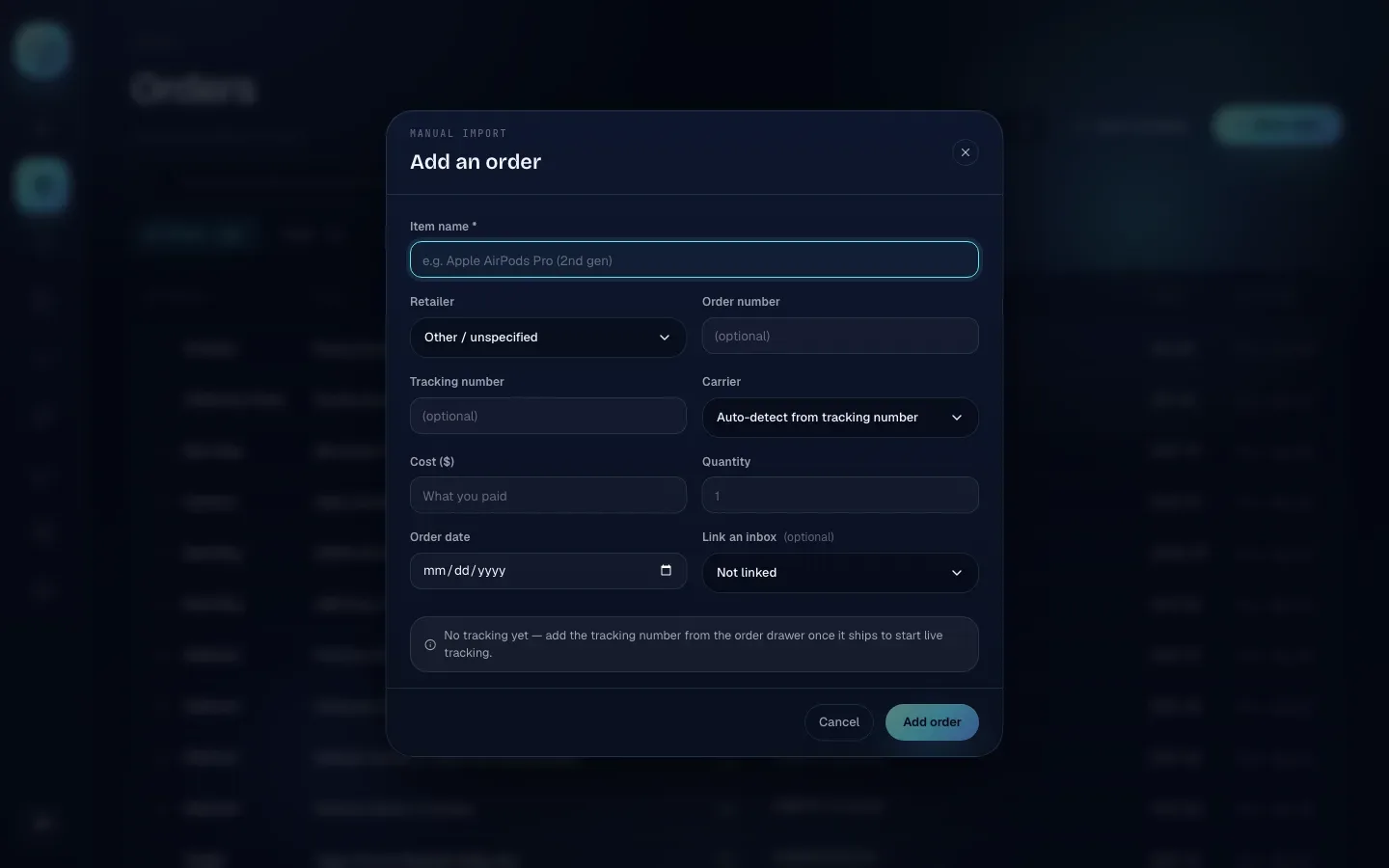
- Enter the item name
Type what you bought in Item name (required), for example
Apple AirPods Pro (2nd gen). Add order stays greyed out until this has text in it. - Fill in what you know
Every other field is optional. See the table below for what each does. The more you add, the more useful the order is, especially Order number and Cost ($).
- Check the hint
The box above the buttons tells you how the order will be kept up to date, based on the tracking number and carrier you entered (see The update hint).
- Click Add order
The button reads Saving… for a moment, then the form closes and the order appears in the list.
To leave without saving, click Cancel, the × in the corner, or anywhere outside the form. What you've typed is kept until you add an order, so you can reopen the form and carry on.
Form fields
Field | What to enter | If you leave it blank |
|---|---|---|
Item name * | The product, as you want it to appear. Example: | Required. You can't add the order without it. |
Retailer | Choose Target, Walmart, Amazon, Best Buy, or Other / unspecified. | Stays Other / unspecified, and the order is filed under Unknown Store. |
Order number | The retailer's order number, exactly as it appears in their emails. Example: | The order has no order number, so later emails can't be matched to it. |
Tracking number | The carrier's tracking number. Example: | The order starts as Ordered. You can add tracking later from the drawer. |
Carrier | Leave Auto-detect from tracking number, or choose UPS, FedEx, DHL, DHL Express or USPS. | Shippified works the carrier out from the tracking number's format. |
Cost ($) | What you paid, as a number. Example: | No cost is recorded, so profit can't be worked out. |
Quantity | How many units, as a whole number. Example: | Treated as 1. |
Order date | The date you bought it, from the date picker. | Today's date and time. |
Link an inbox (optional) | One of your connected email inboxes, or Not linked. | Not linked. |
A few rules to know:
Cost ($) must be more than zero.
0, a negative number or text that isn't a number is ignored and no cost is saved.Quantity is rounded to a whole number.
0, a negative number or text is ignored and the order counts as 1 unit.Status isn't a field. With a tracking number the order starts as Shipped; without one it starts as Ordered. After that it moves by itself as tracking and emails come in.
Retailer only offers the four built-in stores. For anything else, choose Other / unspecified and put the store in the item name if you want to find it by search.
Always fill in Order number if you have one. If an order with that exact number already exists, your entry merges into it instead of creating a duplicate. When the retailer's shipping and delivery emails arrive later, they merge into your order too and add the tracking number and status. See Order lifecycle.
The update hint
The shaded box above Cancel and Add order changes as you type:
You see | What it means |
|---|---|
| No tracking number entered. The order stays Ordered until you add tracking or an email updates it. |
| The carrier has live tracking (on shippified.net: DHL and DHL Express). Nothing else to do. |
| Shippified can't check this carrier live (on shippified.net: UPS, FedEx and USPS). Pick an inbox under Link an inbox so the retailer's emails can move the order along. Once you've picked one, the hint ends with "updates from the linked inbox still apply". |
| The tracking number's format didn't match a known carrier. Choose the carrier in Carrier. |
Plan limits and the usage banner
Paid plans are currently switched off on shippified.net, so every workspace has unlimited orders. You won't see the usage banner, and New order never shows Limit reached. This section describes what happens if paid plans are switched on.
If paid plans are switched on, each workspace on the Free plan can add a limited number of new orders per calendar month (100). The month runs from the 1st, in your account's time zone. Every new order counts, whether it comes from a bot, an email or New order. Updates to an order you already have (a shipping email, a delivery email, a tracking refresh) never count and never stop.
As you get close, a banner appears at the top of every dashboard page:
When | Banner | Button |
|---|---|---|
80% or more of the limit used | N orders left this month. Resets date. Upgrade to Pro for unlimited. | Go Pro |
Limit reached | Free plan limit reached. New webhook, email, and manual orders are paused until date. Upgrade to keep importing. | Upgrade |
Click the banner to go to Settings › Billing. The banner is never shown on Pro, and it updates about once a minute. While paid plans are switched off, Settings › Billing says billing is disabled and none of this applies.
When the limit is reached, the New order button changes to Limit reached and is greyed out. Hover over it to see "Free plan limit reached — upgrade to add more orders." New orders from bots and emails are refused until the limit resets on the 1st of next month.
Orders refused while you're over the limit aren't queued for later. Emails in a connected Gmail, Outlook or IMAP mailbox can be picked up again with Rebuild from mailbox after the reset or after upgrading. Checkouts your Discord bots posted during that time aren't kept.
See Plans and billing to upgrade.
Troubleshooting
The list says "No orders match the current filters."
At least one filter is hiding everything. Check each one: set Status back to Status: All, the time range to All time, the source menu to All sources, click All retailers, and clear the search box.
An order I expected isn't in the list
First clear every filter (see above) and search for its order number. If it still isn't there:
For email orders, open Inbox and look for the email. It shows whether the email was turned into an order, merged, refused or ignored. See The Inbox.
For bot orders, open Links and check the bot's activity. See Connect Discord monitor bots.
If paid plans are switched on and you're on the Free plan, check whether the usage banner says the limit was reached.
The same order appears twice
Orders are merged only when their order numbers match exactly. If one copy has no order number, or the numbers differ (for example one includes a prefix), they stay separate. Open the copy that has no order number and fill in the Order number field in the drawer so future messages merge into it; then delete the extra copy with Delete order. See Order details.
"Free plan limit reached — you've already added 100 of 100 orders this month. Upgrade to keep importing."
This only happens if paid plans are switched on. You tried to add an order with New order after reaching the Free plan's monthly limit. Wait until the date the banner shows, or upgrade in Settings › Billing.
Sync tracking says "failed" for some packages
Each failure is a package the carrier didn't answer for: often a tracking number the carrier doesn't recognise yet (common on the first day), or the carrier being temporarily unavailable. Open the order and look at the message at the top of its tracking timeline. Background refresh keeps trying on its own. See Shipment tracking.
The copy button doesn't seem to do anything
It copies silently; there's no message. Paste somewhere to check. Some browsers block clipboard access on pages that aren't in focus; click on the page and try again.