⚙️Settings and your profile
Find your way around Settings, and set your username, workspace name, visibility, timezone and dashboard theme on the Profile tab.
- Written for
- Every Shippified user
- Applies to
- All plans
- Deprecated
- + Deprecated
Settings is where you control how your workspace looks to other people, how dates line up with your day, what the dashboard looks like, and where Shippified sends things. Most people visit it once after signing up to pick a username and timezone, then come back when they want to share their stats, change the theme, or connect an integration.
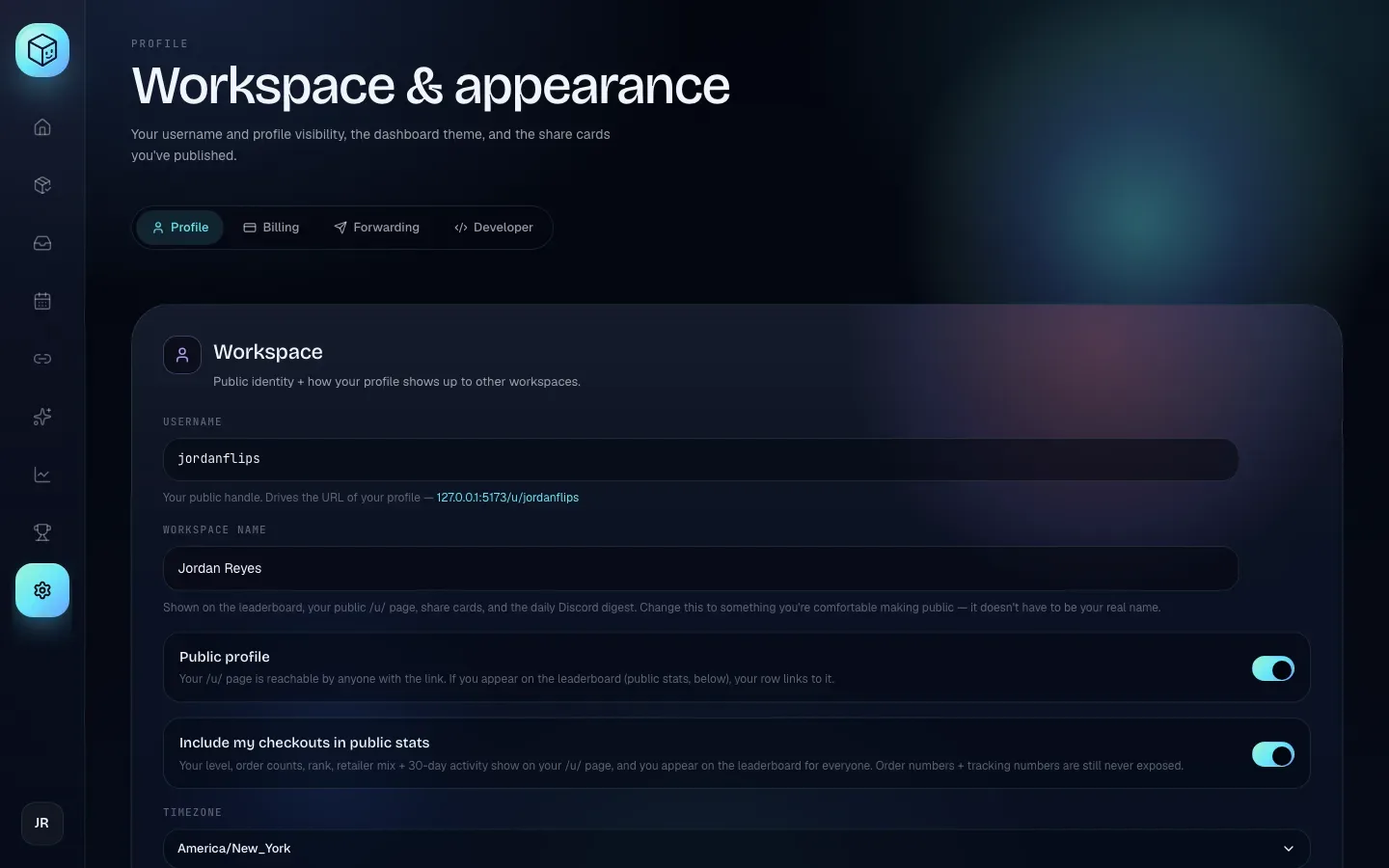
Open Settings
Click Settings (the gear icon) near the bottom of the left sidebar. Settings opens on the Profile tab. Four tabs run across the top of the page:
Tab | Page title | What's on it |
|---|---|---|
Profile | Workspace & appearance | Your username, workspace name, profile visibility, timezone, dashboard theme, your share cards, and the buttons to export your data or delete your account. Covered on this page. |
Billing | Plan & usage | Your plan (today, everyone is on the free, unlimited full plan) and how many orders you've added this month. See Plans and billing. |
Forwarding | Outputs & inboxes | Discord webhooks Shippified posts to, the default IMAP host, and the daily checkouts digest. Summarised below. |
Developer | Integrations | API keys, outbound webhooks and the Embed Copier submission URL. See Developer tools. |
Hover a tab to see a one-line hint about what it holds.
Everything on the Profile tab saves by itself as soon as you change it. There is no Save button. The Forwarding tab is the exception: it has a Save changes button you must click.
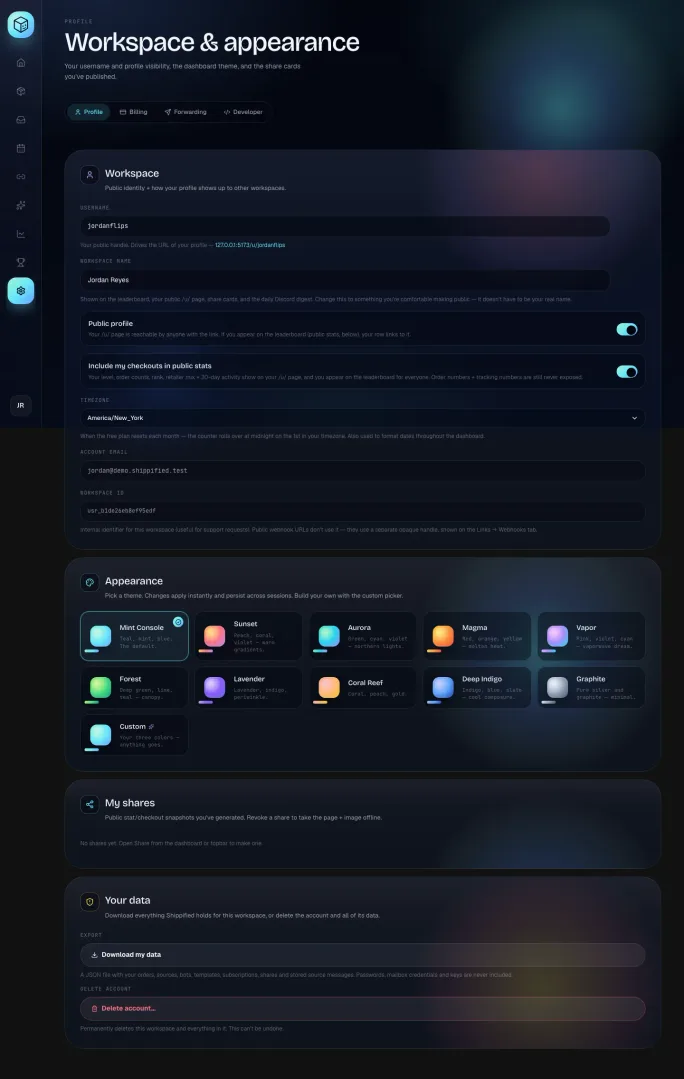
The Profile tab at a glance
The Profile tab has four sections, top to bottom:
Workspace: your public identity and a few account details.
Appearance: the dashboard theme.
My shares: the public share cards you've created.
Your data: Download my data and Delete account….
Choose your username
Your Username is your public handle. It is the last part of your public profile address, for example shippified.net/u/jordanflips. The link under the field always shows your current profile address; click it to open your profile in a new tab.
- Type a new username
Click in the Username field and type the handle you want. Letters become lowercase as you type. A small status appears at the end of the field:
Checking… while Shippified asks whether the name is free.
Available when you can have it.
The reason you can't, when the name is taken or breaks the rules below, for example "Already taken.", "That username is reserved." or "Must be 3–32 characters."
- Save it
Press Enter, or click anywhere outside the field. The status shows Saving… and then Saved. Your profile address changes straight away. If the status shows a reason instead, nothing is saved: change the name first.
Username rules
Rule | Detail |
|---|---|
Length | 3 to 32 characters. |
Allowed characters | Lowercase letters |
Dashes | Can't be first or last, and never two in a row. |
Capitals | Turned into lowercase as you type. Typing |
Unique | No two workspaces can have the same username. |
Reserved words | These can't be used: |
What you see in the field is exactly what's saved. A name with spaces or other characters (such as jordan flips) isn't changed into something else; it's refused with "Use only lowercase a-z, 0-9, dashes, underscores." until you fix it.
Changing your username changes your profile address. Old links to /u/<old-username> stop working, and anyone else can then claim your old username. Share links (/share/…) aren't affected.
Your username is different from your Workspace id (see below). Your Discord bot webhook URLs don't use your username, so changing it never breaks a bot.
Set your workspace name
Workspace name is the name people see: on the leaderboard, at the top of your public /u/ page, on share cards, and in the daily Discord digest. It doesn't have to be your real name. Pick something you're comfortable making public.
Type the new name and press Enter or click away. You'll see Saving… then Saved.
Up to 48 characters. Extra spaces between words are squeezed to one.
It can't be blank. If you clear the field and click away, you'll see
Display name can't be blank.and the old name stays.
Control who can see your profile
Two switches decide what the public can see. They are separate on purpose: one controls whether your profile page opens at all, the other controls whether your numbers appear anywhere public. Click a switch to flip it; it saves immediately and its description changes to match.
Switch | On | Off |
|---|---|---|
Public profile | "Your /u/ page is reachable by anyone with the link. If you appear on the leaderboard (public stats, below), your row links to it." | "Your /u/ page returns 404 to everyone but you. Leaderboard visibility is controlled by public stats below — if you appear there, your row isn't clickable." |
Include my checkouts in public stats | "Your level, order counts, rank, retailer mix + 30-day activity show on your /u/ page, and you appear on the leaderboard for everyone. Order numbers + tracking numbers are still never exposed." | "Visitors to your /u/ page see only your name and member-since date — no level, counts, rank, or breakdowns. Other people don't see you on the leaderboard; only you see your own position." |
Include my checkouts in public stats is off for new workspaces. Nothing about your orders appears publicly until you turn it on. Whether you're listed on the leaderboard depends only on this switch; Public profile only decides whether your page opens for others.
For what each public page shows, see Share cards and public profiles and Leaderboard.
Set your timezone
Timezone controls two things:
Where "this month" starts. The Used N orders this month count on the Billing tab starts at midnight on the 1st in this timezone. Shippified has no monthly order limit today; if paid plans are ever switched on, the Free plan's counter would reset at this moment too. See Plans and billing.
How dates are shown throughout the dashboard. The daily Discord digest also posts at a local hour in this timezone.
- Open the list
Click the Timezone box. It shows the current zone, for example America/New_York.
- Pick your zone
Choose your city's zone from the list. Zones are listed by their standard names (
Region/City), such asEurope/LondonorAustralia/Sydney. - Check it saved
Saving… then Saved. appears under the box. There's nothing else to click.
If you've never set one, your workspace uses UTC.
Account email and Workspace id
The last two fields in Workspace are read-only:
Account email: the email address you signed in with. You can't change it from Settings.
Workspace id: your workspace's internal ID (it starts with
usr_), useful when you ask for help. Your bot webhook URLs don't use it; they use a separate handle, shown in the bot URLs on Links → Webhooks.
Change the dashboard theme
The Appearance section changes the colours of the dashboard. Click a theme card and the change applies at once; a check mark shows which theme is active.
Theme | Colours |
|---|---|
Mint Console | Teal, mint, blue. The default. |
Sunset | Peach, coral, violet: warm gradients. |
Aurora | Green, cyan, violet: northern lights. |
Magma | Red, orange, yellow: molten heat. |
Vapor | Pink, violet, cyan: vaporwave dream. |
Forest | Deep green, lime, teal: canopy. |
Lavender | Lavender, indigo, periwinkle. |
Coral Reef | Coral, peach, gold. |
Deep Indigo | Indigo, blue, slate: cool composure. |
Graphite | Pure silver and graphite: minimal. |
Custom | Your own colours and, optionally, a background image. |
Your theme is saved in this browser, not in your Shippified account. It stays when you sign out and back in on the same browser, but another computer, phone or browser starts on Mint Console until you pick a theme there too. Clearing your browser's site data also resets it.
Build a custom theme
- Choose Custom
Click the Custom card ("Your three colors — anything goes."). A panel of colour controls opens underneath.
- Pick your colours
Click a colour swatch to open your browser's colour picker. The hex code (for example
#5EEAD4) shows next to each swatch.Primary, Accent and Deep drive the gradients, glowing orbs and accent chips.
Button colours only the main action buttons. Pick something that stands out against your background.
Every change shows immediately.
- Add a background image (optional)
Under Background image, click Drop an image or click to upload (or drag a file onto it). Use a PNG, JPG or WebP under 2 MB. The image sits behind the whole workspace with a dark layer over it, so panels stay readable. The box then shows a preview marked Applied. Click Remove to take the image off.
- Start over (optional)
Click Reset to mint to put all custom colours back to the defaults.
If the image is bigger than 2 MB you'll see Image too large: "That file is over 2 MB. Resize it first — theme images sit in localStorage and we want the workspace boot fast." Click Got it, shrink the image, and try again.
Manage your share cards
My shares lists every public share card you've created, newest first. Each row shows a thumbnail, the time window, the order count and total spend it captured, what it includes (stats, checkouts or both) and when you created it. Three buttons sit on the right:
Copy link copies the card's
/share/…address.Open opens the card in a new tab.
Revoke share (the bin) takes the page and its image offline straight away. There's no confirmation, and the link can't be brought back; make a new card if you need one.
If you haven't made any, you'll see "No shares yet. Open Share from the dashboard or topbar to make one." How to create cards is covered in Share cards and public profiles.
Download or delete your data
The last section, Your data, has two buttons:
Download my data saves a JSON file with everything your workspace holds. Passwords, mailbox credentials and keys are never included.
Delete account… permanently deletes the workspace and everything in it, after you type your email to confirm.
Both are explained step by step, including exactly what's in the file and what gets deleted, in Your data, account deletion and privacy.
Deleting your account can't be undone. Download your data first if you might want it.
The Forwarding tab
The Forwarding tab (page title Outputs & inboxes) controls where Shippified posts things in Discord. Unlike the Profile tab, you must click Save changes at the top of the tab after editing; the button shows Saving…, then briefly Saved. If the save is refused, the reason appears under the button.
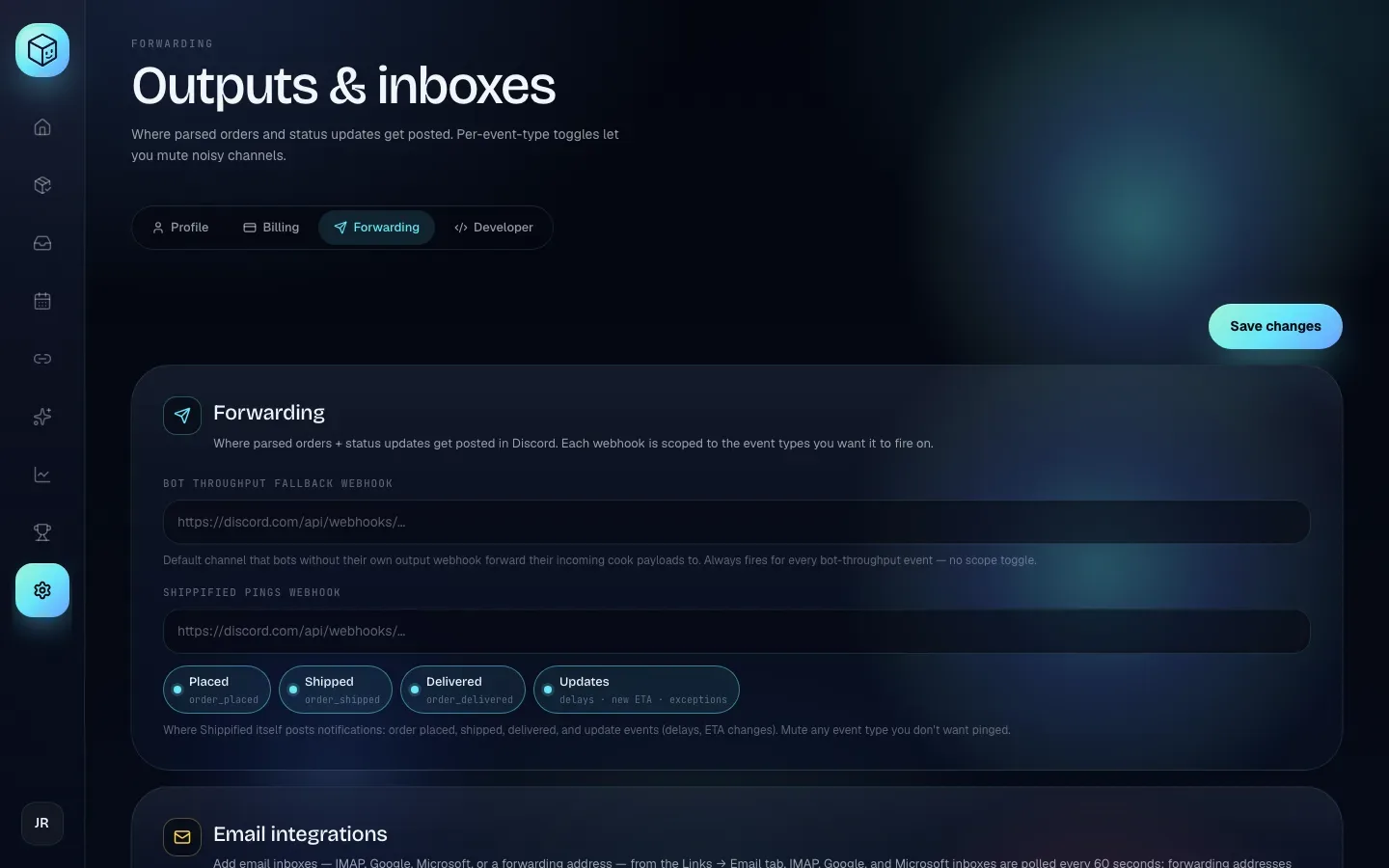
Setting | What it does |
|---|---|
Bot throughput fallback webhook | A Discord webhook URL. Every checkout from a bot that doesn't have its own output webhook is forwarded here. It fires for every bot checkout; there are no toggles. |
Shippified pings webhook | A Discord webhook URL where Shippified posts its own notifications when an order is placed, ships, is delivered or gets an update, whether the change came from a bot, an inbox, a hand-imported email or carrier tracking. Orders created through the API don't ping. Four toggles under it choose which kinds: Placed ( |
Default IMAP host | Optional. Pre-fills the host when you add an IMAP inbox, for example |
Leave a webhook field empty to turn it off. Both webhook URLs must be public web addresses (http:// or https://); an address on a private or internal network is refused when you save. To get a Discord webhook URL, see Discord monitor bots. Email inboxes themselves (IMAP, Google, Microsoft or a forwarding address) are added from Links → Email, as the Email integrations note on this tab says; see Connect an email inbox.
Daily checkouts digest
The Daily checkouts digest card on the same tab has its own Save button. It sets up an end-of-day recap that the Shippified Discord bot posts in a channel you choose:
Step 1 — Add the Shippified bot to your server: Install bot to your Discord opens Discord's install screen. The bot only asks for Send Messages and Embed Links.
Step 2 — Channel ID: paste the ID of the channel to post in (in Discord, right-click the channel and choose Copy Channel ID; turn on Developer Mode in Discord's settings if you don't see it).
Step 3 — Schedule: the local hour to post, for example 11:00 PM local. Each digest covers the previous full day.
Step 4 — Breakdown axis: the default grouping: By bot, By retailer or By source. Readers can switch it with the buttons on each digest.
Enabled: tick "Post daily digest at the chosen hour."
Click Save, then Send a test digest now to post one immediately. The test posts today's checkouts so far to the saved channel with the saved breakdown, whether or not Enabled is ticked. So the test button stays greyed out until the channel and breakdown on screen are saved; the hint under the buttons says "Save a channel ID first." or "Save your changes first — the test uses the saved channel and breakdown." If saving fails, the reason appears under the buttons. Everything about the bot and the digest is covered in The Shippified Discord bot.
Troubleshooting
My username won't save
The status beside the field says why, and nothing is saved until you fix it:
Message | Fix |
|---|---|
"Must be 3–32 characters." | Make it longer or shorter. |
"Use only lowercase a-z, 0-9, dashes, underscores." | Remove spaces, dots and other symbols. |
"Can't start or end with a dash." | Move or remove the dash. |
"No consecutive dashes." | Use a single dash. |
"Already taken." | Another workspace has it. Try a variation, such as adding a number. |
"That username is reserved." | It's a word Shippified uses for its own pages (listed in the rules table). |
If another workspace claims the name between your check and your save, you'll see "Username already taken." instead.
I see "Display name must be 48 chars or fewer."
Your Workspace name is too long. Shorten it to 48 characters or fewer.
My theme reset, or it's different on my phone
Themes are stored in each browser, not in your account. Pick the theme again on that device. Clearing site data or using a private window also starts you on Mint Console.
I turned off Public profile but I still appear on the leaderboard
Public profile only controls whether your /u/ page opens. To leave the leaderboard, turn off Include my checkouts in public stats.
The timezone shows "Invalid IANA timezone." or "Couldn't update timezone."
Pick a zone from the list rather than typing one. If it keeps failing, reload the page and try again.
Save changes on the Forwarding tab shows an error
The save was refused, most often because of a webhook URL, and nothing was changed. Check the URL starts with https:// and is a real Discord webhook address. Addresses that point to a private network (url cannot point at private / loopback addresses), or whose host name doesn't resolve (url hostname does not resolve), are refused.