👋Welcome to Shippified
What Shippified does, who it's for, how orders flow through it, and where to start.
- Written for
- Anyone new to Shippified
- Applies to
- All plans
- Deprecated
- + Deprecated
Shippified is an order-tracking workspace for resellers. It collects your checkouts from Discord monitor bots and from retailer order emails, merges them into one list of orders, keeps each order's status up to date as shipping and delivery news arrives, and shows what you spent and what you made. You don't install anything: you connect the places where your order information already shows up, and Shippified builds and maintains the order list for you.
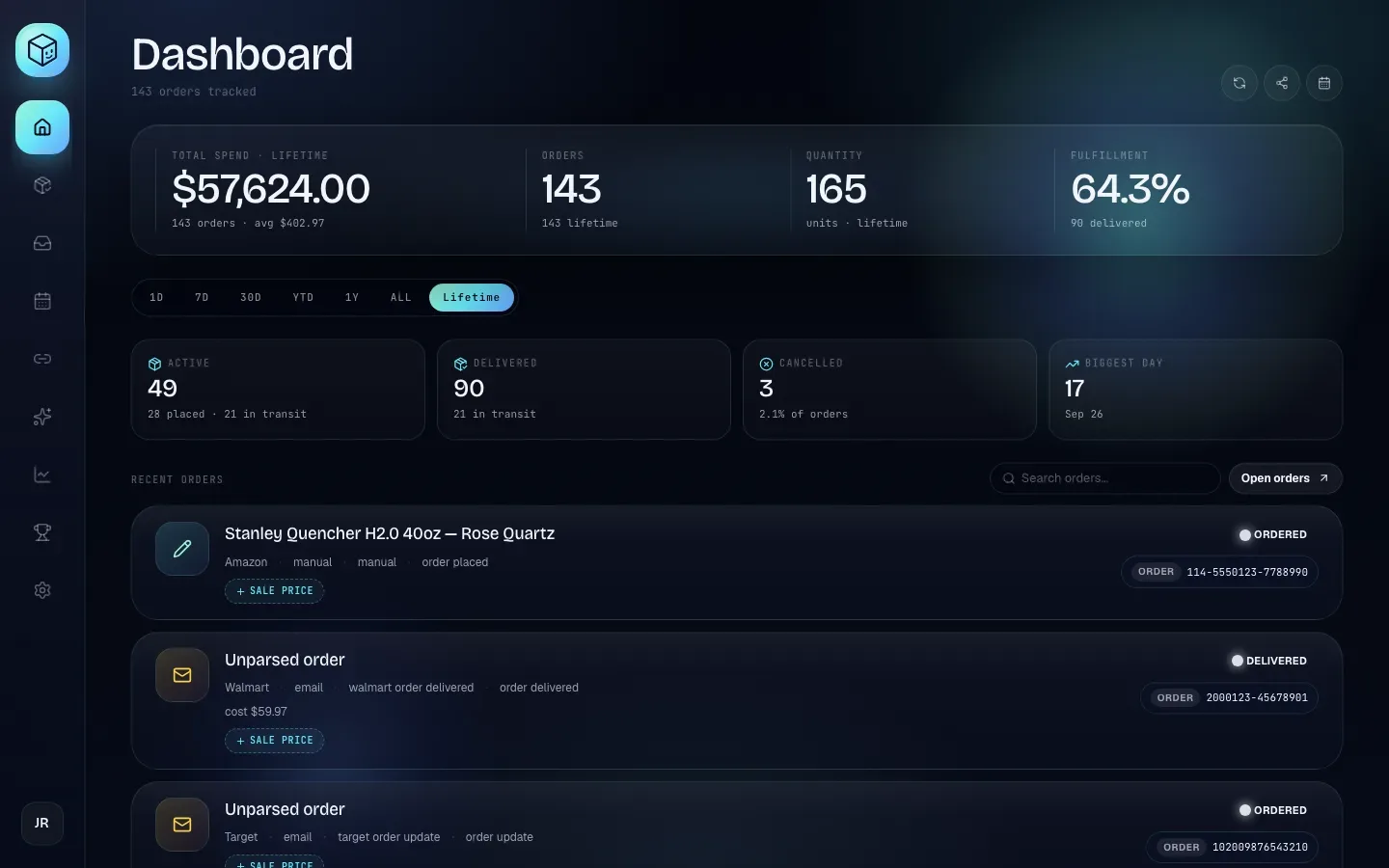
Who it's for
Shippified is built for people who buy retail products to resell and who already have one or both of these:
Discord monitors or checkout bots that post a message in Discord when a checkout succeeds (resellers often call a successful checkout a cook).
An email inbox that receives order confirmations, shipping notices and delivery notices from retailers.
Either one on its own is enough. If you use both, Shippified lines them up so that one purchase shows up as one order, not two.
How the pieces fit together
Everything in Shippified follows the same path, from left to right:
Intake → Orders → Tracking → Money
Intake: where orders come from
A source is anywhere order information arrives from. You manage both kinds on the Links page.
Source | What it is | Where you set it up |
|---|---|---|
Webhook bot | A private URL for one of your Discord monitors. A webhook is a URL that a bot posts each checkout to. You paste it into the monitor's webhook setting, and every checkout it posts arrives in Shippified. | Links → Webhooks |
Email inbox | A mailbox Shippified reads (Google, Microsoft or any IMAP provider), or a forwarding address you send retailer mail to. | Links → Email |
Orders: turning messages into one list
Each message is read by a template: a set of rules that recognises one kind of message (for example, a Target "your order has shipped" email) and pulls out the order number, item, price, tracking number and so on. Built-in templates cover common monitor bots and four retailers: Target, Walmart, Amazon and Best Buy. You can build your own templates on the Templates page for anything else.
Messages that share an order number become one order, whether they came from Discord, email or both. Every order has one of five statuses: Ordered, Shipped, Delivered, Canceled or Issue. Statuses come from the messages Shippified receives, so you rarely set them yourself.
Tracking: following the package
When an order has a tracking number, Shippified works out the carrier from the number. DHL and DHL Express packages are tracked live: Shippified checks with the carrier in the background and marks the order Delivered when the carrier confirms it. UPS, FedEx and USPS numbers are recognised too, and their timeline is built from your shipping and delivery emails.
Money: spend and profit
Shippified already knows what you paid, because it reads the price from the order message (or you enter it). When you sell something, add its sale price to the order. You can also record the tools you pay for, such as monitors and proxies, as subscriptions on the Calendar. The Insights page then shows revenue, cost of goods, subscription costs, gross profit and net profit for any month, quarter or year.
On the Free plan you can add up to 100 new orders each calendar month. Status updates to orders you already have don't count toward that limit. See Plans and billing.
Where to start
If you're brand new, follow this path in order. Each step takes a few minutes.
- Create your account
Sign up at shippified.net with your email, Google or Discord. See Create an account and sign in.
- Run the setup wizard
The first time you sign in, Shippified opens a short setup wizard that creates your first webhook bot, optionally connects an inbox, and sends a test order through. See Quickstart.
- Connect your real sources
Paste your webhook URL into your Discord monitor, and connect the inbox your retailer emails go to. See Connect Discord monitor bots and Connect an email inbox.
- Learn your way around
Take the dashboard tour to see what each screen in the sidebar is for.
- Add sale prices as you sell
Open an order and add what you sold it for. This is what turns spend tracking into profit tracking. See Costs, sale prices and profit.
Browse the guides
Getting started
Bring orders in
Orders
Money and insights
Discord
Account and settings
Help
For developers
Everything you can do in the dashboard is also available through the Shippified API. Start with the API overview, then see authentication and the REST API.