📥Email activity (Inbox)
See what happened to every order email Shippified received, why an email was refused, and what to do when an email didn't create the order you expected.
- Written for
- Anyone with an email inbox or forwarding address connected
- Applies to
- All plans
- Deprecated
- + Deprecated
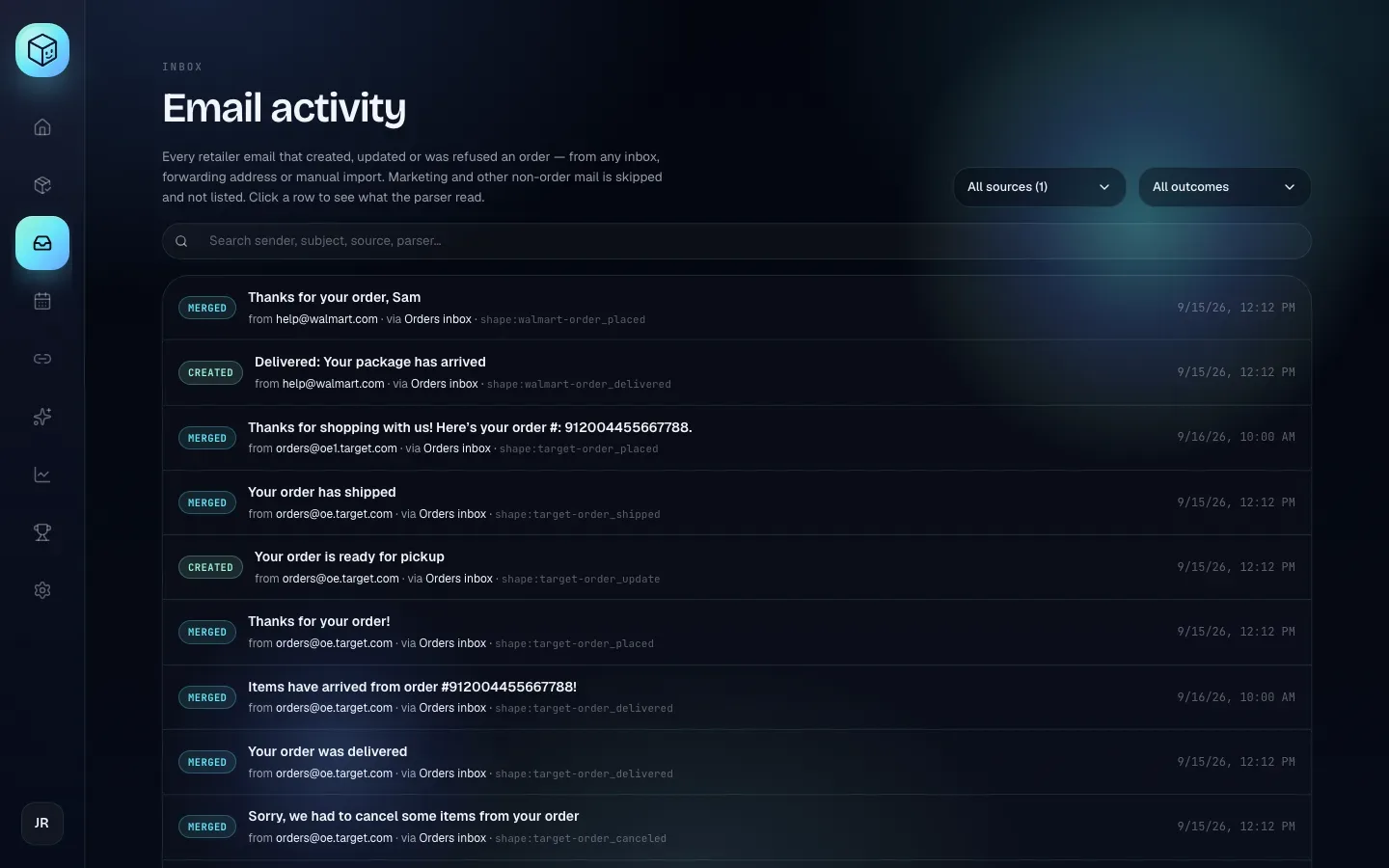
The Inbox page (titled Email activity) is a log of the order emails Shippified has handled. Every retailer email that created an order, updated one, or was refused one is listed here, whichever way it arrived: a connected mailbox, a forwarding address, or an email you imported by hand. Use it to answer "did that email reach Shippified, and what did it do?"
The Inbox is not your list of orders. Orders live on the Orders page; the Inbox shows the emails behind them. Open it from Inbox in the sidebar.
Before you start
The Inbox only fills up once you've connected at least one email source. Until then it says Nothing here yet. and points you to Links → Email. See Connect an email inbox.
What's listed, and what isn't
Listed:
Emails that created a new order.
Emails that merged into an existing order: shipping, delivery and update emails for an order Shippified already has.
Emails that created an order that needs review, because Shippified couldn't tell the store or the item.
Emails that were rejected: from a sender your source doesn't allow, or received after your plan's monthly order limit was reached.
Not listed:
Marketing and other non-order mail. Newsletters, deals, sign-in codes, password resets and account notices are skipped and not kept. A mailbox gets far more of these than order emails, and listing them would bury the ones that matter.
Repeats. An email Shippified already has (matched by its unique message ID) is skipped, whether it was read again by a re-check, a rebuild, or through a second source.
Gmail's forwarding confirmation. It's shown on the forwarding source's card instead. See Connect an email inbox.
The Inbox covers email only. Posts from Discord monitor bots are listed per bot: on Links → Webhooks, click View bot activity on the bot's card. See Connect Discord monitor bots.
Read the list
Each row is one email, newest first:
Part of the row | What it shows |
|---|---|
Badge | The outcome: Created, Merged, Review or Rejected (see the next section) |
Subject | The email's subject, or |
from | The email's sender. For a message forwarded by hand, that's the retailer quoted inside it. |
via | The label of the source it came through. |
Parser | Which template read the email (see "What the parser name means") |
Error line | Only on rejected emails: why it was refused. For an Allowed senders refusal it names the address that was checked, which for a hand-forwarded message is the forwarder unless the forward came from your own address (see Allowed senders). |
Date | The date and time on the email itself, as the retailer sent it |
The footer reads Showing X of Y ingested emails. When the log holds more entries than the page loaded, it adds · Z total logged.
Outcomes
Badge | Filter option | Meaning | What to do |
|---|---|---|---|
Created | Created order | The email started a new order. | Nothing. Click Open parsed order to see it. |
Merged | Merged into existing | The email had the same order number as an order you already had, so it updated that order (status, tracking, delivery and so on) instead of creating a new one. | Nothing. This is how confirmation, shipping and delivery emails combine into one order. |
Review | Needs review | A new order was created, but Shippified couldn't work out the store or the item. The order has the Issue status. | Open the order and fill in what's missing. If it's a store you buy from often, build a custom template for it. |
Rejected | Rejected | No order was created or changed. The error line says why. | See "Fix a rejected email" below. |
There's no separate "updated" outcome: an email that updates an order is Merged.
Filter and search
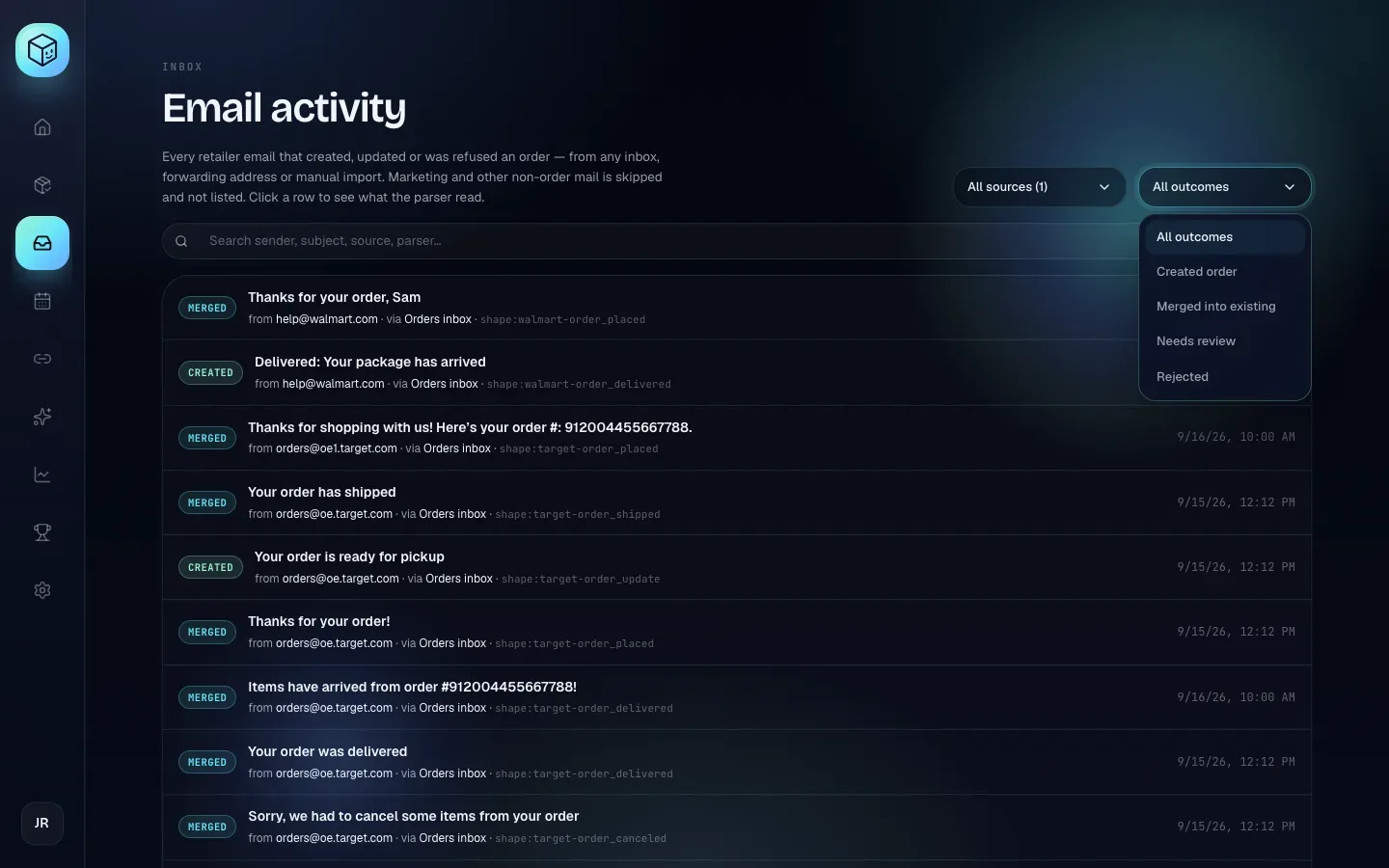
At the top right are two menus, and under the heading a search box:
Source menu: All sources (N), or one of your email sources by label. Choosing a source reloads the list with only that source's emails.
Outcome menu: All outcomes, Created order, Merged into existing, Needs review or Rejected.
Search (Search sender, subject, source, parser…): type any part of a sender address, subject, source label or parser name. For example,
walmartfinds Walmart emails, andallowlistfinds emails refused by Allowed senders. Search isn't case-sensitive.
Filters and search combine. If nothing matches, the page says No emails match the current filters. Clear the search box or set the menus back to All.
The page loads your newest 500 entries for the chosen source, and the outcome filter and search work within those. Shippified keeps a rolling history of recent activity, so the oldest entries drop off over time.
Open a message
Click any row to open its detail panel on the right. Each entry also has its own address, so you can bookmark a message or keep it open in a tab. Close the panel with the back arrow at the top left, or by clicking outside it.
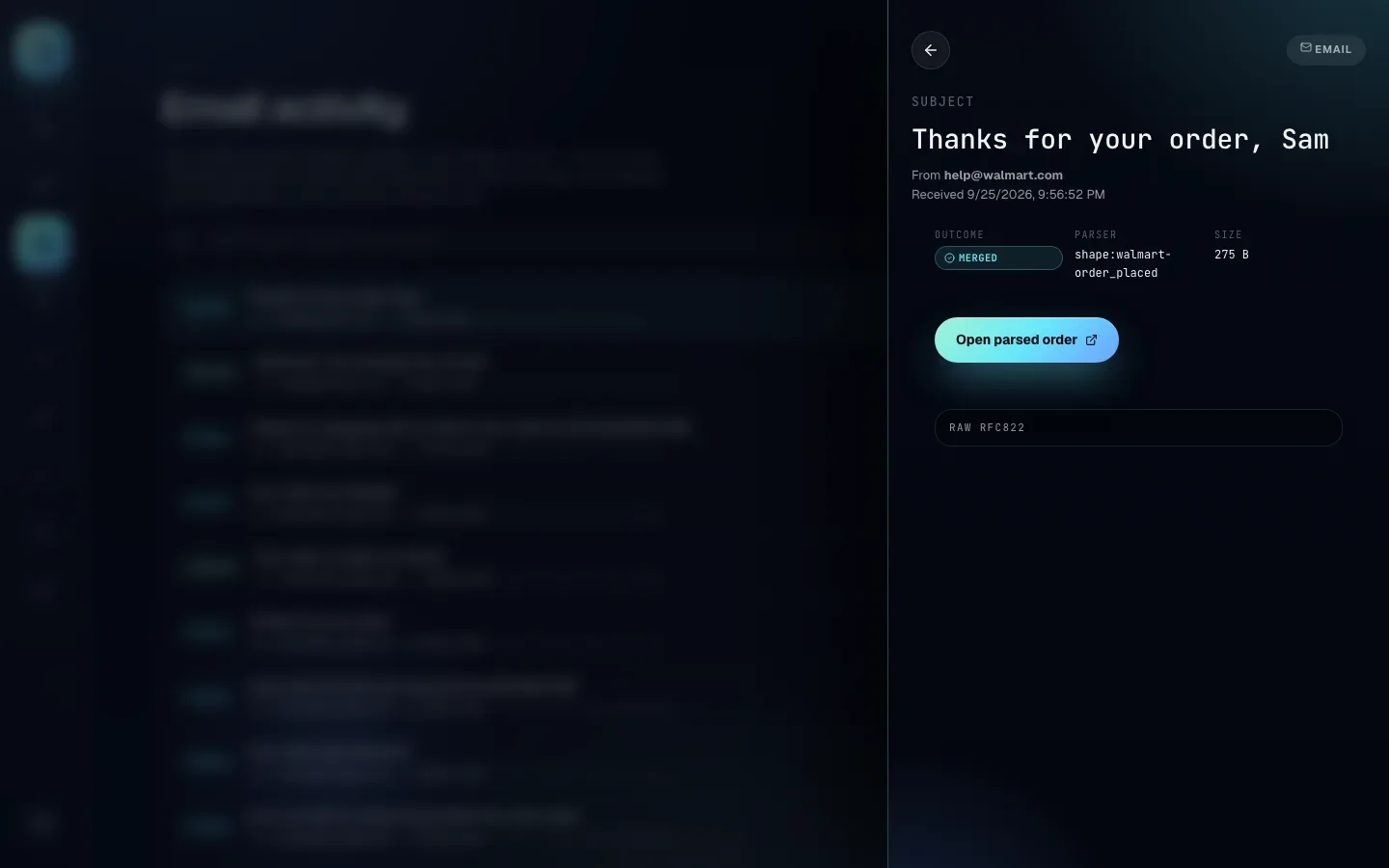
Field | Meaning |
|---|---|
Email chip | This entry came from email. |
Subject | The email's subject line. |
From | The email's sender, as in the list. |
Received | When Shippified processed the email. It can be later than the email's own date (the date in the list), for example for mail brought in by a rebuild or an import. |
Outcome | Created, Merged, Review or Rejected, as above. |
Parser | Which template read it. |
Size | The size of the copy Shippified kept for this entry, for example |
Error box | Only on rejected emails: the reason. |
Open parsed order | Opens the order this email created or merged into. Not shown on rejected emails. |
Raw RFC822 | Click to expand the text Shippified read: the From, Subject and Date lines, then the email's text with the formatting removed (up to 20,000 characters). It's the quickest way to check what the parser actually saw. |
What the parser name means
Parser shown | Meaning |
|---|---|
| A built-in template read it. The name is the retailer and the email type: |
| One of your custom templates read it. |
| No template matched. Shippified used its general rules: a supported retailer, an order number, and a subject that reads like an order event. |
| Refused by the source's Allowed senders before it was read. |
Fix a rejected email
Read the error line on the row or in the detail panel.
- "Sender … is not in this source's allowed senders."
The source has an Allowed senders list and this sender isn't on it. If the named sender is someone who forwarded the email by hand rather than the retailer, the forward didn't come from one of your own addresses, so it was judged by the forwarder's address: forward it from your own address instead, or add the forwarder to the list. Otherwise, on Links → Email, click Edit source on that source, add the retailer's domain (for example
walmart.com) to Allowed senders, and click Save changes. Or clear the list to accept any sender. - "plan_limit_reached (used/cap)"
Your plan's monthly order limit was reached, so no new order was created. Emails that update existing orders still go through. See Plans and billing.
- Bring the email back in
Fixing the setting doesn't reprocess emails that were already refused. For a mailbox source, run a rebuild over the days that were affected. For a forwarding source, forward the email again, or paste it into Import an email by hand on Links → Email.
When an email didn't create the order you expected
Work through these in order.
- Search the Inbox for it
Search for the sender or a word from the subject, with both menus on All.
- It's listed as Merged
It went into an existing order with the same order number. Click Open parsed order to see which one. That's expected for shipping and delivery emails. If two different purchases share an order number, they'll be combined.
- It's listed as Created, but the order looks wrong
Open Raw RFC822 to see what Shippified read, and check the Parser. If the wrong template read it, or details are missing, build or fix a custom template on the Templates page, then click Re-run parsing there to update existing orders. See Rebuild orders from a mailbox.
- It's listed as Review
Shippified created the order but couldn't tell the store or item. Open the order and fill it in. For a store you use often, a custom template fixes future emails.
- It's listed as Rejected
Follow "Fix a rejected email" above.
- It isn't listed at all
Shippified either never received it, or received it and decided it wasn't order mail. Check the source card on Links → Email: a
Last sync failed:line or an auth failed status means mail isn't being read. Check that the retailer is supported (Target, Walmart, Amazon, Best Buy) and that the email reached your Inbox folder (IMAP and Microsoft only read the Inbox). To see how Shippified reads that exact email without creating anything, paste it as the sample in the template builder on the Templates page and look at its In production panel.
Troubleshooting
The page says "Couldn't load inbox."
The list failed to load. Reload the page. If you were signed out, sign in again.
"Open parsed order" opens nothing
The order no longer exists. You may have deleted it, it may have been merged into another order by Re-run parsing, or a mailbox rebuild may have replaced it with a new copy. Search the Orders page by order number instead.
The same email appears twice
A rebuild re-reads mail and logs each email it turns into an order again, so an email can appear once from when it first arrived and once from the rebuild. The order itself isn't duplicated.
The source says "Source removed"
The email came through a source you've since deleted. The entry and any orders it created are kept.