Tickets
Tickets are the smallest unit of work in Tessel. A ticket can hold a bug report, a slice of a feature, a follow-up from a customer call or a chore nobody wants to forget.
Overview
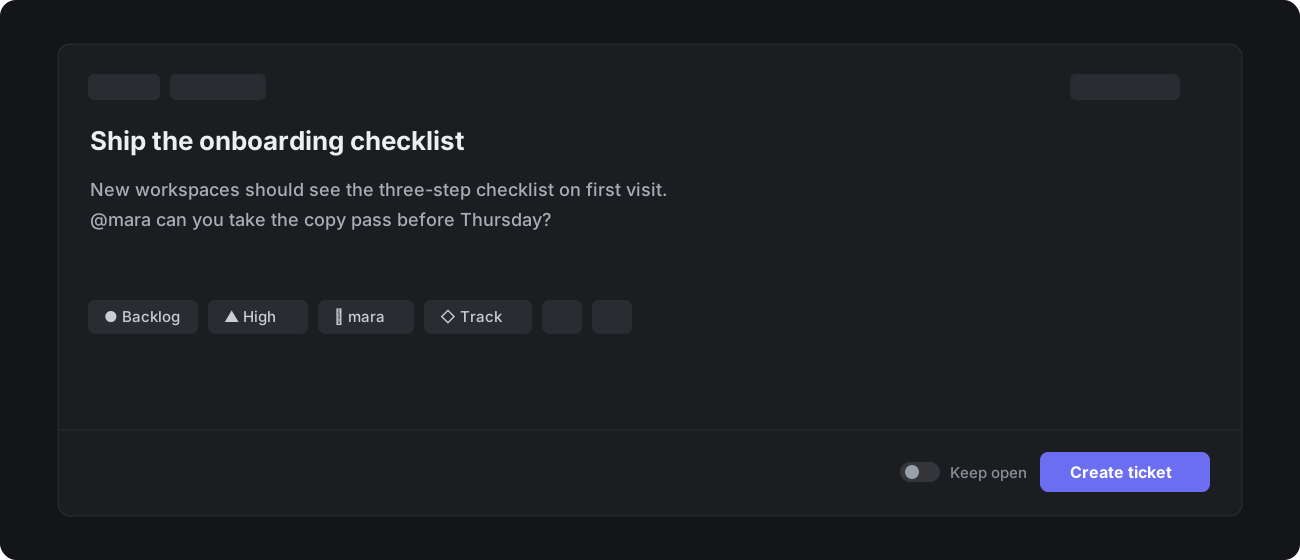
Every ticket belongs to exactly one team and carries a key made of the team's prefix and a running number, such as TSL-412. A ticket needs a title and a state; everything else is optional and can be filled in later.
Creating tickets
Press N anywhere in the app to open the composer
Click New ticket in the top left of the sidebar
To start from a template, press Alt N and pick one from the list
Visit
tessel.newin any browser tab to open a blank composer in your last-used team
The composer remembers the team, state and labels of the last ticket you created, so filing five related tickets in a row takes five titles and nothing else. Toggle Keep open to file several in one sitting.
Paste to create
Paste a list of lines into an empty composer and Tessel offers to turn each line into its own ticket. Indented lines become sub-tickets of the line above them.
Drafts
If you close the composer before saving, the text is kept as a draft. Drafts sync across devices and appear under My drafts in the sidebar until you file or discard them.
Create a ticket by email
Each team has an intake address. Mail sent to it becomes a ticket in that team's intake inbox, with the subject as the title and the body as the description. Attachments up to 25 MB are kept.
Team intake address
Find the address under Team settings → Intake → Email. You can rotate it at any time; the old address stops accepting mail immediately.
Templated intake address
Each ticket template can have its own address. Mail sent there is filed with the template's properties already applied, which is a tidy way to route support escalations straight to the right labels.
Recurring tickets
Some work comes back on a schedule: rotating on-call notes, a monthly dependency audit, quarterly access reviews. Make any ticket recurring and Tessel files a fresh copy on the cadence you choose.
Open the ticket composer
Apply a template (optional)
Open the
…menuChoose Repeat…
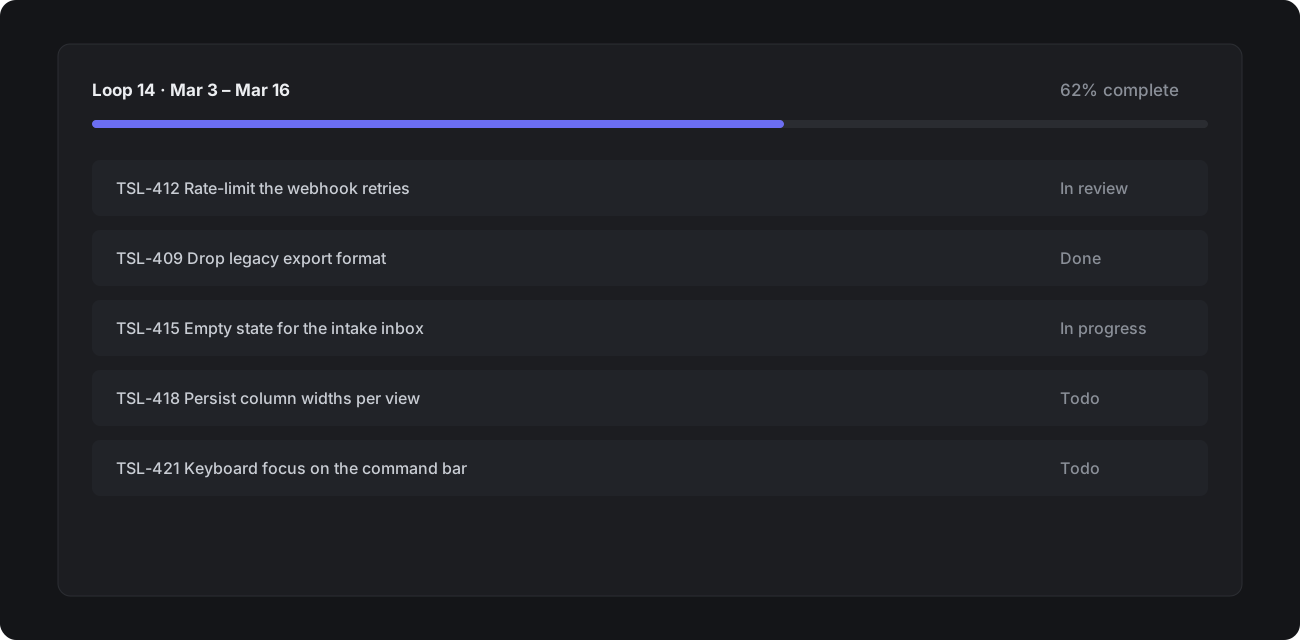
Recurring tickets are listed under Team settings → Recurring. The next copy is filed at 00:01 on its due date, in the team's time zone.
Editing a template later does not change recurring tickets that were already created from it. Edit the recurring ticket itself, or recreate it from the updated template.
Convert an existing ticket
Open the ticket, choose … → Repeat…, then pick the first due date and the cadence. You can also press Cmd K and type repeat.
Create from team settings
Go to Team settings → Recurring
Click New and choose the schedule
Prefilled ticket links
A link can open the composer with fields already set. Share it in a runbook, a form confirmation or a chat bot.
https://tessel.app/team/<key>/newhttps://tessel.app/newhttps://tessel.new
To prefill fields:
Add a
?to the end of the linkName the field you want to set
Add
=Add the value, and join further fields with
&
Field | How to set it | Example |
|---|---|---|
Title and description |
|
|
State | the state's name or id |
|
Priority |
|
|
Assignee | a member's handle, or |
|
Labels | comma-separated names |
|
Track | the track's slug |
|
Editing tickets
Click any field in the ticket view to change it, or select the ticket and use its shortcut: S for state, P for priority, A for assignee, L for labels. Edits are saved as you make them and recorded in the ticket's history.
Restore an earlier description
Open … → Description history to see every saved version of the description, who wrote it and when. Pick a version and choose Restore; the current text is kept in the history, so restoring is always reversible.
Move a ticket to another team
Press Cmd Shift M, or open … → Move. Moving a ticket gives it a new key in the destination team. The old key keeps working: links and searches that use it redirect to the ticket.
Property | What happens | What to do |
|---|---|---|
Loop | Cleared if the destination team has no matching loop | Add it to a loop in the new team |
Team labels | Removed | Create a label with the same name in the destination team |
Track | Kept if the track includes the destination team | Add the team to the track first |
Priority | Kept | — |
Key | Changed | Old keys redirect to the ticket |
State | Mapped to the closest matching state | Check the state after moving |
FAQ
Can I file tickets with keyboard shortcuts in every browser?
Yes. A few browsers reserve Cmd N, which is why the composer shortcut is the single key N.
Is there a size limit for attachments sent by email?
Each attachment can be up to 25 MB, and a single message up to 40 MB in total.